


Rule Builder
Shopware's Rule Builder allows you to define rules that you can use to customize various settings and features.
Overview
The Rule Builder module can be found under Settings > Automation > Rule Builder.
Here you will find a table with all available rules. You can show and hide columns and sort rules by columns.
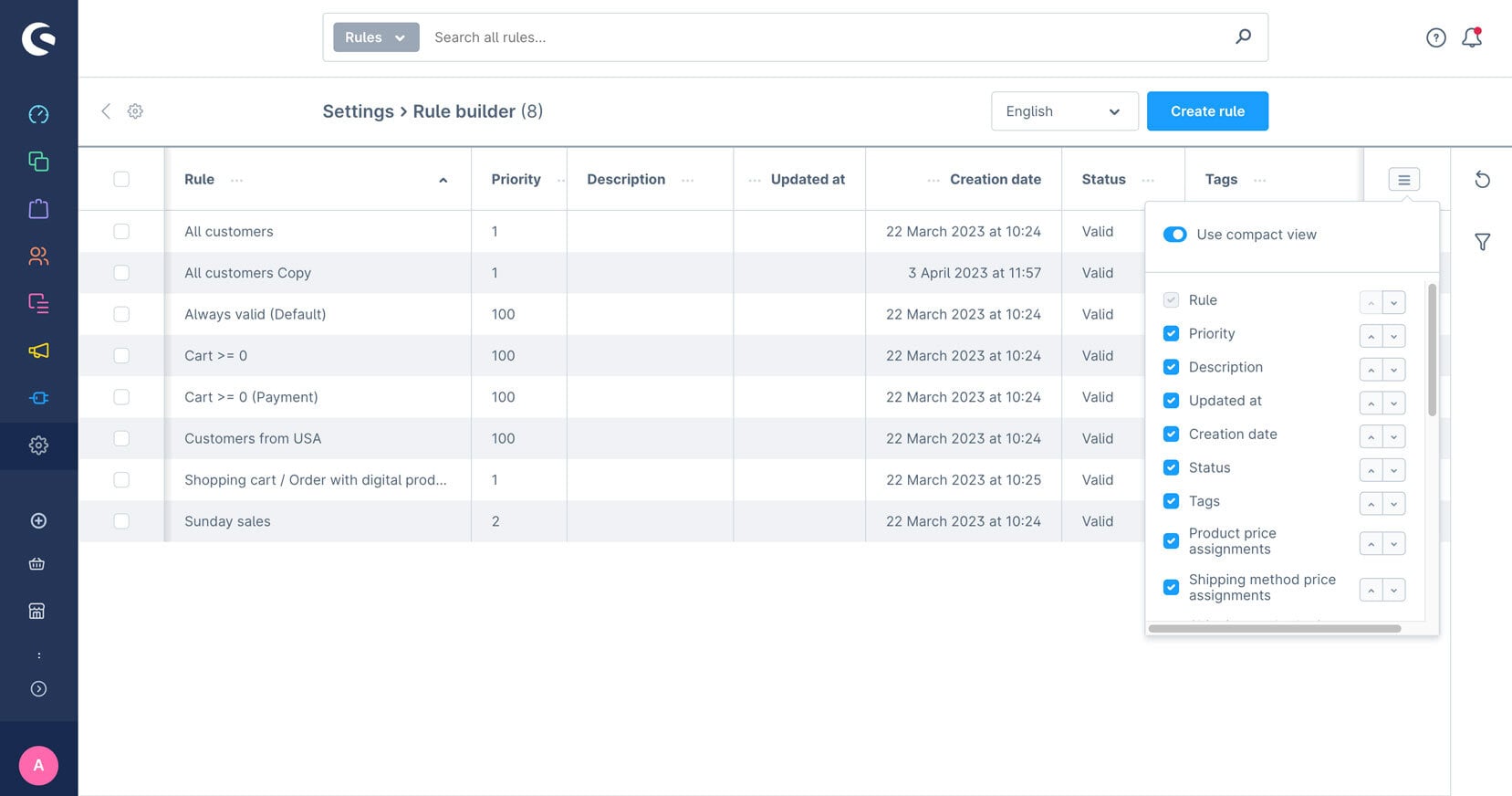
| Available columns | Description |
|---|---|
| Rule | Contains the name stored for the rule. For instance this name is used in the administration for assigning the rule in other modules. |
| Priority | The priority indicates whether a rule is applied before another rule, if relevant. The higher the priority, the sooner it is executed. |
| Description | Shows the (optional) description of the rule, which may contain more information about the use case. |
| Updated at | The rule was updated on this date. |
| Creation date | The rule was created on this date. |
| Status | Indicates whether the rule is valid, only valid rules can be used. Rules created through the administration are checked for validity and can only be saved if all mandatory fields are filled with valid values. |
These columns are hidden in the default view. Use the context menu to activate them.
| Available columns | Description |
|---|---|
| Product price assignments | Shows how often the rule was used to individualize product prices. |
| Shipping method price assignments | Shows how often the rule was used to individualize a price within a shipping price matrix. |
| Shipping method price matrix assignments | Shows how many times the rule was used to individualize a shipping price matrix. |
| Shipping method assignments | Shows how often the rule was used to determine the availability of shipping methods. |
| Payment method assignments | Shows how often the rule was used to determine the availability of payment methods. |
| Promotion customer rule assignments | Shows how often a rule related to customers was used to determine the availability of discount promotions. |
| Flow assignments | Shows how many times the rule has been used in flows. |
| Promotion order rule assignments | Shows how often a rule relating to orders has been used to determine the availability of discount promotions. |
| Promotion cart rule assignments | Shows how often a rule related to the cart has been used to determine the availability of discount promotions. |
| Discount assignments | Shows how often the rule was used to individualize discounts. |
| Promotion set group rule assignments | Shows how many times the rule was used to define product groups for discount promotions. |
| Tax Provider assignments | Shows how often the rule was used to individualize tax providers. |
| Warehouse Group assignments | Shows how often the rule was used to individualize warehouse groups. |
Want to dive deeper?
You’ll find an interactive learning path on this topic in the Community Hub. Explore it step by step, try out features directly, and grow your knowledge in a playful, hands-on way.
Components of a rule
A rule consists of general information and conditions. Conditions decide whether a rule applies during evaluation or not.
General information
Name: Give a name to your rule.
Description: Describe the function of your rule so that it is understandable for all users.
Priority: Define the priority to determine in which order rules are applied when more than one rule applies.
(A rule with priority 2 is applied before a rule with priority 1, but after a rule with priority 3).
Type: Define a type if you want to limit the assignment possibilities of your rule.
Tags: Add tags to your rules to organize them. You can use tags to search and filter in the overview.
Conditions
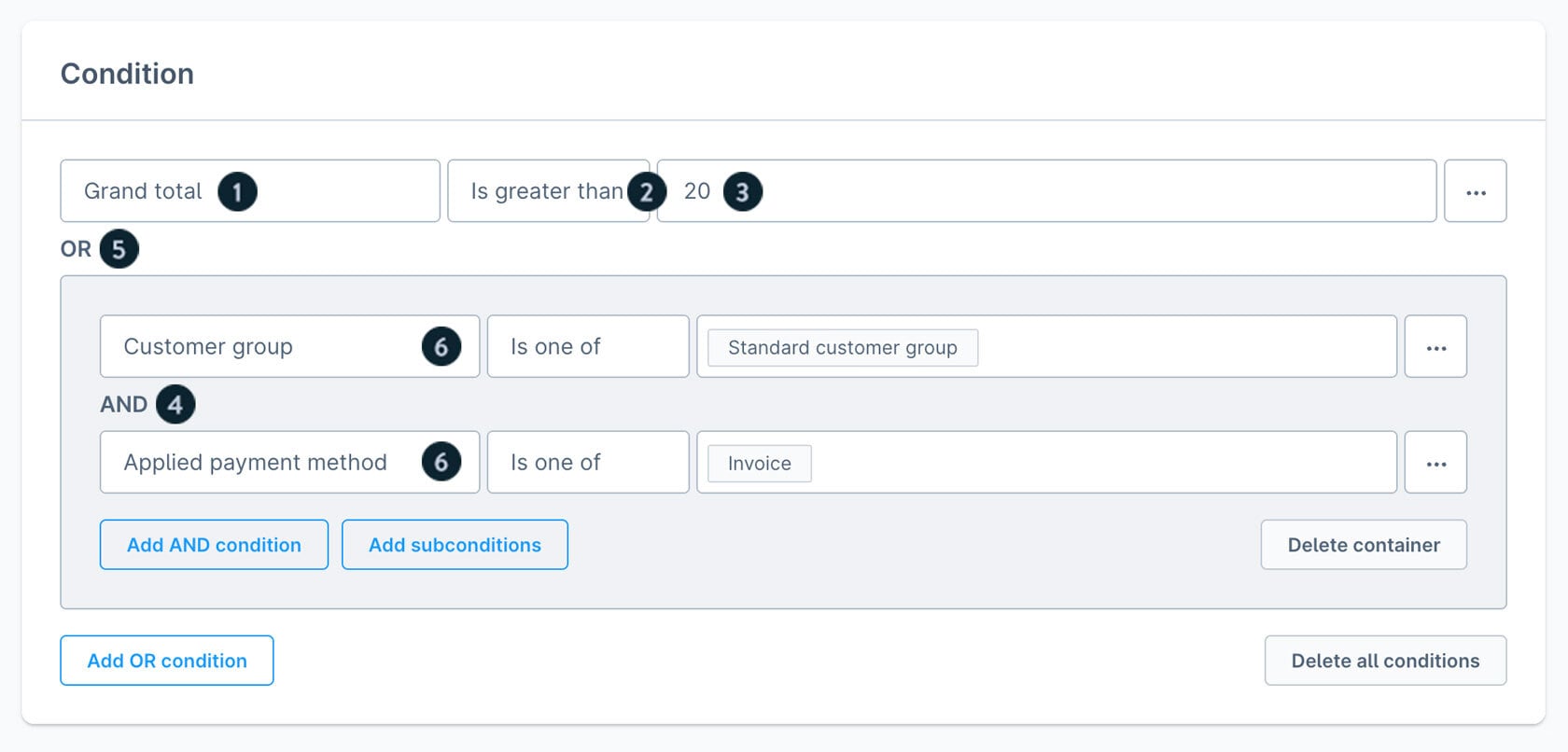
| Component | Description | Example |
|---|---|---|
| Condition (1) | The condition defines the parameter you are querying. | Grand total: This condition checks if the grand total of the shopping cart meets certain criteria. |
| Operator (2) | Depending on the condition, one or more operators are available. The operator is used to compare the condition with the input value. | Greater than: The condition is true if the cart value is greater than the input value. |
| Input value (3) | The input value is compared with the condition via the operator. | 20: The condition applies if the cart value is greater than 20 €. |
| AND connection (4) | When multiple conditions are linked with "AND", all conditions must be fulfilled for the rule to apply. | The customer group is "Standard customer group" AND The payment method is "Invoice". |
| OR connection (5) | If several conditions are linked with "OR", only one condition must be fulfilled for the rule to apply. | The customer group is "Standard customer group" OR The payment method is "Invoice". |
| Subcondition (6) | Subconditions are created automatically when you switch between AND and OR connections. A rule with one condition and two subconditions is true if two of the total three conditions are met: • Condition 1 must be fulfilled. • Condition 2 or 3 must be fulfilled. | The rule applies if the cart value is greater than 20 € AND the customer group is “Standard customer group” OR the payment method used is "Invoice". |
Here you will find an overview of all conditions.
Here you will find an overview of all operators.
In our tutorial, you will find example rules.
Preview mode
Preview mode allows you to verify that your rule works as you intend.
Preview mode checks conditions in real-time, so it's especially effective to use it while building your rule.
Note: Preview mode is available for Shopware Rise and higher plans.
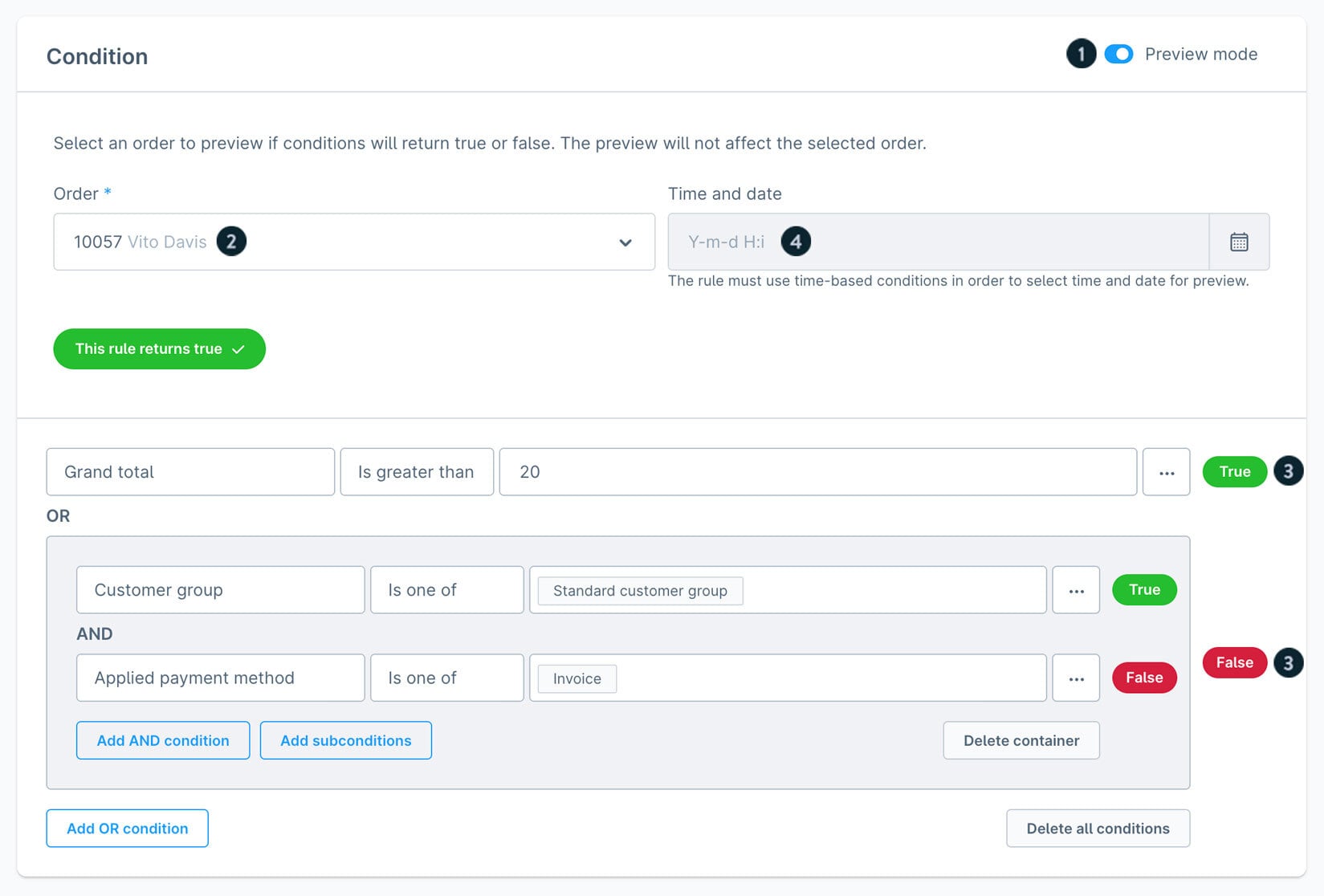
- Activate the preview mode (1)
- Select an order (2). The rule's conditions are now checked against data from the selected order. By the statements TRUE / FALSE (3), you can see whether the conditions are true or not.
- If your rule contains conditions that query a specific point in time, you can simulate this point in time using the Time and date field (4).
Create rules
- In the Shopware Administration, go to Settings > Automation > Rule Builder.
- Click on Create Rule.
- Fill in the general information of the rule.
- Select at least one condition that must be met for the rule to apply.
- Choose an operator you want to use to check the condition.
- Specify at least one input value.
- Save the rule to be able to assign it.
Delete rules
- In the Shopware Administration, go to Settings > Automation > Rule Builder.
- Click on the context menu in the far right column.
- Click on the Delete entry.
Note
- Rules cannot be deleted as long as they are assigned.
- Attention: Deleted rules cannot be restored.
Assign rules
In the Assignments tab, you will see an overview of all the places where the rule is already used or can be used.
- Availability of payment methods
- Availability of shipping methods
- Calculation of shipping costs
- Availability of promotions
- Calculation of discounts
- Calculation of advanced prices
- Define flows
- Product visibility (requires Dynamic Access)
- Category visibility (requires Dynamic Access)
- Visibility of Shopping Experience Blocks (requires Dynamic Access)
Functions
- You can see at a glance which areas the rule is currently being used in.
- You can navigate directly to the relevant configuration (e.g. shipping method or promotion), provided that corresponding data already exists.
- Rule changes can be made in a targeted way, since you can identify which shop areas are affected.
Notes and Examples
Not all assignments are immediately available. Buttons may be inactive (grayed out) if no suitable data records exist yet.
Examples:
- The button for Promotions is only active if at least one promotion has been created in the system.
- For Dynamic Access Landing Pages, the button is only available if corresponding pages with access restrictions have already been set up.
The "Assignments" tab is not used for assigning rules directly, but serves as an overview and navigation help for existing rule usages.
Example:
You have a rule “Orders over 100 €”, and it is applied to:
- Shipping method “Free shipping from €100”
- Discount rule “10% from €100”
- Flow Builder rule “Email notification from high order value”
Then the Assignments tab shows you exactly these three places.
Overview of all conditions
The evaluation context describes the moment when a rule is evaluated.
Example: Order status > is one of > Open
In this example, there can be two different evaluation contexts:
- A buyer has purchased something in the storefront of your online store.
- An administrator has set the status of an order to "Open" in the order module.
General
| Name | Description | Example | Special features | Input format |
|---|---|---|---|---|
| Triggered by Admin API | Checks whether the evaluation context was triggered by the Admin API | Yes | Selection | |
| Date range | Compares a specific date range with the date range used in the evaluation context | 2012-03-08 to 2012-04-12 2012-03-08 12:00 to 2012-04-12 14:00 | Can be used with or without time frame | Text (yyy-mm-dd) Text (yyyy-mm-dd hh:ii) |
| Always valid | Is always fulfilled | |||
| Language | Compares a specific language with the language used in the evaluation context | English | Multi-selection | |
| Tax display | Compares a specific Tax display with the Tax display used in the evaluation context | Gross | Selection | |
| Sales Channel | Compares a specific Sales Channel with the Sales Channel used in the evaluation context | Storefront | Multi-selection | |
| Currency | Compares a specific Currency with the Currency used in the evaluation context | Euro | Multi-selection | |
| Day of the week | Compares a specific Day of the week with the Day of the week used in the evaluation context | Monday | Selection | |
| Time range | Compares a specific Time range with the Time range used in the evaluation context | 12:00 to 14:00 | Selection / Text (hh:ii) |
Orders
| Name | Description | Example | Special features | Input format |
|---|---|---|---|---|
| Affiliate code (order) | Compares an affiliate code specified by the user with the affiliate code used in the evaluation context | Text | ||
| Campaign code (order) | Compares a specific Campaign code with the Campaign code used in the evaluation context | Text | ||
| Order status | Compares an order status specified by the user with the order status used in the evaluation context | Open | Multiple selection | |
| Order created by admin (flow) | Checks whether the order was created by the administrator in the evaluation context | Yes | Selection | |
| Order with custom field | Checks whether an order in the evaluation context has a specific additional field | Selection | ||
| Order with document | Checks whether an order in the evaluation context has a document of the selected type | Invoice | Multiple selection | |
| Order with sent document | Checks whether an order in the evaluation context has already been sent to the customer as a document of the selected type | credit note | Multiple selection | |
| Order with tag | Checks whether an order in the evaluation context has the selected day | Multiple selection | ||
| Delivery status | Compares a delivery status determined by the user with the delivery status used in the evaluation context | Shipped | Only applicable in a flow context | Multiple selection |
| Payment status | Compares a payment status determined by the user with the delivery status used in the evaluation context | Paid | Multiple selection | |
| Applicable in Administration | Can be used as an availability rule to allow access to e.g. payment or shipping methods only in the Administration. | Yes | Selection |
Flow Builder
| Name | Description | Example | Special features | Input format |
|---|---|---|---|---|
| Order with Tag | Compares a specific tag with the order tag used in the evaluation context | Multi-selection |
Customers
| Name | Description | Example | Special features | Input format |
|---|---|---|---|---|
| Affiliate code | Compares a specific Affiliate code with the Affiliate code used in the evaluation context | Text | ||
| Customer logged in | Checks whether the customer is logged into the evaluation context | Yes | Selection | |
| Count of orders | Compares a specified number with the number of completed orders contained in the evaluation context | 10 | Text | |
| Commercial customer | Checks whether the customer in the evaluation context is a corporate client | Yes | Selection | |
| Guest account | Checks whether the customer in the evaluation context is a commercial customer | Yes | Selection | |
| Total value of completed (done) orders | Compares a specific total value with the total value of all completed orders contained in the evaluation context | 200 | Text | |
| Requested customer group | Checked which customer group was requested during registration. | Selection | ||
| Campaign code | Compares a specific Campaign code with the Campaign code used in the evaluation context | Text | ||
| Customer salutation | Compares a specific Customer salutation with the Customer salutation used in the evaluation context | Mrs | Multi-selection | |
| Customer is active | Checks whether the customer is active in the evaluation context | Yes | Selection | |
| Customer is newsletter recipient | Checks whether the customer in the evaluation context is a newsletter recipient | Yes | Selection | |
| Customer with deviating shipping address | Checks whether the customer has a deviating delivery address in the evaluation context | Yes | Selection | |
| Customer with default payment method | Compares a specific payment method with the customer's default payment method used in the evaluation context | |||
| Customer with tag | Compares a specific tag with the customer tag contained in the evaluation context | Multi-selection | ||
| Customer with custom field | Compares a specific custom field with the customer custom field contained in the evaluation context | Selection | ||
| Customer created by admin | Checks whether the customer in the evaluation context was created by the administrator | Yes | Selection | |
| Customer email address | Compares a specific email address with the customer email address used in the evaluation context | customer@example.com *@example.com | "*" can be used as a placeholder in the input value. For the example "@example.com" the condition applies to all email addresses of the domain "example.com". | Text |
| Customer age | Compares a specific age with the customer age contained in the evaluation context | 36 | Text (yyyy-mm-dd hh:ii) | |
| Customer date of birth | Compares a specific date with the customer birthday contained in the evaluation context | 1980-03-11 12:00 | Text | |
| Customer group | Compares a specific customer group with the customer group used in the evaluation context | Standard customer group | Multi-selection | |
| Customer surname | Compares a specific name with the customer surname contained in the evaluation context | Meyer | Text | |
| Customer number | Compares a specific number with the customer number contained in the evaluation context | 10060 | Text | |
| Shipping address: State | Compares a specific state with the state of the delivery address contained in the evaluation context | North Rhine-Westphalia | Multi-selection | |
| Shipping address: Country | Compares a specific country with the country of the delivery address contained in the evaluation context | Germany | Multi-selection | |
| Shipping address: Postal code | Compares a specific postal code with the postal code of the delivery address contained in the evaluation context | 48624 | Alphanumeric / Numeric Multiple values possible (press Enter to enter multiple values) | Text |
| Shipping address: City | Compares a specific city with the city of the shipping address contained in the evaluation context | Schoeppingen | Text | |
| Shipping address: Street | Compares a specific street with the street of the delivery address contained in the evaluation context | Ebbinghoff 10 | Text | |
| New customer | Checks whether the customer in the evaluation context is a new customer. This applies if the date of the first application is the same as the current date. | Yes | This condition will be removed with the next major release. Use Days since first login instead, so you can specify exactly how long a customer should be considered a new customer. | Selection |
| Billing address: State | Compares a specific state with the state of the billing address contained in the evaluation context | North Rhine-Westphalia | Multi-selection | |
| Billing address: Country | Compares a specific country with the country of the billing address contained in the evaluation context | Germany | Multi-selection | |
| Billing address: Postal code | Compares a specific postal code with the postal code of the billing address contained in the evaluation context | 48624 | Alphanumeric / Numeric Multiple values possible (press Enter to enter multiple values) | Text |
| Billing address: City | Compares a specific city with the city of the billing address contained in the evaluation context | Schoeppingen | Text | |
| Billing address: Street | Compares a specific street with the street of the billing address contained in the evaluation context | Ebbinghoff 10 | Text | |
| Time since first login | Compares a certain number of days with the number of days since the first login (registration) contained in the evaluation context. | 5 | With e.g. <= 5 you get all customers who have logged in for the first time five days ago until today. This allows you to determine how long a customer counts as a new customer for you. | Text |
| Time since last log in | Compares a specified number of days with the number of days since the last login contained in the evaluation context | 2 | Text | |
| Time since last order | Compares a specified number of days with the number of days since the last order contained in the evaluation context | 4 | Text |
Marketing & Promotions
| Name | Description | Example | Special features | Input format |
|---|---|---|---|---|
| Quantity of discounts | Compares a specific number with the number of discounts contained in the evaluation context | 1 | Text | |
| Promotion | Compares a specific discount action with the discount action contained in the evaluation context | Multi-selection | ||
| Promotions with code option | Compares a specific code option with the code option of the discount action contained in the evaluation context | Fixed promotion code | Selection | |
| Subtotal of all discounts | Compares a specified amount with the subtotal of all discounts contained in the evaluation context | 8 | Text |
Items in shopping cart
| Name | Description | Example | Special features | Input format |
|---|---|---|---|---|
| Quantity of distinct items | Compares a specific number with the number of different items contained in the evaluation context | 4 | Text | |
| Item is marked as "new" | Checks whether an item is marked as "new" in the evaluation context | Yes | Selection | |
| Item with clearance sale | Checks whether an item in the evaluation context is an item in clearance sale | Yes | Selection | |
| Item in dynamic product group | Compares a specific dynamic product group with the dynamic product group of an item contained in the evaluation context | Multi-selection | ||
| Item in category | Compares a specific category with the category of an item contained in the evaluation context | Multi-selection | ||
| Item is promoted | Checks whether an item is promoted in the evaluation context | Yes | Selection | |
| Item with average rating | Compares a specific value with the average rating of an item contained in the evaluation context | 4,5 | Text | |
| Item with free shipping | Checks whether an item in the evaluation context has no shipping costs | Yes | Selection | |
| Item with width | Compares a specific width with the width of a position contained in the evaluation context | 500 mm | Text | |
| Item with purchace price | Compares a specific price with the purchase price of an item contained in the evaluation context | 20 | Text | |
| Item with release date | Compares a specific date with the release date of an item contained in the evaluation context | 2023-03-22 12:00 | Text (yyyy-mm-dd hh:ii) | |
| Item with creation date | Compares a specific date with the creation date of an item contained in the evaluation context | 2023-03-06 08:00 | Text (yyyy-mm-dd hh:ii) | |
| Item with weight | Compares a specific weight with the weight of an item contained in the evaluation context | 2,5 kg | Text | |
| Item with manufacturer | Compares a specific manufacturer with the manufacturer of an item contained in the evaluation context | Multi-selection | ||
| Item with height | Compares a specific height with the height of a position contained in the evaluation context | 200 mm | Text | |
| Item available | Compares a certain number with the available stock of a position contained in the evaluation context. | 130 | Up to Version 6.5, it evaluated the actual stock minus items already sold but not yet shipped. Since Version 6.6, this value is just a mirror of the stock value. (You can find some background information on this change here). Since version 6.6, it's recommended to use the "Item in stock" condition. | Text |
| Item with length | Compares a specific length with the length of an item contained in the evaluation context | 400 mm | Text | |
| Item with price/list price percentage ratio | Compares a specific decimal value with the price/list price percentage ratio of a position contained in the evaluation context | 0,4 | Text | |
| Item with tax rate | Compares a specific tax rate with the tax rate of a position contained in the evaluation context | Multi-selection | ||
| Item with list price | Compares a specific price with the list price of a position contained in the evaluation context | 12 | Text | |
| Item with tag | Compares a specific tag with the tag of a position contained in the evaluation context | Multi-selection | ||
| Item in stock | Compares a certain number with the stock of a position contained in the evaluation context | 36 | Text | |
| Item with volume | Compares a specific volume with the volume of a position contained in the evaluation context | 800 mm³ | Text | |
| Item with variant or property value | Compares a specific variant or property value with the variant ot property value of an item contained in the evaluation context | Color: Red | Multi-selection | |
| Item with custom field | Compares a specific custom field with the custom field of an item contained in the evaluation context | Option ‘Available in shopping carts’ must be activated | Selection | |
| Item of type | Compares a specific type with the type of an item contained in the evaluation context | Discount / surcharge | Selection | |
| Items in cart | Compares a specific number with the number of all items in the shopping cart contained in the evaluation context | 6 | Text | |
| Item quantity | Compares a specific number with the quantity of an item in the shopping cart contained in the evaluation context | 2 | Text | |
| Item unit price | Compares a specific price with the unit price of an item in the shopping cart contained in the evaluation context | 14,99 | Text | |
| Item total (qty x price) | Compares a specific amount with the subtotal of an item in the shopping cart contained in the evaluation context | 29,98 | Text | |
| Subtotal of all goods (excl. discounts/fees) | Compares a specific amount with the subtotal of all items in the shopping cart contained in the evaluation context | 89,94 | Condition with optional Filter | Text |
| Suml of purchace prices | Compares a specific amount with the total of the purchase prices of all items in the shopping cart contained in the evaluation context | 60 | Text |
Shopping cart
| Name | Description | Example | Special features | Input format |
|---|---|---|---|---|
| Total product quantity (units) | Compares a specific number with the total quantity of all products in the shopping cart contained in the evaluation context | 8 | Condition with optional Filter | Text |
| Number of distinct products | Compares a specific number with the total quantity of distinct products in the shopping cart contained in the evaluation context | 4 | Condition with optional Filter | Text |
| Total weight of all products | Compares a specific weight with the total weight of all products in the shopping cart contained in the evaluation context | 16 kg | Text | |
| Cart total (incl. shipping) | Compares a specific amount with the grand total of all items in the shopping cart contained in the evaluation context. The grand total is made up of the total and the shipping costs | 120 | Text | |
| Total volume of all products | Compares a specific volume with the total volume of all products in the shopping cart contained in the evaluation context | 1600 mm³ | Text | |
| Cart sum of items (excl. shipping) | Compares a specific amount with the total contained in the evaluation context. The total is composed of the item subtotals and discounts | 114,5 | Text | |
| Shipping costs | Compares a specific number with the shipping costs included in the evaluation context | 4,5 | Text | |
| Applied shipping method | Compares a specific shipping method with the shipping method used in the evaluation context | Express | Multi-selection | |
| Applied payment method | Compares a specific payment method with the payment method used in the evaluation context | Invoice | Multi-selection |
Conditions with optional filter
Some conditions offer the possibility to limit the input value by applying additional conditions. You can recognize these conditions by the filter symbol (1) in the input field.
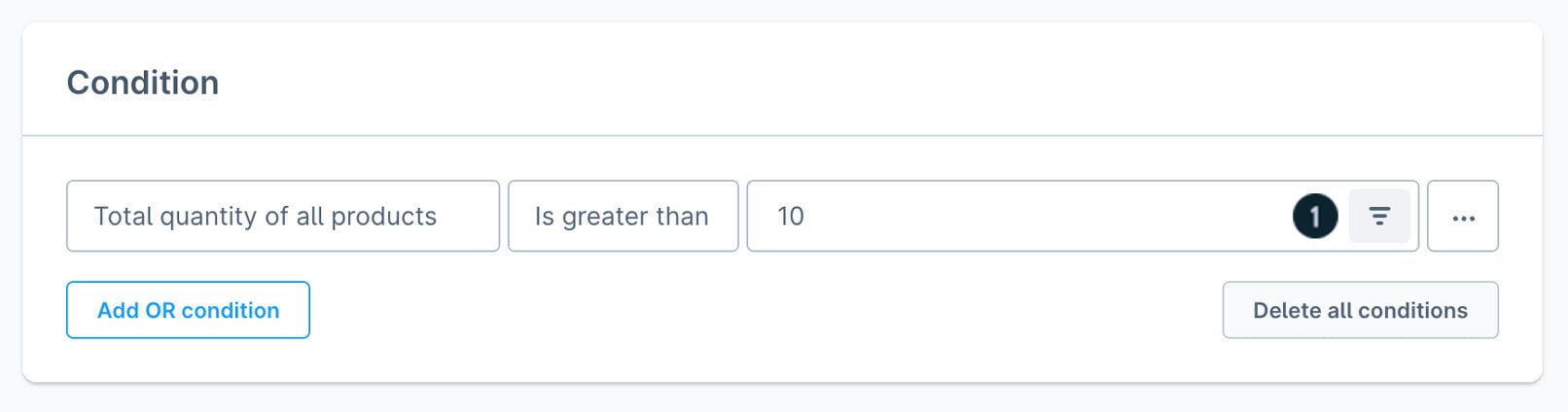
Examples of use for conditions with optional filter
Subtotal of all items
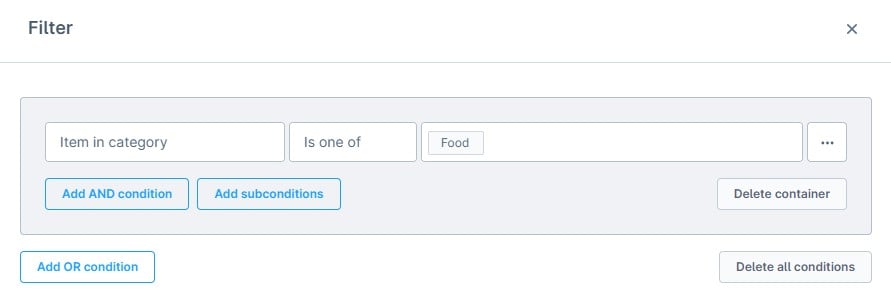
As part of a promotion, customers are to receive a discount if the subtotal of all items in their cart totals at least 250 euros. However, it should only apply to products in the ‘Food’ category.
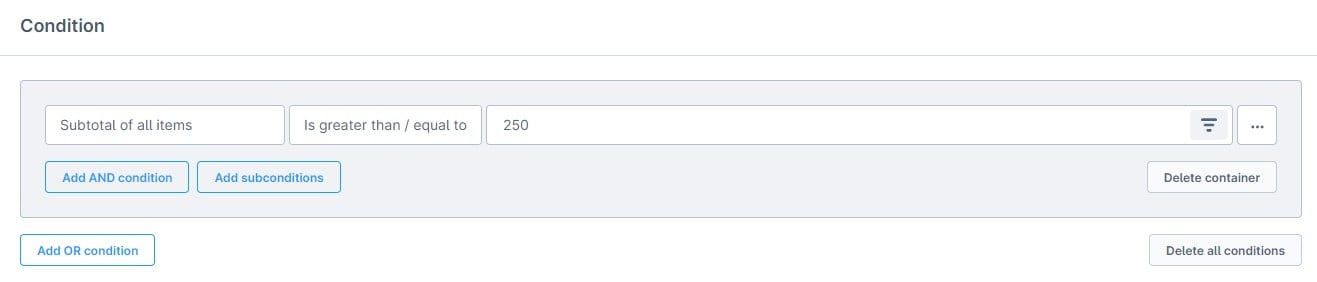
In this case, we use the condition ‘Subtotal of all items’ to check for a predefined value. This condition can now be narrowed down further using the filter symbol, e.g. to items from a specific category.
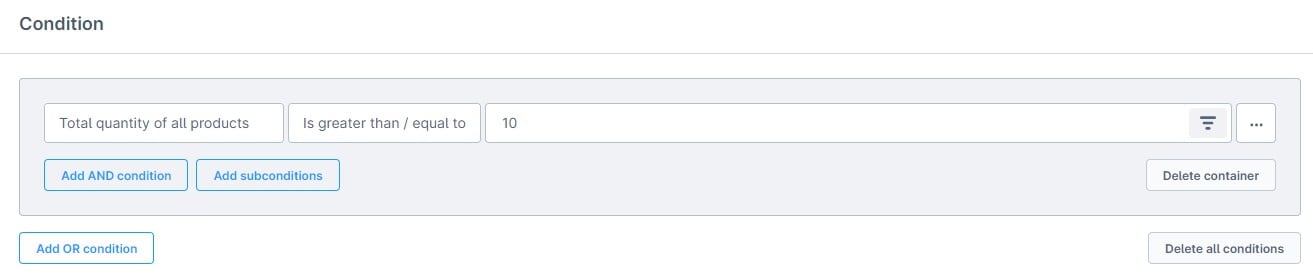
Total quantity of all products
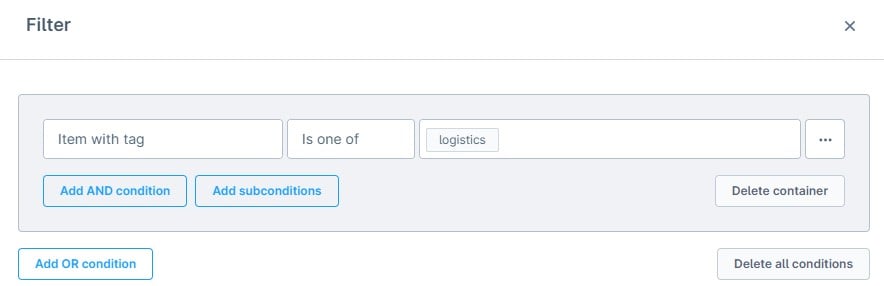
If there are a total of at least 10 products in the shopping basket, the shipping method "logistics" should be made available in the checkout. In this case, however, only products for which the tag "logistics" is stored may be taken into account.
In this case, we check for a predefined value using the condition ‘Total number of all products’. This condition can now be narrowed down further using the filter symbol, e.g. to items with a specific tag.
Total quantity of distinct products
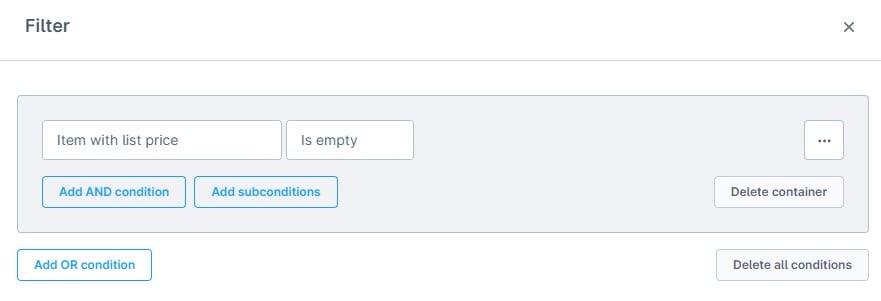
If the total number of different products in the shopping basket is at least 10, shipping costs should no longer be charged. However, this condition should only apply to products for which there is no list price.
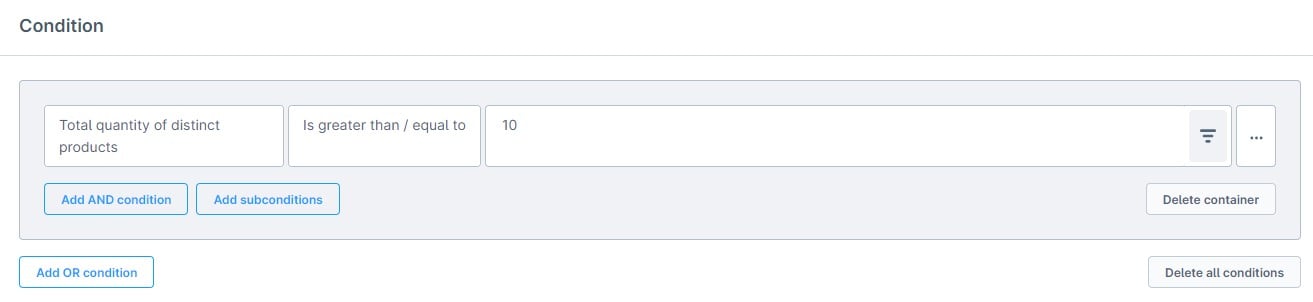
In this case, we check for a predefined value using the condition ‘Total number of distinct products’. This condition can now be narrowed down further using the filter symbol, e.g. to items without a list price.
Overview of all operators
| Name | Description |
|---|---|
| At least one | At least one value applies |
| All | All values apply |
| Is equal to | The condition is fulfilled if the value in the evaluation context matches the input value |
| Is not equal to | The condition is fulfilled if the value in the evaluation context does not match the input value |
| Is one of | The condition is fulfilled if the value in the evaluation context matches one of the input values |
| Is not one of | The condition is fulfilled if the value in the evaluation context does not match one of the input values |
| Is greater than | The condition is fulfilled if the value in the evaluation context is greater than the input value |
| Is greater than / equal to | The condition is fulfilled if the value in the evaluation context is equal to or greater than the input value |
| Is less than | The condition is fulfilled if the value in the evaluation context is lower than the input value |
| Is lower than / equal to | The condition is fulfilled if the value in the evaluation context is equal to or lower than the input value |
Share Rules
Starting with Shopware version 6.7.1.0 and the Shopware Rise plan, you are able to share rules. You can use this to import or export rules in your store as well as create rules with an existing one.
Download
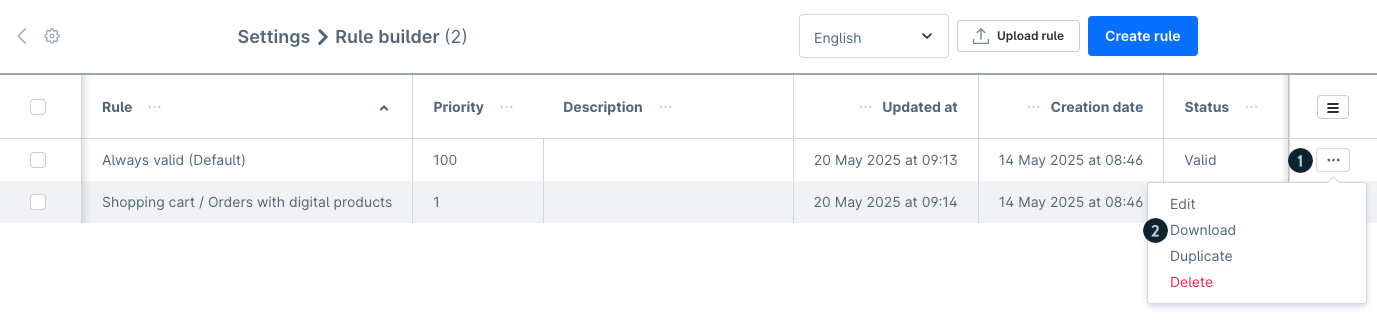
To download a rule, click on [...] (1) next to the desired rule and then select Download (2). The rule file includes all conditions, operators, and optional references. When uploading to a third-party system, any missing data will be automatically created. References to customers, customer groups, or sales channels can be omitted from the rule file. When uploading to a third-party system, these missing references must be reassigned.
Upload

To upload a rule, go to Settings > Automation > Rule Builder, click the Upload rule (1) button.
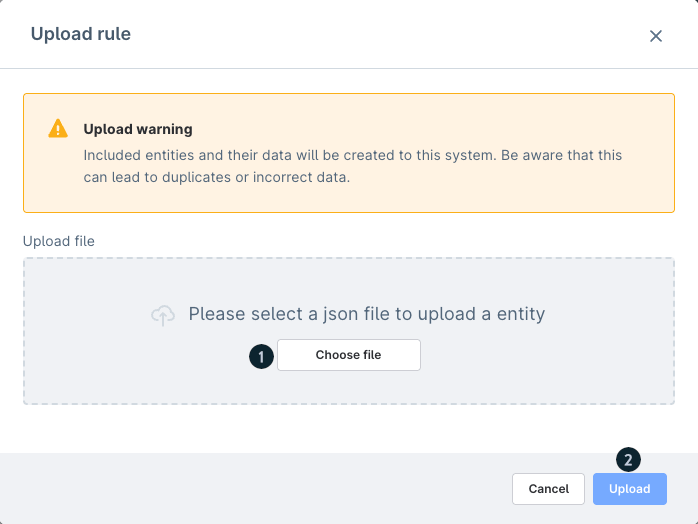
Click on Choose file (1) to select the JSON file and then click on the Upload (2) button to upload it.
If the file contains references to local entities, the upload process will check if these references exist in the target system. If any references are missing, you will be prompted to reassign the data.