


Copilot
Copilot is a chat-based AI assistant designed to help you manage your store effectively. It helps you find answers to questions about Shopware features, setup, or best practices exactly when you need them. Whether you are configuring your store, developing plugins, or exploring new features, the assistant offers guidance and support in solving problems.
Handling
With the Copilot, you can clarify questions about your shop's basic configuration directly in the Shopware admin.
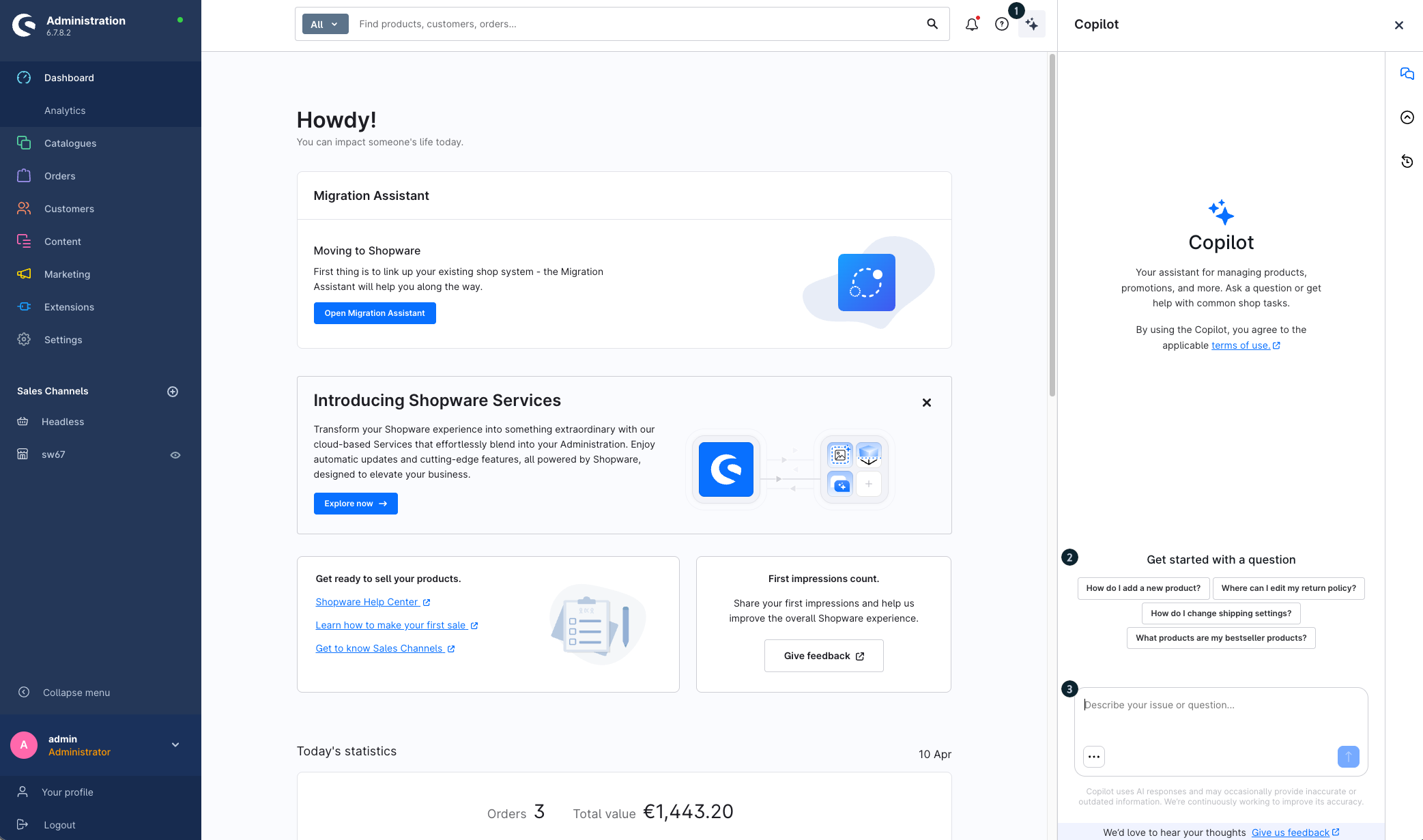
Click the three stars (1) button to open the Copilot. This appears on the right-hand side of your admin dashboard and allows you to interact directly with the Copilot. Select one of the suggested questions (2) or enter your question or instruction in the text field (3).
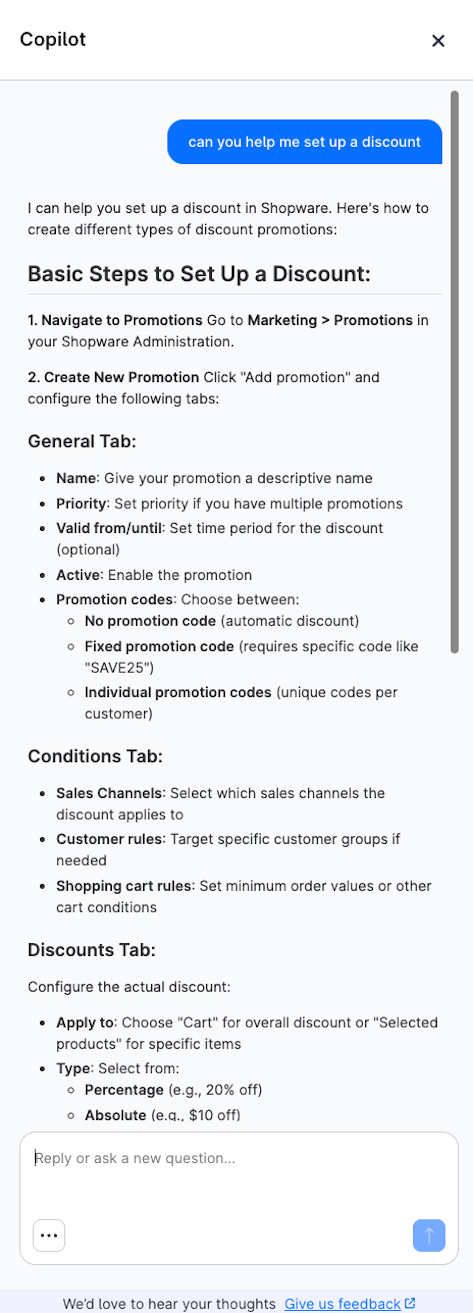
Once you have sent your question, you will get an answer quickly in chat format.
This may look like this, for example:
Chat history
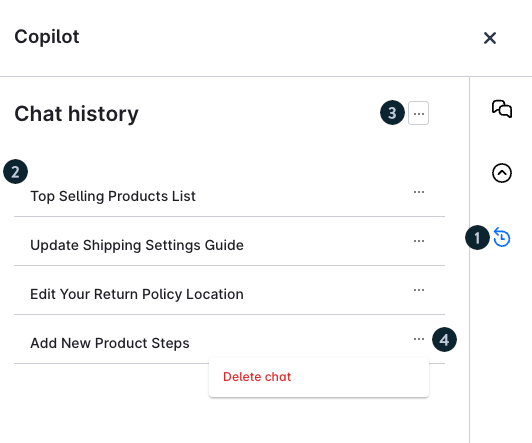
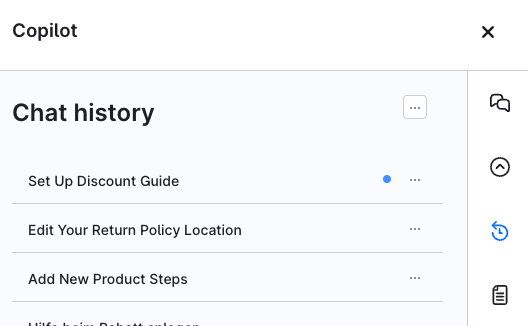
You can view your previous Copilot conversations. Click the icon (1) with the clock and circular arrow to open the chat history.
In the Chat history (2) section, you can find a list of your previous Copilot conversations. Click an entry to open the corresponding chat and continue working on it.
You can delete all chats using the context menu (3) in the chat history. You can delete an individual chat using the context menu (4) next to an entry.
The chat history is user-specific and is only visible to you.
Using multiple chats in parallel
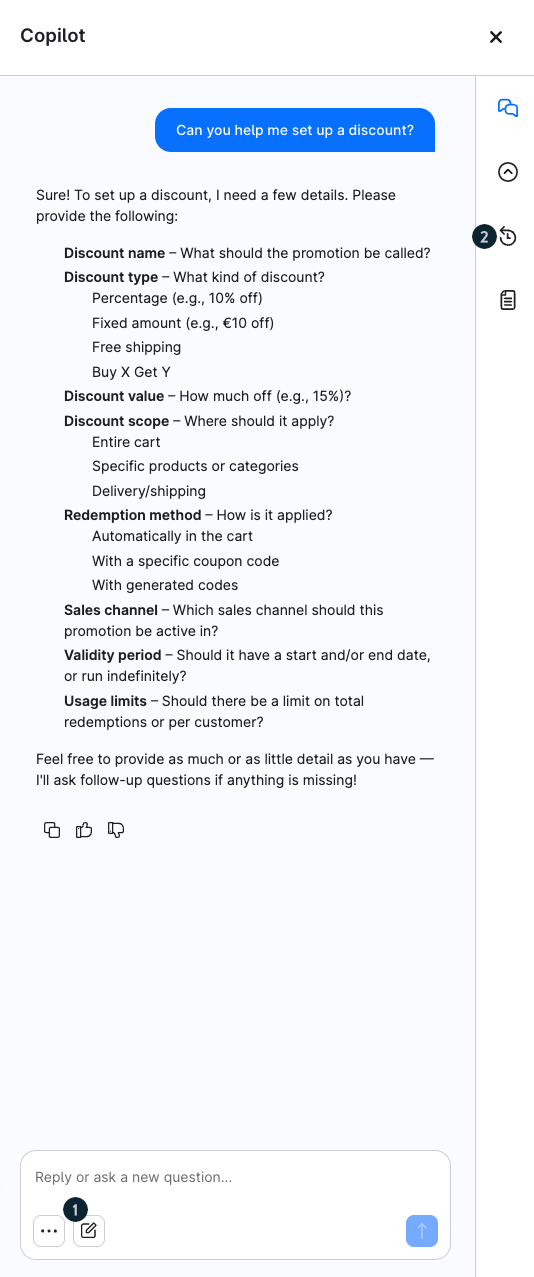
You can start a new chat at any time, even while Copilot is still processing another request. To do so, click the New chat icon (1) in the bottom-left corner.
A new conversation opens. The previous chat remains saved and can still be accessed via the chat history (2).
A small status circle next to a conversation indicates whether Copilot is still working on the request or has already completed it. This allows you to work on multiple topics in parallel and switch between individual chats at any time.
Copilot settings
In the Copilot settings, you can define which features may be used and which areas of the Administration Copilot can access. You can also view your available Copilot credits and manage the individual skills.
General settings and permissions
In the General tab, you can assign a custom role to Copilot. This role allows you to define in detail which areas of the Administration Copilot can access and which actions it may perform.
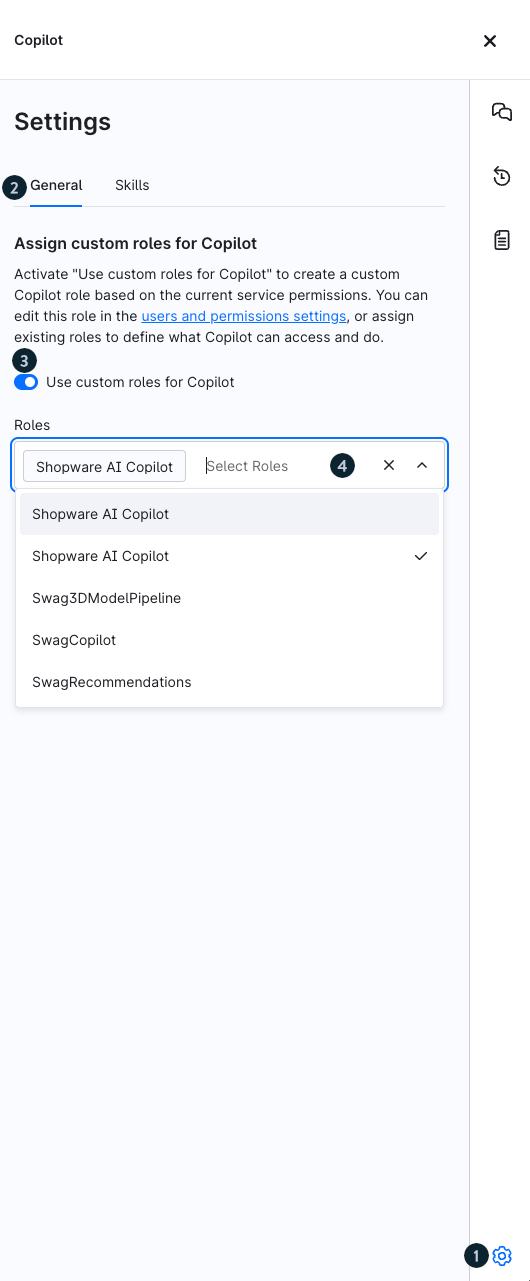
- Open the settings: Click the gear icon (1) in the bottom-right corner of Copilot to open the settings.
- General: Open the General tab (2). This tab contains the settings for the Copilot role.
- Enable a custom role: Enable the Use custom roles for Copilot option (3). This allows you to define the permissions Copilot uses to access the Administration.
- Select a role: Open the Roles selection field (4) and assign an existing role to Copilot. You can manage the permissions of the role in the Users & permissions settings.
When you enable this option, you can create a custom Copilot role based on the current service permissions. Alternatively, you can assign an existing role to Copilot.
In the Users & permissions settings, you can configure permissions for the individual areas of the Administration. For each area, you can define whether Copilot is allowed to view, edit, create, or delete content.
Copilot can then access only the areas and perform only the actions permitted by the selected role.
Skills and Copilot credits
The Skills tab provides an overview of the available Copilot features. Here, you can enable or disable individual skills and check how many free monthly requests you have remaining.
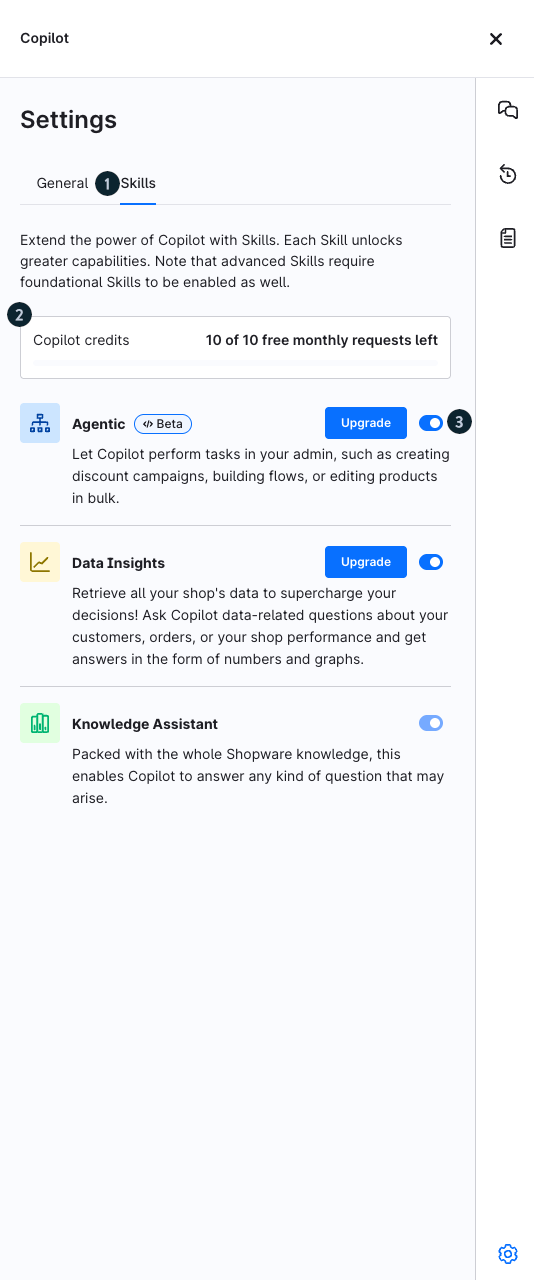
Skills: Open the Skills tab (1) to view and manage the available Copilot features.
Copilot credits: The Copilot credits section (2) shows how many free monthly requests you have remaining.
Enable or disable skills: Use the switch next to a skill (3) to enable or disable the corresponding feature. If a Shopware Intelligence+ subscription is required to use a skill, the Upgrade button is also displayed.
Copilot Data Insights
For this service, a limited number of free requests is available to you per month. Once this quota has been exhausted, an active Shopware Intelligence+ subscription is required for additional requests.
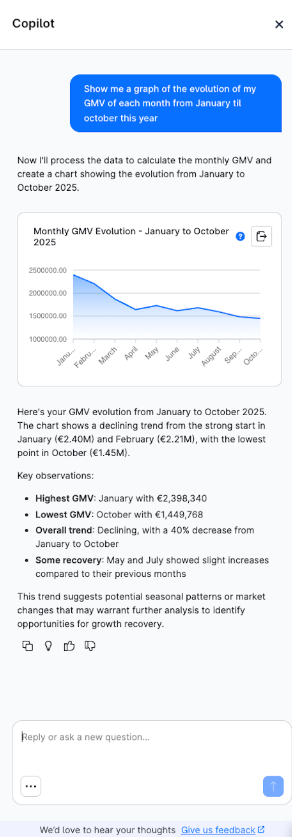
With the Data Insights you can retrieve all your data to supercharge your decisions. Ask Copilot data-related questions about your customers, orders, or your shop performance and get answers in the form of numbers and graphs.
Example prompts/questions:
“What was my turnover last month?”
“Show me a graph of our newsletter registrations of last year.”
“Give me a list of the top 10 bestseller of last year.”
Highlight key features:
Text, table or graph output
CSV export
Open sidebar full screen view to explore larger data chunks
This may look like this, for example:
Data security: Copilot does not process any PII (personally identifiable Information).When a user asks e.g. “What is the adress of my top 5 customers?” Copilot is not able to respond.
Note: For shops with exceptionally large datasets (e.g., tens of thousands of products or millions of customers and orders), activating data-intensive skills such as Data Insights may temporarily impact performance in the administration area. As this depends on the individual shop setup and data volume, it cannot always be fully avoided.
If you experience slowdowns, you can disable Data Insights using the global switch in the Copilot context menu to continue using just the basic Copilot functionalities smoothly.
Mentioning specific entities
You can reference specific entities directly in your prompts by using the @ symbol. Copilot supports searching across the following entity types:
Categories
Customers
Landing pages
Products
This allows Copilot to use the selected entity as additional context when responding to your request.
Example prompt:
How many @PRODUCT are left in my inventory?
As soon as you type @, Copilot displays matching entities that you can select from the suggestion list.
Requirements
This functionality is available under the following conditions:
- Data Insights is active.
You are using Shopware version 6.7.3.0 or higher.
Agentic
With Agentic, the Copilot can perform tasks on your behalf and support you with recurring or time-consuming activities in the admin.
You can already use it to perform various tasks, such as creating discount campaigns, setting up flows, or updating products in bulk.
Compatible plugins and apps can make their features available to Copilot through MCP. The setup is handled by the provider. For more information, see the developer documentation.
Review and approve a draft
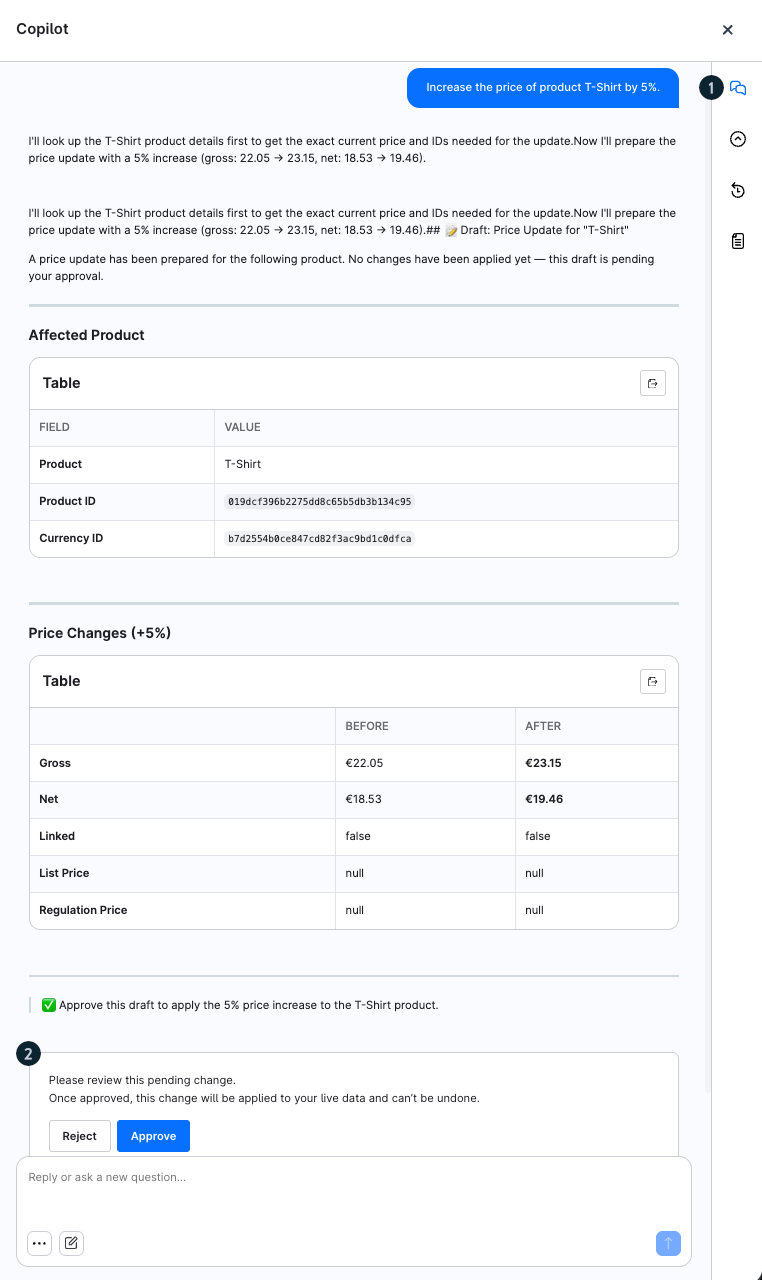
The following screenshot shows how the Copilot prepares a change and presents it for approval:
Request in chat (1): You enter an instruction (e.g., increasing the price of a product).
Draft: The Copilot creates a draft of the change and shows an overview of the affected values (e.g., old and new prices in a table).
Affected data: Below the table, you can see which product and which data will be changed, as well as the type of operation.
Status note & decision (2): A message indicates that the change is pending and will only be applied after approval. You can either reject or approve the change.
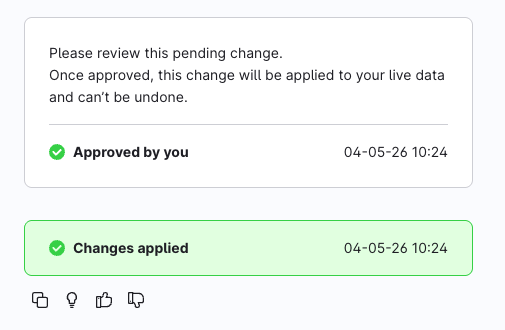
After clicking "Approve", you will see a confirmation of your approval, including a timestamp. The system will then indicate that the change has been successfully applied.
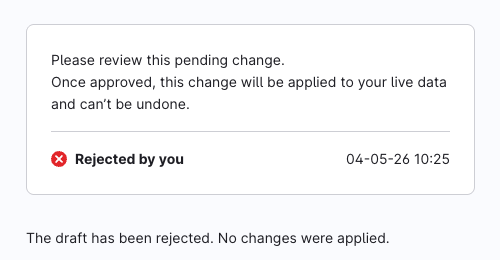
If you click "Reject", you will also receive corresponding feedback from the Copilot.
Activity history
In the activity history, you can view all previous requests and actions.
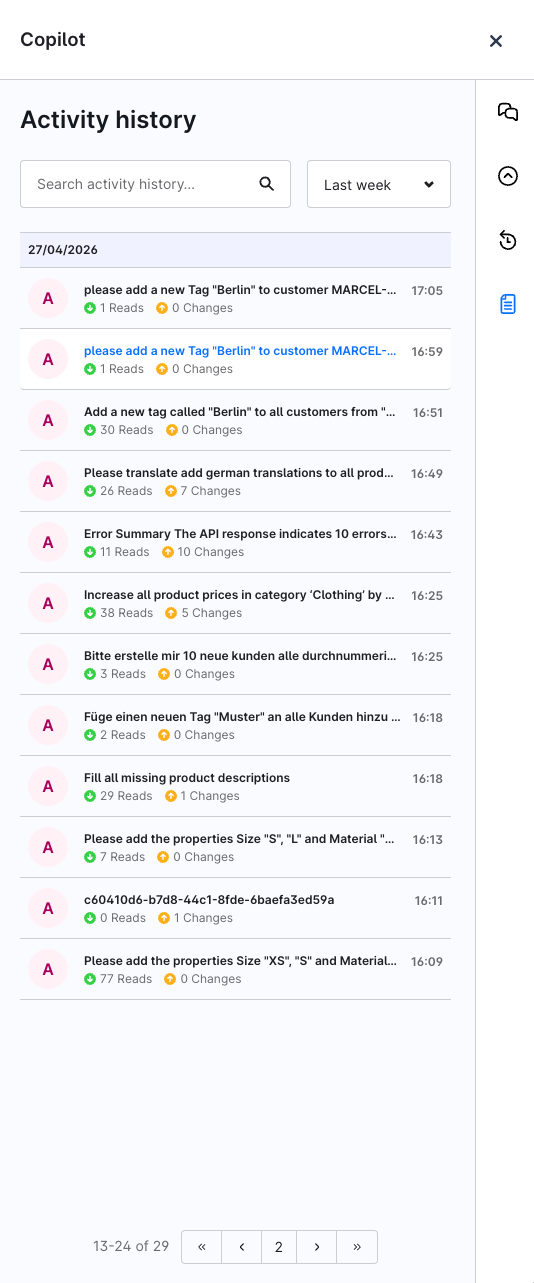
Overview: The list shows your recent requests, grouped chronologically by date.
Entries: Each entry contains your original request and the time it was executed.
Actions: For each entry, you can see how many read operations were performed and whether any changes were made.
Filter & search: Use the search bar and time filter to narrow down the history.
This allows you to track which actions the Copilot has performed on your behalf at any time.
Usage and requirements
These features are based on Data Insights. If Data Insights is disabled, the agentic functions will not be available.
For this service, a limited number of free requests is available to you per month. Once this quota has been exhausted, an active Shopware Intelligence+ subscription is required for additional requests.
Changes to the live system are only applied after your explicit confirmation.
All activities are logged. You can view your own activities, while administrators have access to the full logs.
Executed actions cannot be reverted.
- The Copilot operates strictly within your assigned user roles and permissions.
Instructions and FAQ for use
The Copilot uses up-to-date content from all official Shopware documentation sources. Queries are sent to an external AI provider (currently based in Europe), which generates answers on this basis.

How does the data exchange between Shopware and the AI model provider work?
Is user data used to train the AI?
The AI provider does NOT have access to the shop.
The AI provider does not use the data entered to train its AI model.
The assistant requests read access to limited shop data (e.g. plugin status, system version, licence information) to personalise responses.
Shopware collects user requests to improve the assistant and the overall Shopware product experience.
What should I bear in mind?
Do not enter any sensitive data (e.g. name, bank details)
Answers may be incorrect or inaccurate
Response times vary depending on the complexity of the question
How do I get access to the Copilot?
Only administrators have initial access
Additional users can be activated via Settings > System > Users & permissions > Roles
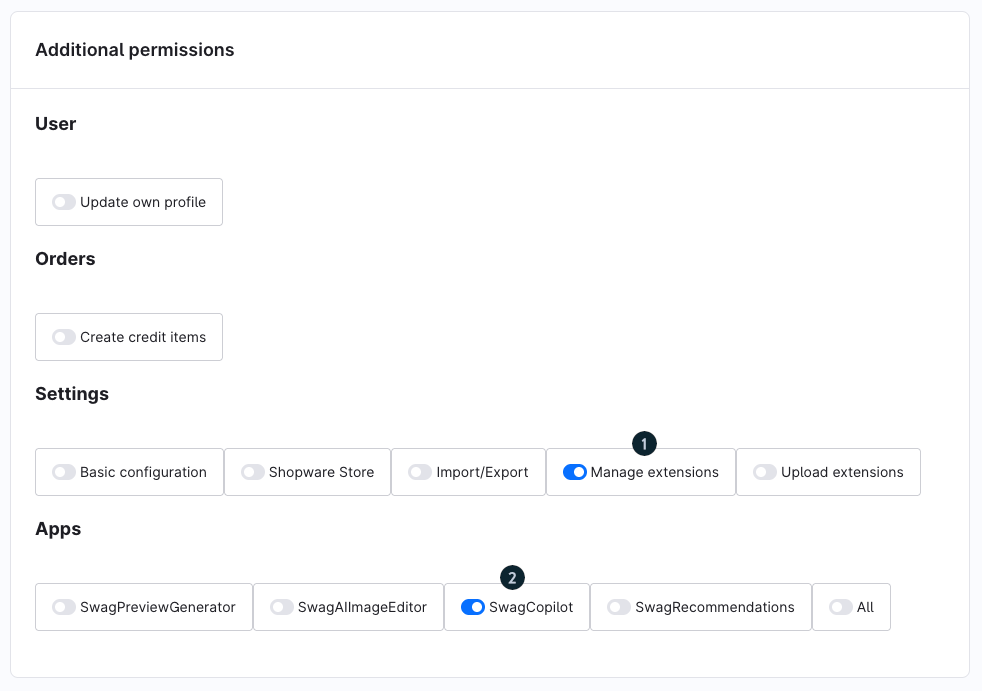
In the role, the Manage extensions (1) switch must be activated under Additional permissions so that the Apps > SwagCopilot (2) area becomes visible and can be activated
Authorisations are managed transparently via the Shopware Service Registry. Copilot was developed to focus on data protection, control and a clear value proposition.
Where can I find more information about Shopware AI features?
On the new Shopware AI feature page, you can find out how our Copilot is embedded in Shopware's comprehensive AI strategy and which Agentic Commerce concepts are behind it.