


Customeraccount
Overview
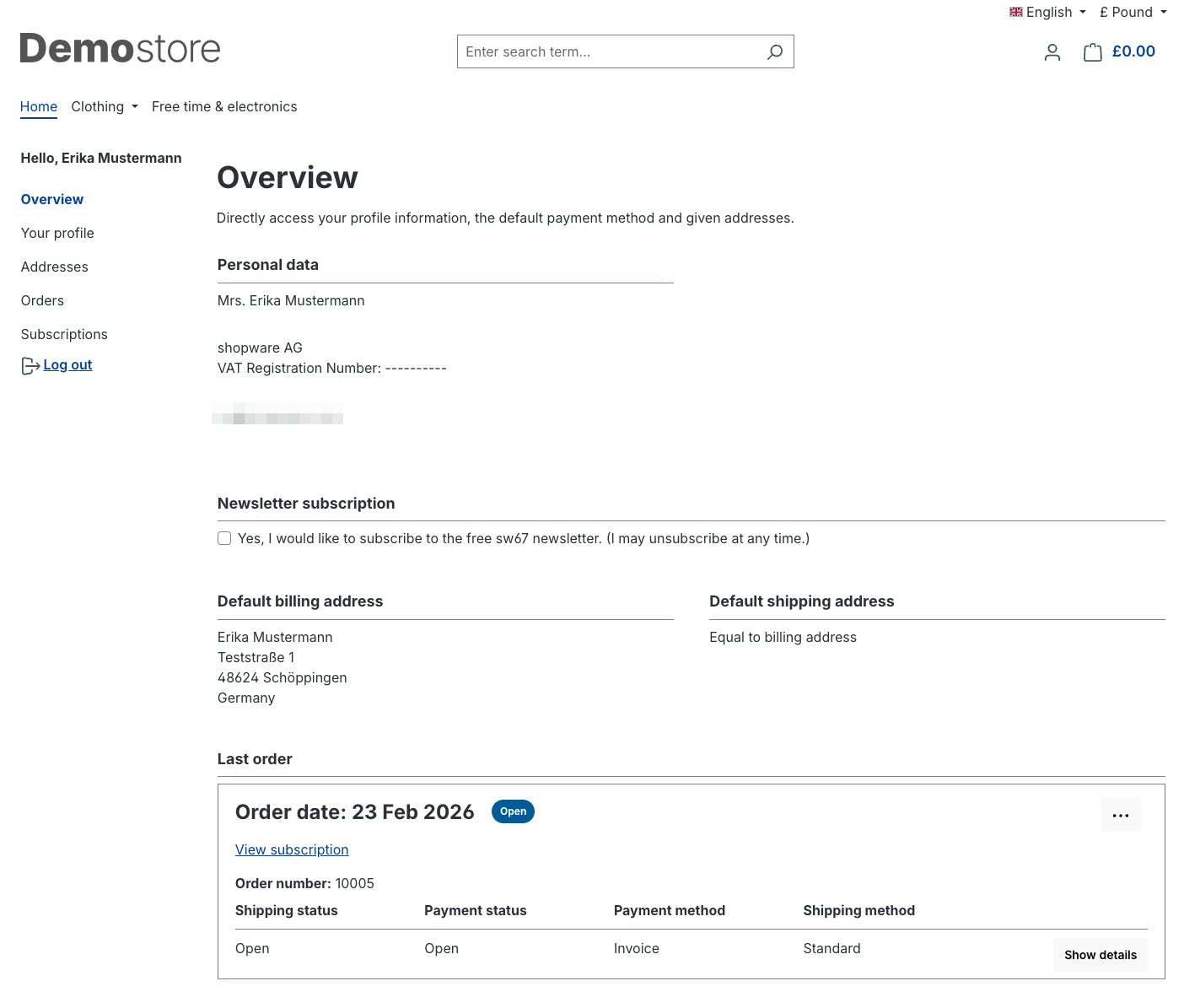
This section provides customers with a general overview of their data. Similar to a dashboard, it offers a quick and brief summary of orders, addresses, and other relevant information. In the form, customers can also sign up for the newsletter. You can find more information about the newsletter here.
Personal Profile
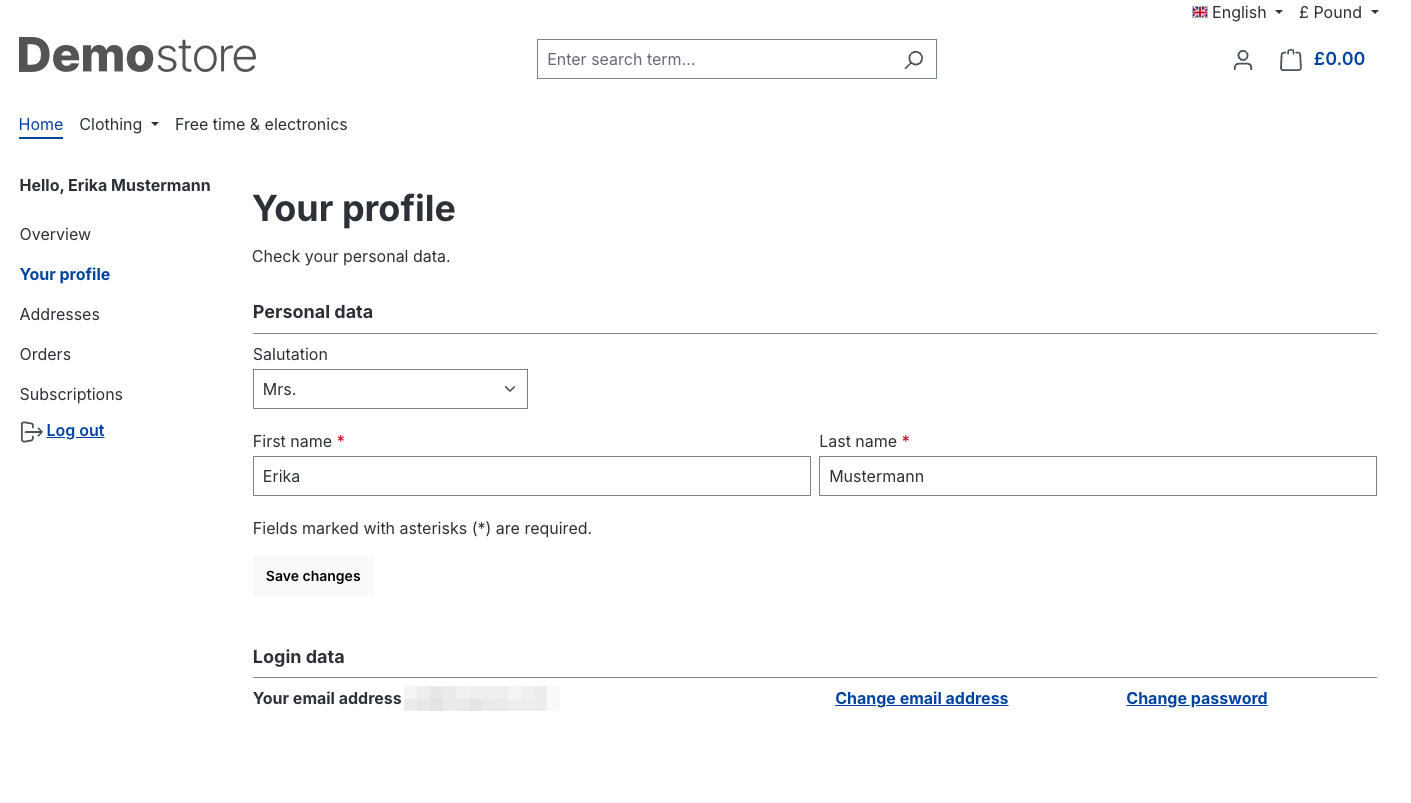
In the "Personal Profile" section, you can change your login details such as email address and password. This way, you have control over your login information and can adjust it as needed.
Addresses
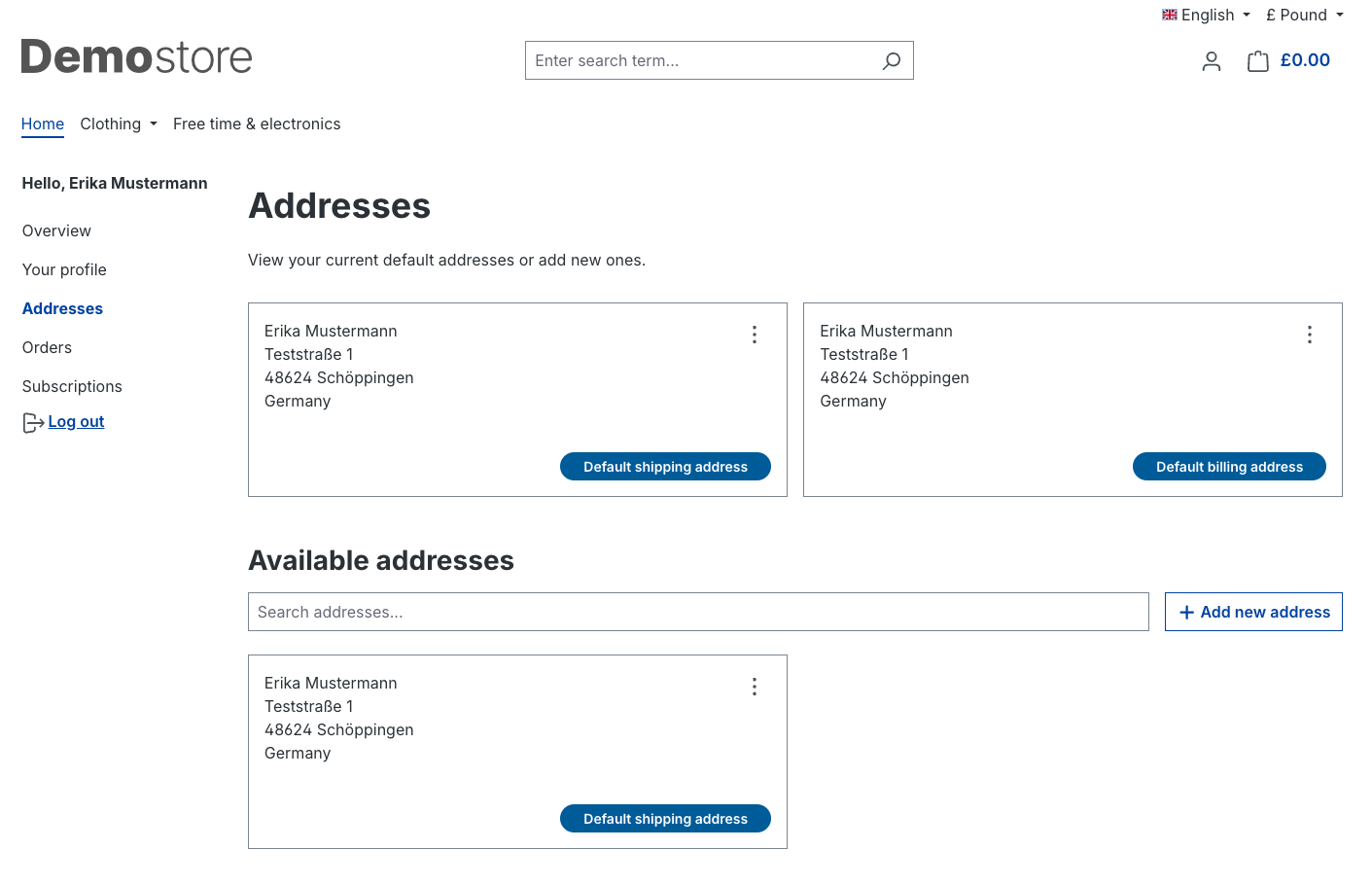
Under "Addresses," you can manage your saved addresses. Here, you can edit, delete, or add new addresses. This ensures that your deliveries always go to the correct address.
Orders
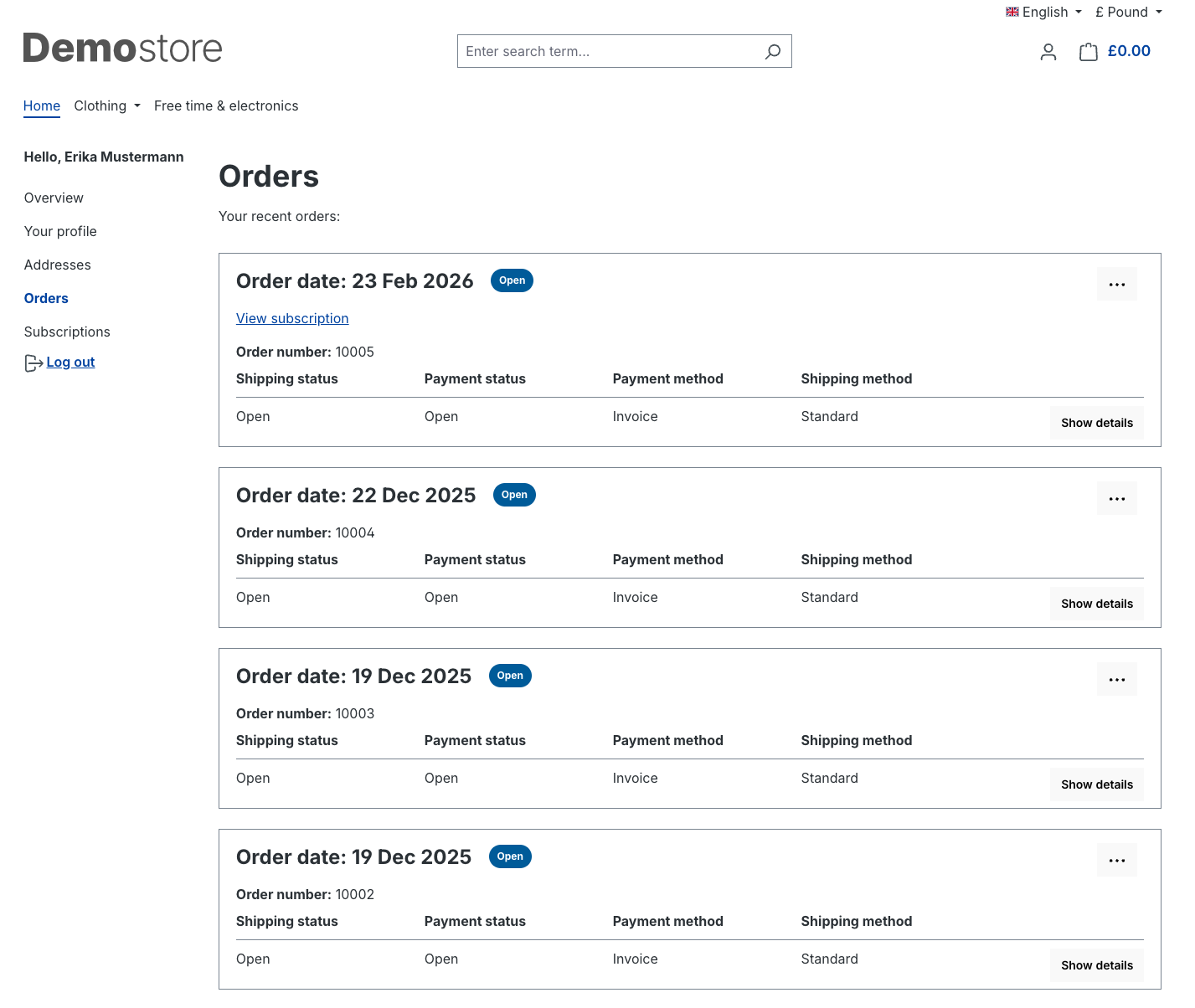
In the "Orders" section, you can view all your placed orders and check their current processing status. Through the three-dot option, you can repeat orders or, if the payment is still pending, change the payment status. This makes it easy for you to keep track of your purchases and make adjustments if necessary.
Subscriptions
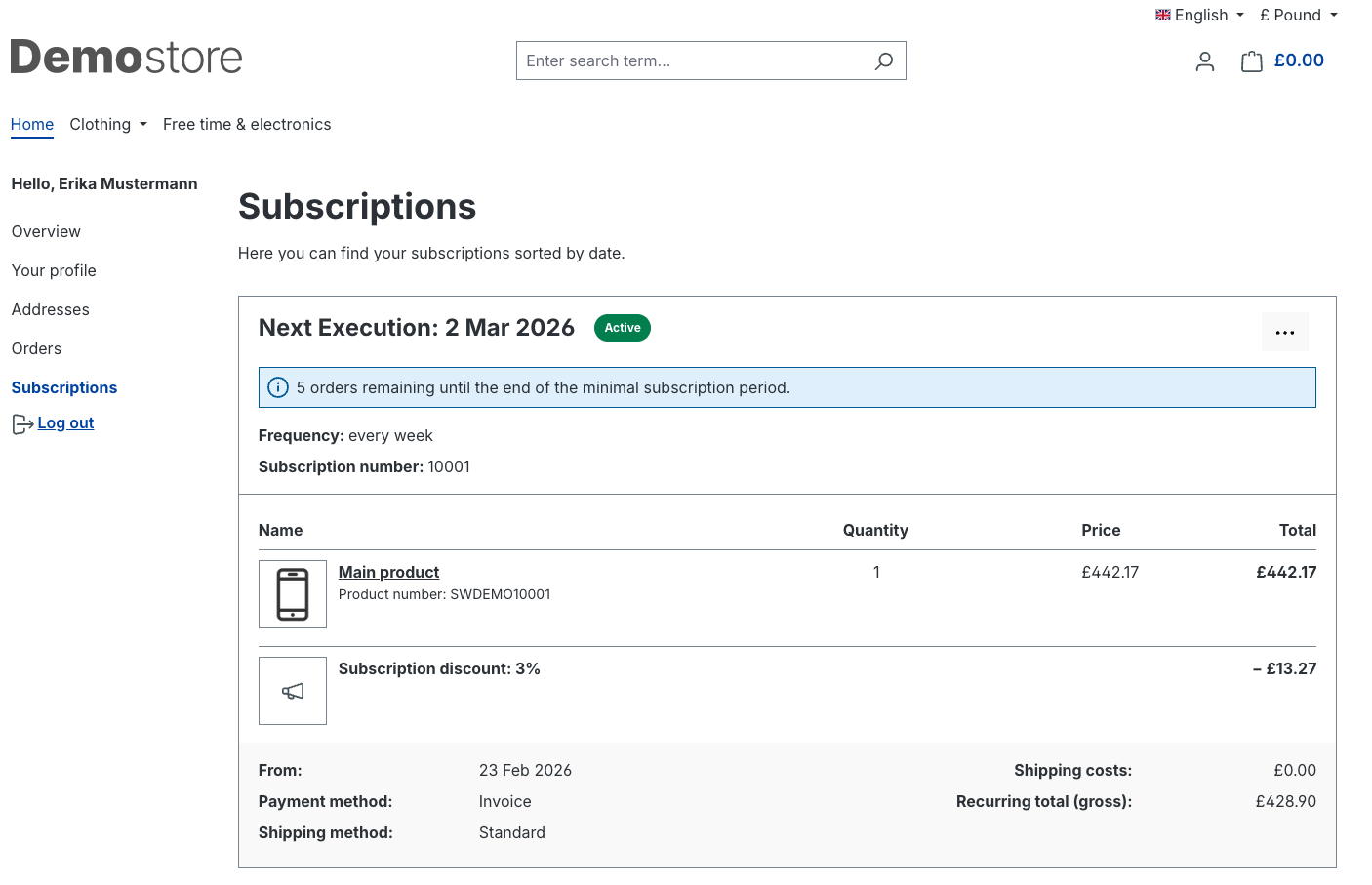
In this section, you can create subscriptions with recurring orders and configurable intervals. "Subscriptions" is a versatile tool that allows merchants to leverage the growing trend of subscription models in e-commerce.
For more information, click here.
The subscription feature is available from version 6.5.4.0.
It is available as a commercial feature starting from the Beyond plan.
Reset password
If your customers forget their password, they can easily reset it using the "I have forgotten my password" option on your storefront login page.
How password recovery works
- Your customers click on "I have forgotten my password" in the login area.
- They then enter the email address associated with their customer account.
- The system automatically sends an email containing a password recovery link.
- Using this link, your customers can create a new password.
Password recovery security
Password recovery in the Shopware storefront includes several security mechanisms:
Time-limited recovery link
The password recovery link is valid for 2 hours.One-time use
The recovery link can only be used once. After it has been successfully used, it automatically becomes invalid.Protection against abuse and rate limiting
Password recovery is protected by configurable rate limiting to prevent automated or abusive requests.
The configuration is handled via theuser_recoverysettings.
You can find more information about the rate limiter here in the Developer Docs.
Notes
If no new password is created within the validity period, the password recovery process must be started again.
If your customers do not receive the email, they should also check their spam folder.