


CAD to 3D File Conversion
With the CAD to 3D service, you can easily transform your CAD files into web-compatible 3D models (GLB) directly within Shopware. The conversion runs seamlessly in the background, enabling you to prepare and manage your 3D assets right in the Media Manager for further use across your storefront.
The generated GLB files focus on clean, lightweight geometry and are optimized for web usage. Please note that the conversion does not include materials, textures, or lighting. Advanced or special cases such as animations, rigs, or other non-geometric data are not supported and will be ignored during the process.
For this service, a limited number of free requests is available to you per month. Once this quota has been exhausted, an active Shopware Intelligence+ subscription is required for additional requests.
Limitations
Supported file format: .STEP
- Maximum file size: 2 GB
Technical background
The conversion and optimisation of the CAD data is performed via the RapidPipeline API.
- The entire process runs in the background and does not require any active user interaction during processing.
Usage
This is how you convert a CAD file into a 3D file:
Open the Media Manager in the Administration under Content > Media.
Upload a CAD file in STEP format or select an existing CAD file.
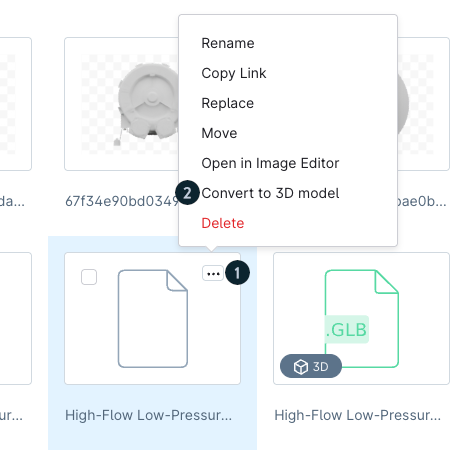
Start the conversion using the Convert to 3D model(2) action:
via the sidebar, or
via the context menu (1) of the selected file.
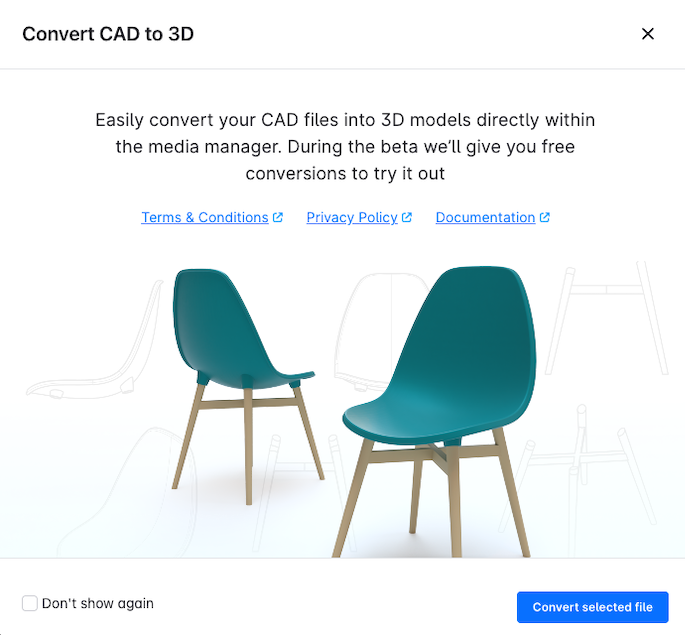
After starting the conversion, an information view is displayed.
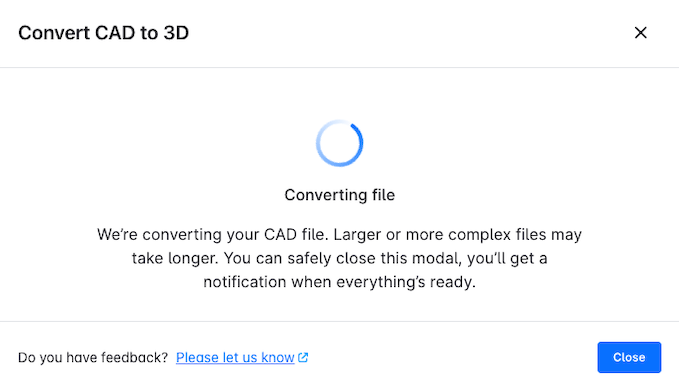
During processing, you can see the progress status. You can close the window while the conversion is running.
Once the conversion is complete, a notification is displayed.
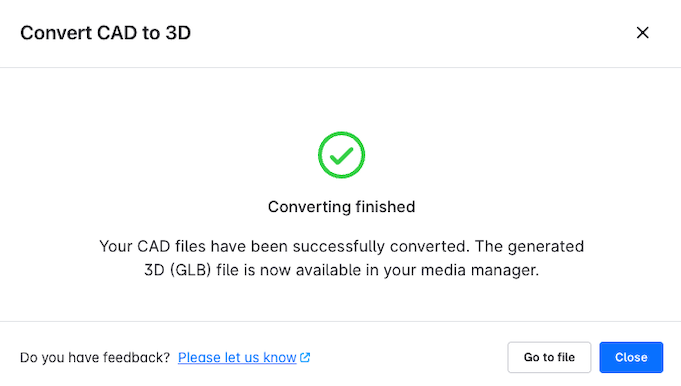
After successful completion, the converted 3D file is automatically saved in a newly created folder and is ready for further use.