


Magento-Keywords
To best support you in your migration to Shopware, we have prepared a Magento <-> Shopware dictionary. Here you will find the most important differences in the user interface and paradigms, as well as a list of the key Magento terms translated into the Shopware world.
Differences in the User Interface
Below we first list the Magento modules that appear at the top of the screen in Magento 1.x. In Magento 2.x these are located on the left side of the screen. You will find the Shopware modules, unlike in Magento 1.x, on the left side of the screen. Each module expands on mouseover and thereby opens the additional subitems.
Dashboard
In Shopware you will also find the dashboard at the top left. As in Magento, some statistics such as revenue or orders from the last 30 days are listed here.
Sales
In Magento, orders, invoices, credit memos and shipments are listed in different subitems. You will find these items in Shopware 6 essentially under Orders. Here you will find an overview of all orders and can access information such as invoices or payment and delivery status within the order.
All necessary information is centrally bundled in the respective order.
Another item configured under Sales are the general terms and conditions. In Shopware you can configure these individually via the Shopping Experiences. Afterwards you can assign them to the sales channels under Settings > Basic Information > Basic information.
Also, in Magento the menu item Sales contains the submenu Taxes, where tax rules and tax rates are configured. Tax configuration in Shopware does not take place within customer orders. In Shopware this is a setting you will find under Settings > Region > Taxes.
Catalogues
The functions from Catalogs can be found very similarly in Shopware under the menu item Catalogues. There you will find products, categories, attributes (properties) and customer reviews (reviews).
Some things, however, work differently. When creating a new product in Magento, it is necessary to specify an attribute set and to select which product type a product belongs to. Such a "hard" separation of products into product types does not exist in Shopware 6. Likewise, assigning an attribute set is not necessary.
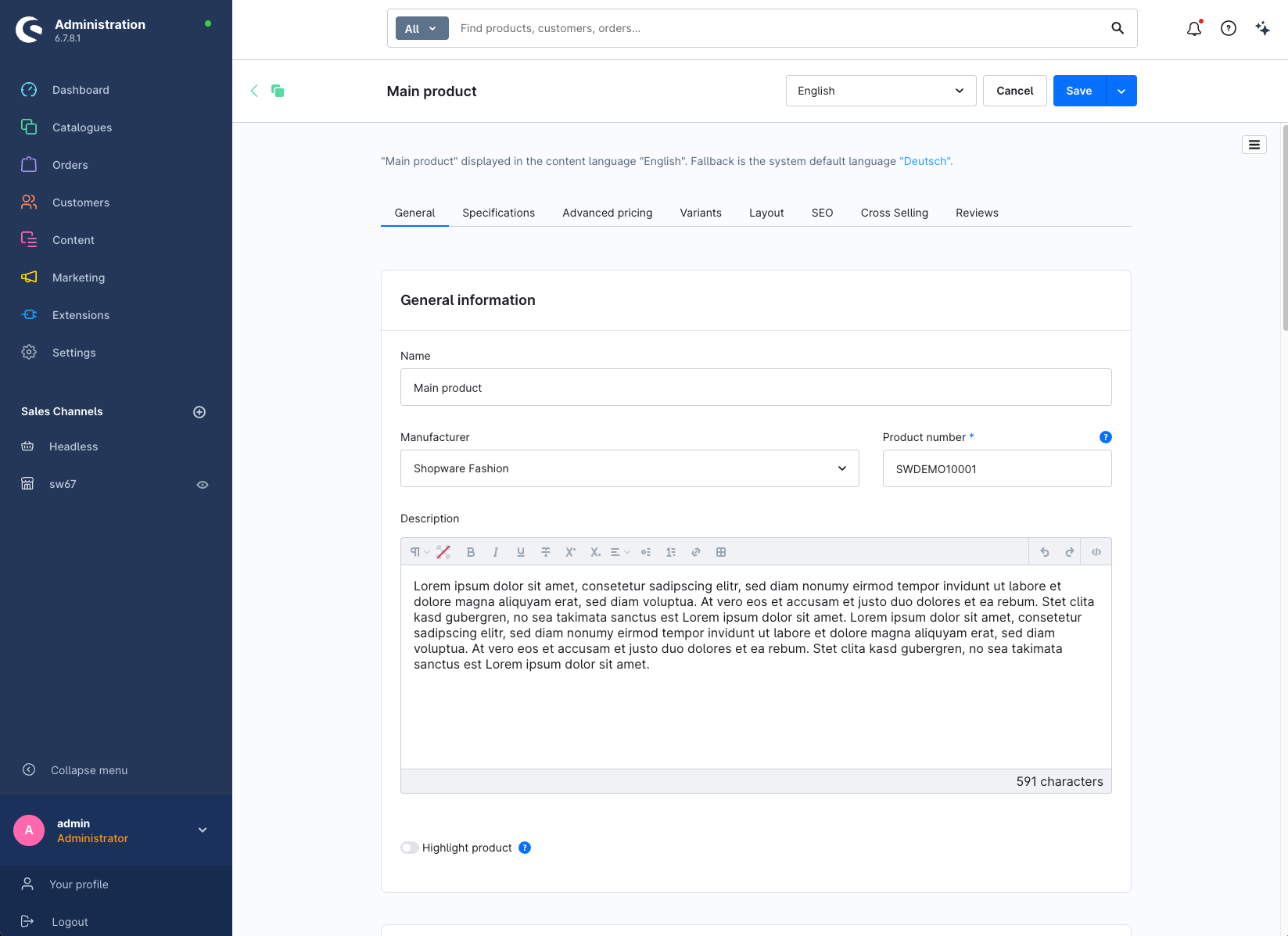
Furthermore, product configurations in Magento are listed in submenus on the left side. In Shopware, you will find the most important settings summarised on the product configuration page. Only some more complex settings are located in their own tabs. For example, advanced prices, assigning properties, generating variants, and cross-selling (cross-sales and up-selling) are located in their own tab.
Customisation options that are available in Magento under Product Options are possible in Shopware with the extension Custom Products.
All essential settings for categories can be found, as in Magento, under Catalogues > Categories. An equivalent to Magento's attributes can be found in Shopware under the subitem Properties. However, these do not have exactly the same meaning as in Magento. In Shopware, properties are used to provide products with filterable information. In addition, the generation of variants in Shopware is based on properties.
Unlike in Magento, variants in Shopware are not independent products. In Shopware 6 you first create a normal product that serves as a variant template. In this product, you generate the individual variants using properties, which then inherit the configurations of the main product. Variants are therefore not independent products but always dependent on their main product.
In the Magento administration under Catalogs > URL Rewrites Management you will find a list of all SEO URLs which you can edit and adjust individually. In Shopware, you can configure the URL of individual items in the product configuration under the SEO section. The general structure of the SEO URLs can be set under Settings > Shop > SEO. Here, you can create a general URL template according to which the SEO URLs are generated automatically.
Just like in Magento, you will find customer reviews in the area Catalogues > Reviews. Here, the product reviews from customers are listed. There you can check, approve and comment on them.
Tags in Shopware serve in the Shopware 6 admin as an aid to mark and thus better differentiate and group products and other entities, such as customers or orders.
The settings for the sitemap can be found in Shopware under Settings > Shop > Sitemap.
Customers
All information about customers can be found under the menu item Customers. There you will find all information about customers, their addresses and orders. Unlike in Magento, here you will not find the information on whether a user is subscribed to the newsletter. This is handled in Shopware separately in its own overview under Marketing > Newsletter recipients.
Promotions
Promotions in Shopware are called Discounts & Promotions. You can find this menu item under Marketing > Discounts & Promotions. There, you can create discounts and other marketing campaigns and bind them to very detailed conditions from the Rule Builder. The Rule Builder is a powerful tool that allows access to all elements of the shop and the creation of conditions based on them. You can find out exactly what possibilities this tool offers here.
Newsletter
With Shopware 6 we decided not to provide a native newsletter module and to leave this to our plugin vendors, since there are already several powerful newsletter systems available. These can be found in our Shopware Store. However, Shopware manages newsletter recipients in a dedicated list under Marketing > Newsletter recipients.
CMS
In the CMS area of Magento, shop pages can be created and configured. In Magento these are distinguished into pages, static pages, widgets and polls. In Shopware you will find this type of shop pages in the so-called Shopping Experiences. These can be found in the Shopware admin under Content > Shopping Experiences. There you can create and centrally manage content pages such as landing pages, shop pages and category layouts.
A comprehensive but easy-to-use WYSIWYG editor is available to assemble the shop pages easily.
Further information on using the Shopping Experiences and creating shop pages can be found here.
System
Here you will find all system configurations of Magento in several submenus.
A similar menu item in Shopware can be found under Settings. This is most comparable to the menu item System > Configuration in Magento. With few exceptions, you will find all system-relevant configurations in Shopware here.
In Magento under System you will find the menu item My Account, which contains the settings for your admin account. In Shopware you will find these Profile settings when you click your name at the bottom of the left bar. The import/export module from there can be found in Shopware under Settings > Automation. Here almost all shop data can be imported and exported with CSV files.
The configuration of new and existing stores in Magento is done under System > Manage Stores. In Shopware stores are called Sales channels. They are configured directly in the left bar below the menu items.
The sales channels form the interface between your administration and the storefront. You can create a separate sales channel for each channel through which you want to distribute your products by using the plus symbol. The names of the sales channels allow you to configure them.
When creating a new sales channel there are three types.
Storefront: This is the normal sales channel that is accessible under a URL and through which you can offer your items. Each subshop is its own Storefront sales channel.
Product comparison: This channel is used to perform product exports to price portals or to connect marketplaces.
Headless: This channel only provides the API interface. For example, an ERP system can be connected to it.
Dictionary
Area | Magento Term | Shopware Equivalent | Note |
Concepts | Configurable products | Variants | Generated via Products > Generate variants. You get a container product that itself is not orderable but contains all variants with different configurations. |
Concepts | Attributes | Properties / Custom fields | In SW6 this is split into two areas: custom fields that extend the product with additional information, and properties used for variants and filtering. |
Concepts | Attribute Sets | Custom field sets | Collects custom fields into logical groups. |
Concepts | Product > Custom options | Custom fields | Free-text fields to provide products and other areas with custom information. |
Concepts | Product > Tier pricing | Advanced prices | Can be realized via the Rule Builder and advanced prices. |
Concepts | Product > Group Price | Advanced prices | Can be realized via the Rule Builder and advanced prices. |
Concepts | Product > URL key | SEO URL templates | With SEO URL templates you define the structure for the SEO URLs of product detail and category pages. |
Concepts | Product > Websites | Sales channel | Sales channels can be selected under Products > Assignment > Visibility. |
Concepts | Product > Visibility | Advanced visibility | How a product is visible can be configured under Products > Assignment > Advanced visibility. |
Concepts | Category tree | Categories | |
Concepts | Category > DisplayMode | Layout assignment | Whether products, a static block or both should be included is decided by the layout assignment in the category assignment. |
Concepts | CMS Block | Shopping Experiences | With Shopping Experiences you can design category pages as desired. |
Concepts | Static Block | Shopping Experiences | With Shopping Experiences you can design category pages as desired. |
Concepts | CMS Pages | Shopping Experiences | With Shopping Experiences you can design category and shop pages as desired. |
Concepts | Layered navigation | Shopping Experiences | With Shopping Experiences you can design category pages as desired. |
Concepts | Page Builder | Shopping Experiences | With Shopping Experiences you can design shop pages as desired. |
Concepts | Theme | Content > Themes | The Theme Manager allows themes to be managed easily. |
Concepts | Theme Fallback | Content > Themes | In the Theme Manager it is possible to create duplicates of existing themes that inherit their settings. |
Development | Module | Module | |
Development | Indexes | Indices | Configurable under Settings > System > Caches and indices. |
Development | Extension | Plugin | |
Development | Core Code Pool | Shopware Platform | |
Development | Community Code Pool | Extensions / | Extensions can be installed via the store: Extensions > Store. |
Development | Local Code Pool | Extensions | Plugins can be installed via the extension manager: Settings > My extensions. |
Development | Library | vendor/shopware/platform | |
Development | Magento core | Shopware platform | |
Settings | Store view | Sales channel with different languages and domains | |
Settings | Admin | Admin | |
Settings | Sales > Tax > Tax Zones & Rates (Magento 1.x) | Settings > Localisation > Taxes | |
Settings | Catalog > Attributes > Manage Attributes (Magento 1.x) | Settings > Content > Custom fields | |
Settings | Catalog > Attributes > Manage Attribute Sets | Settings > Content > Custom fields | |
Settings | Customers > Customer Groups | Settings > Customer > | |
Settings | Scope | Sales channel configuration | |
Settings | Configuration > General options > Default Country | Set during installation | |
Settings | Configuration > General options > Allow Countries | Settings > Localisation > Countries | |
Settings | Configuration > General options > Locale | Settings > Localisation > Countries | |
Settings | Configuration > General options > Store Information | Settings > General > Basic information | |
Settings | Configuration > Stock > Backorders | Product > Availability > Backorder | |
Settings | System > Index Management | Settings > System > Caches & Indices | |
Settings | System > Import | Settings > Automation > Import/Export | |
Settings | System > Export | Settings > Automation > Import/Export | |
Settings | Configuration > Advanced > System > Currency | Settings > Localisation > Currencies |