


Themes
This section lists all themes that you have currently added to your Shopware installation. You can also manage and edit them here.
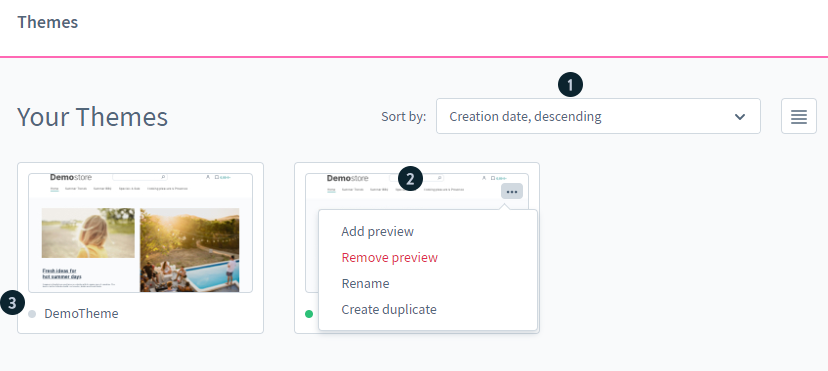
All themes are listed in the overview. You can use the pull down menu(1) to change the sorting and switch the view between listing and thumbnails.
Each theme has a context menu (2) where you can change and delete the thumbnail. This context menu appears if you mouse over a theme and then click on the button with the three dots. It's possible for you, to rename the theme or delete it completely. If a grey dot (3) is displayed below the preview image, this theme is not yet assigned to a sales channel. If the theme is assigned to a sales channel, this point turns green.
Theme configuration
In the theme configuration you can individually design your theme. Here you can select colors and fonts.
Theme-colours
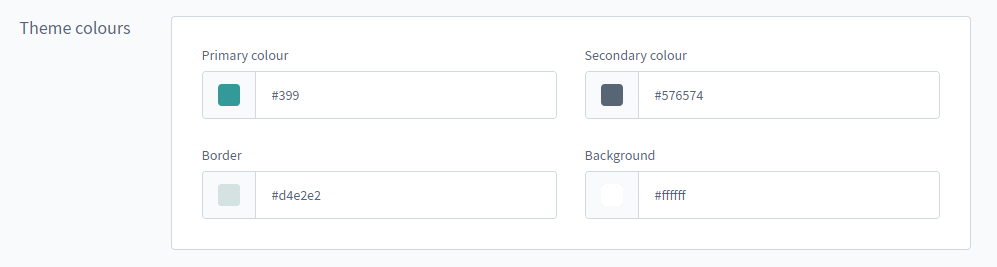
Here you can define the basic background and frame colors for your theme. The primary color can be found in the Responsive Theme, for example, in the headings and links.
Example: 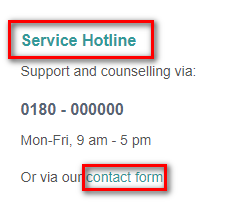
Status messages
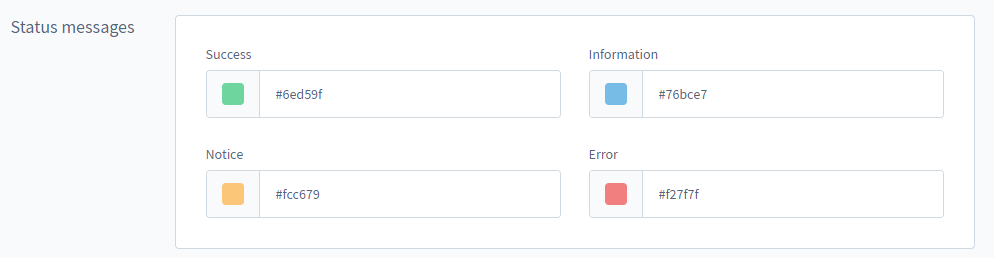
Here you can adjust the colors of the status messages in your shop.
Examples:




Typography
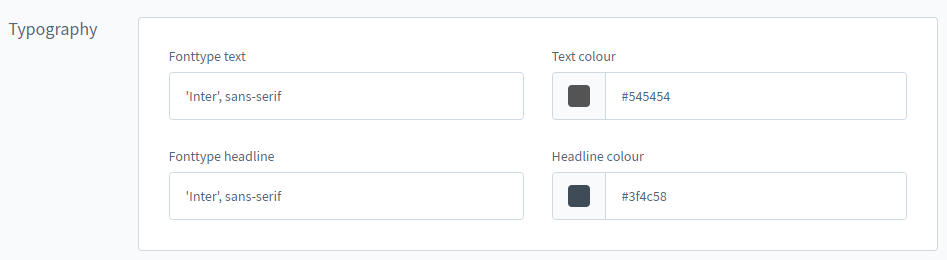
Here you can adjust the font and text color of texts and headings of the theme.
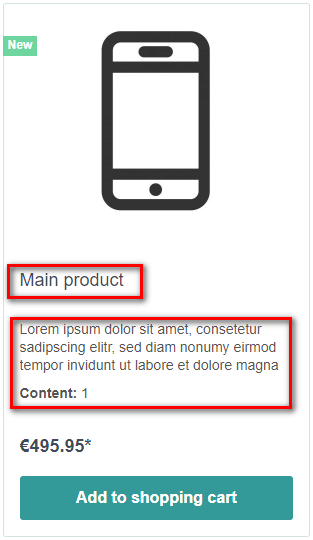
Example:
An example for the fonts of the texts and headings is an element in the article listing.
E-Commerce
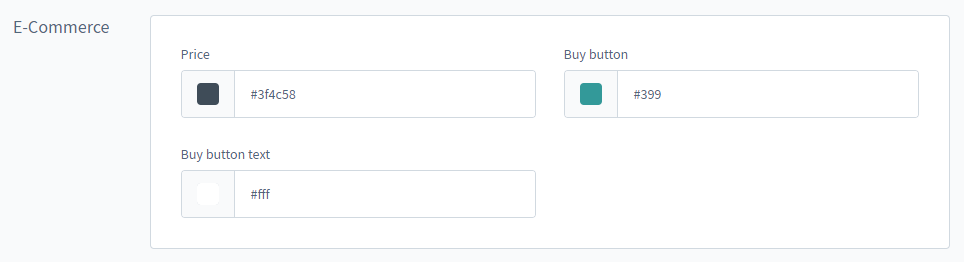
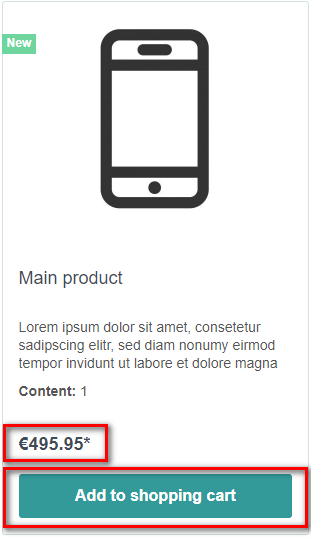
Here you change the appearance of the buy button and the displayed price.
Example:
Media
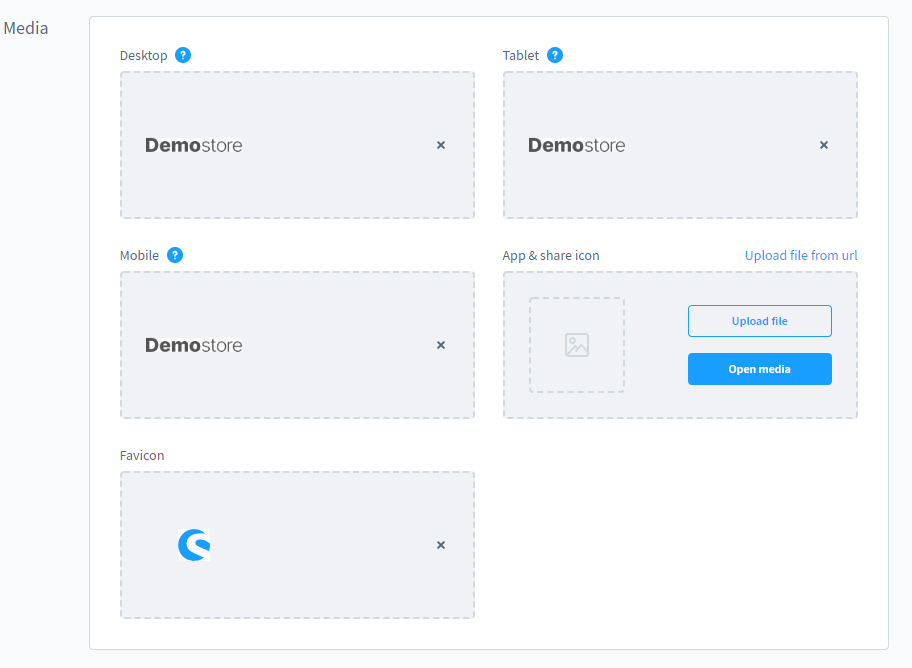
In this area you define the logos and icons. A viewport larger than 991px will display the desktop logo. Between 991px and 767px the tablet logo is displayed. A viewport smaller than 767px, will display the mobile logo.
The favicon is displayed in front of the URL in the browser and the app & share icon is displayed as a preview, for example, if the page is shared in social networks.
Create duplicate
Only themes, not already inherited from other themes, can be duplicated. In that case, the option is not present in the context menu.
To create a duplicate, select Create Duplicate in the context menu of your desired theme.
After you have given your duplicate a name, the configuration of your theme will open.
You will notice that the configuration of your theme is inherited from the duplicated theme.
This inheritance can be switched off for individual configurations by clicking on the inheritance logo, so that you can make individual changes to your duplicated theme.
You can find more information about other possible changes to the template here.
Assign theme to a sales channel
To use a theme for a storefront it is necessary to assign the theme to the corresponding sales channel. To do this, open the Themes tab in the respective sales channel. There you can assign a theme to the sales channel.
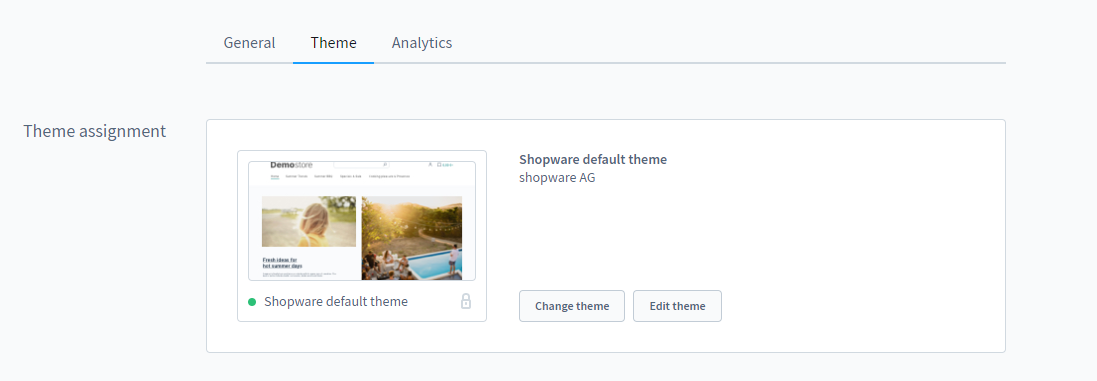
First, you will see the theme that is currently assigned to the sales channel. By clicking on the theme thumbnail or Change Theme, you can assign one of the installed themes.