


Bundles
Note: This feature is currently in Blueprint status. The scope of functionality is intentionally minimal at this stage and is meant to explore initial concepts to get feedback early as possible. Based on feedback, the feature may evolve further and change fundamentally.
We appreciate your feedback to better understand if and how this approach should be developed further.
Bundles (Blueprint) is currently available to all customers with a Shopware Evolve plan (or higher) running Shopware 6.7.9.0 or later.
A bundle is a product made up of several individual items. Your customers buy the bundle as a complete package, often benefit from a price advantage, and can see all included products clearly on the product detail page.
Typical use cases
- Cross-selling / increasing cart value
- You bundle complementary products that are often bought together.
- Starter packs / complete solutions
This is especially useful for products that can only be used together — so you get everything in one package.
- Clearing stock / inventory optimization
- Slow-moving products are combined with bestsellers.
Create and manage Product Bundles
With Product Bundles, you can bundle several products into a shared offer and sell them as an attractive package. This is especially useful when products are often bought together or when you want to offer targeted sets.
Create a bundle
You can create bundles in the admin area under Catalogues > Bundles .
Set general information
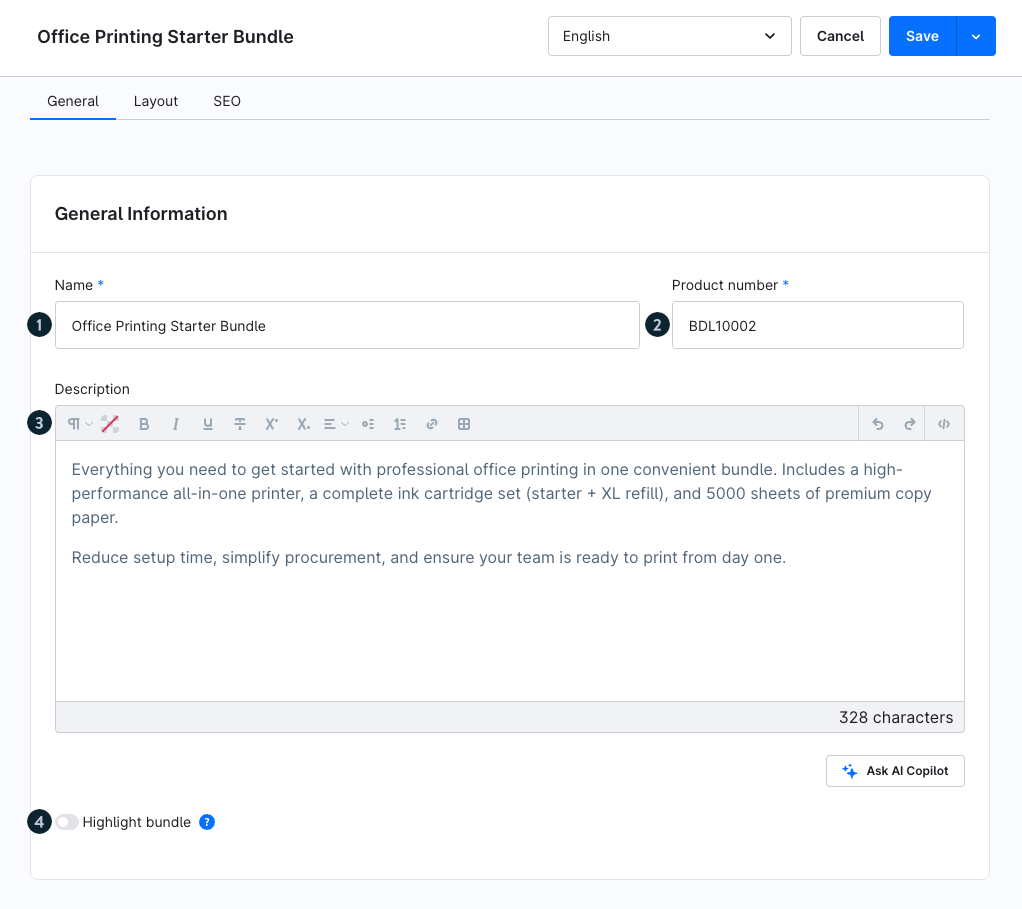
First, define the basic data for your bundle:
Name (1): Here you can enter the bundle name, for example. It is displayed in the product listing and used as the heading on the product detail page.
Product number (2): Here, you can assign an individual product number to your bundle. As a rule, this is done automatically based on your number ranges.
Description (3): In the description, you can give the customer an overview of the bundle. The data stored here is displayed, for example, on the bundle detail page.
Highlight bundle (4): This can be used to give the bundle a badge in the listing, for example, so it stands out more to customers.
Add media
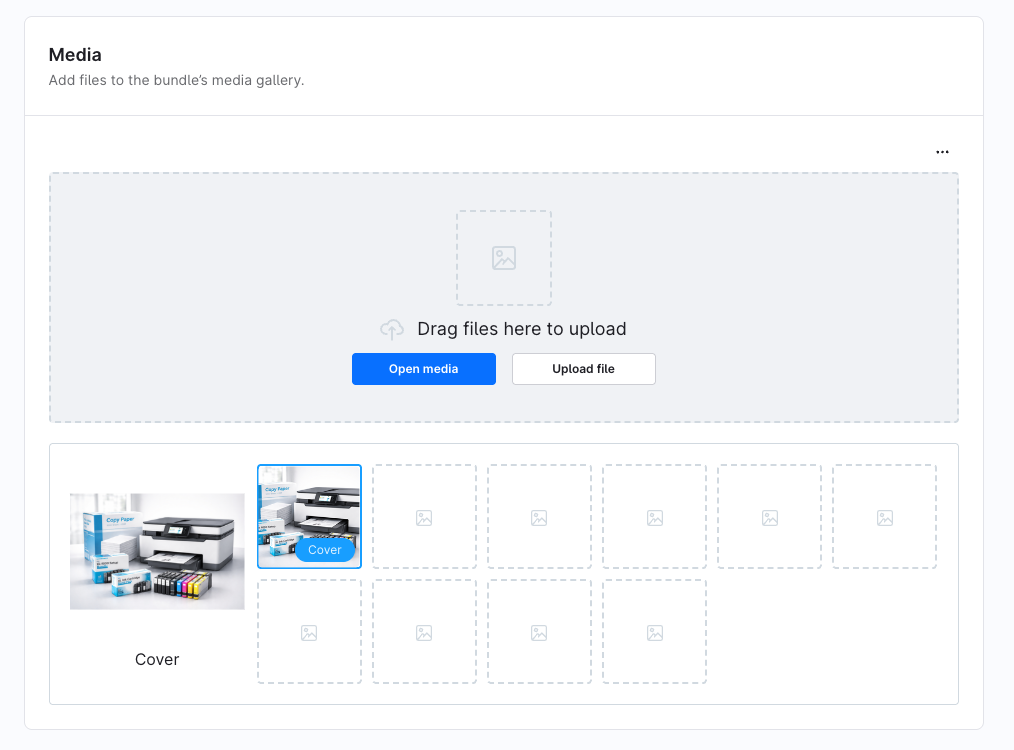
Add images or other media to visually present your bundle. The cover image is used as the main image in the Storefront.
Add products to the bundle
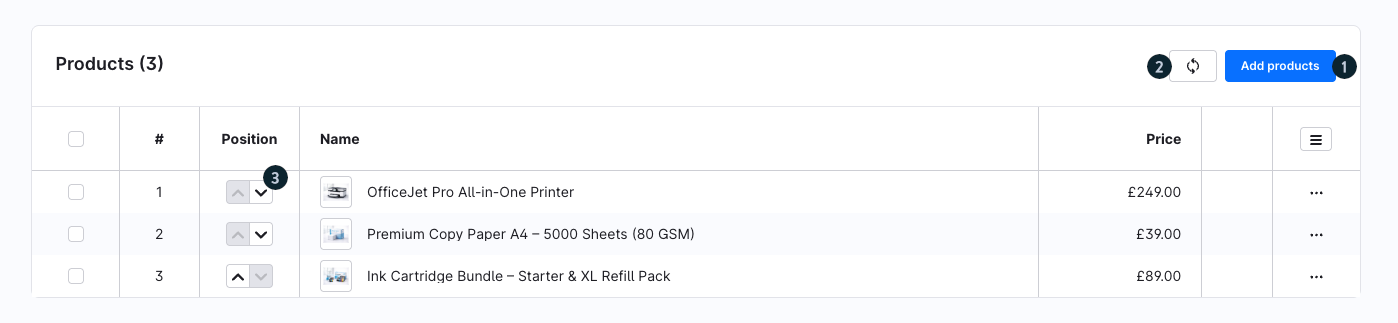
- Add products (1): Use the “Add products” button to add more items to your bundle.
- Refresh data (2): Reloads the product data.
- Position (3): You can define the order of products within the bundle individually. Use the arrow icons in the “Position” column to move products up or down.
Important notes:
A bundle must contain at least two products.
At the moment, the quantity per product is always 1.
You can select both main products and variants.
Configure prices and discounts
In the “Prices” section, you define how the total price of your bundle is composed and whether a discount is applied.
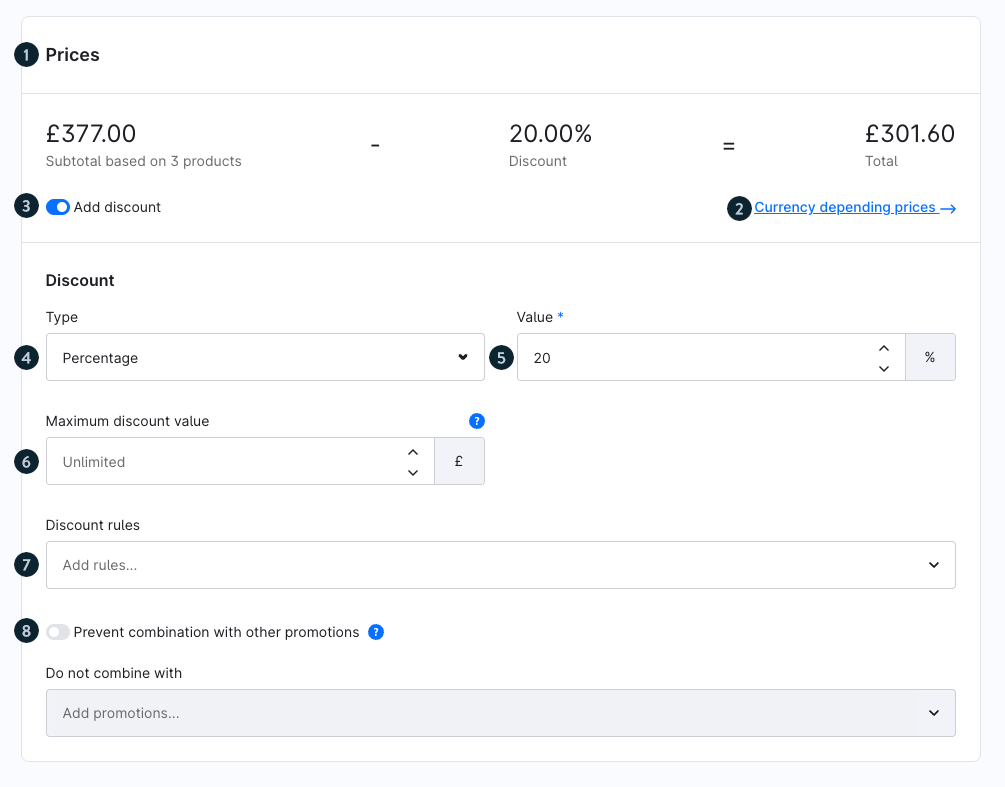
Prices (1): Here you can see the subtotal of all included products, the applied discount, and the resulting total price.
Currency depending prices (2): Via the “Currency depending prices” link, you can define individual prices for different currencies. This is helpful if you sell internationally and prices should not be converted automatically.
Add discount (3): Activate the switch to define a discount for the bundle.
Type (4): Choose how the discount is calculated:
Percentage, for example 20% discount
Alternatively, a fixed amount
Value (5): Enter the discount value here, for example 20%.
Maximum discount value (6): Optionally, you can set a maximum discount amount. This ensures that the discount does not exceed a certain value.
Discount rules (7): Here you can define conditions for when the discount applies, for example only for specific customer groups or only within certain time periods.
Prevent combination with other promotions (8): If you activate this option, the bundle discount cannot be combined with other promotions.
Good to know:
The discount is distributed across the individual products in the checkout.
If a customer removes a product from the bundle, the discount is also removed.
Depending on the configuration, additional discounts can also be applied.
Visibility and assignment
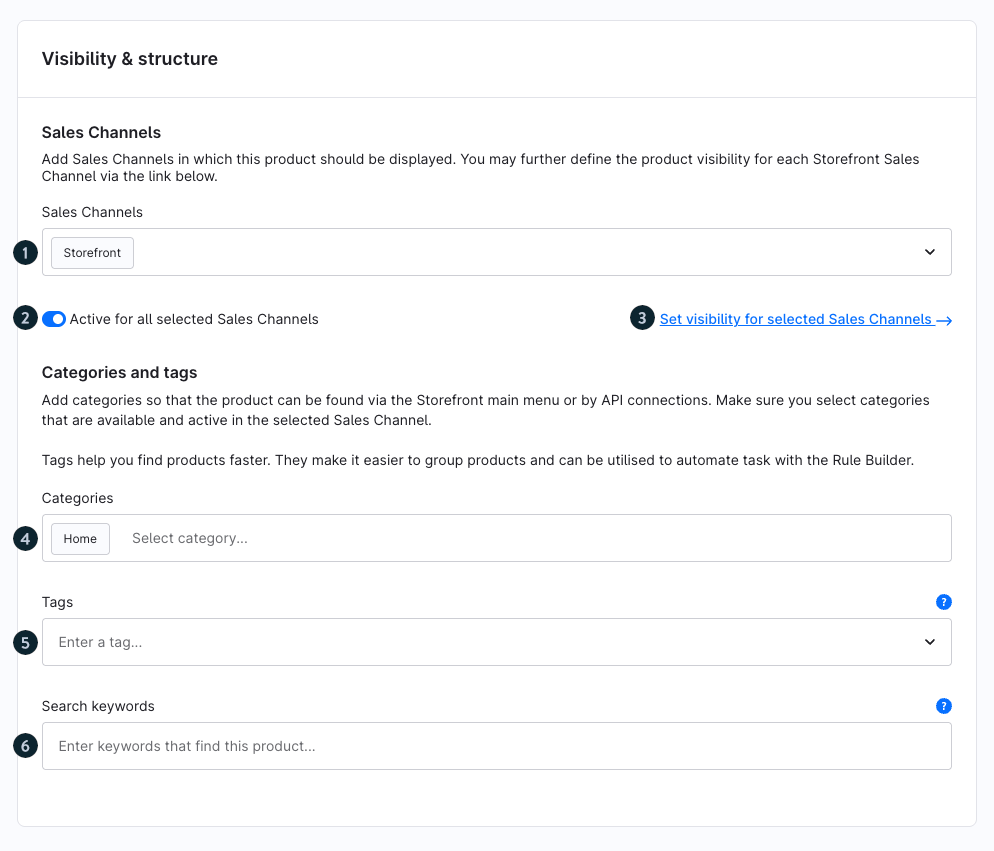
Sales Channels (1): Select the sales channel in which your bundle should be displayed, for example Storefront.
- Active (2): Activate this switch so that your bundle is visible in the selected sales channel. If the option is disabled, the bundle will not be displayed.
- Set visibility for selected Sales Channels (3): Via the “Set visibility for selected sales channels” link, you can define in detail how visible your bundle is in the respective channels.
- Categories (4): Assign one or more categories to your bundle. This will display it in the Storefront navigation and make it easier to find. Make sure the categories are active in the respective sales channel.
- Tags (5): Tags help you structure bundles internally and find them again more quickly. They can also be used for automations, for example in the Rule Builder.
- Search keywords (6): Enter additional terms here under which your bundle should be found. These keywords improve search results in the Storefront.
Labelling
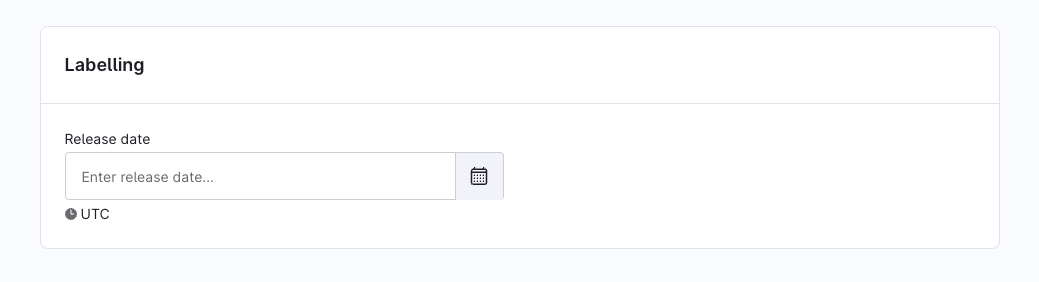
Release date: Use the release date to define when a bundle becomes available in the shop. If the stored time has not yet been reached, a corresponding notice is shown on the product detail page to inform customers when the product will be available.
This date is only used as an indication for customers from when the product will be available. The bundle can still be purchased.
Layout
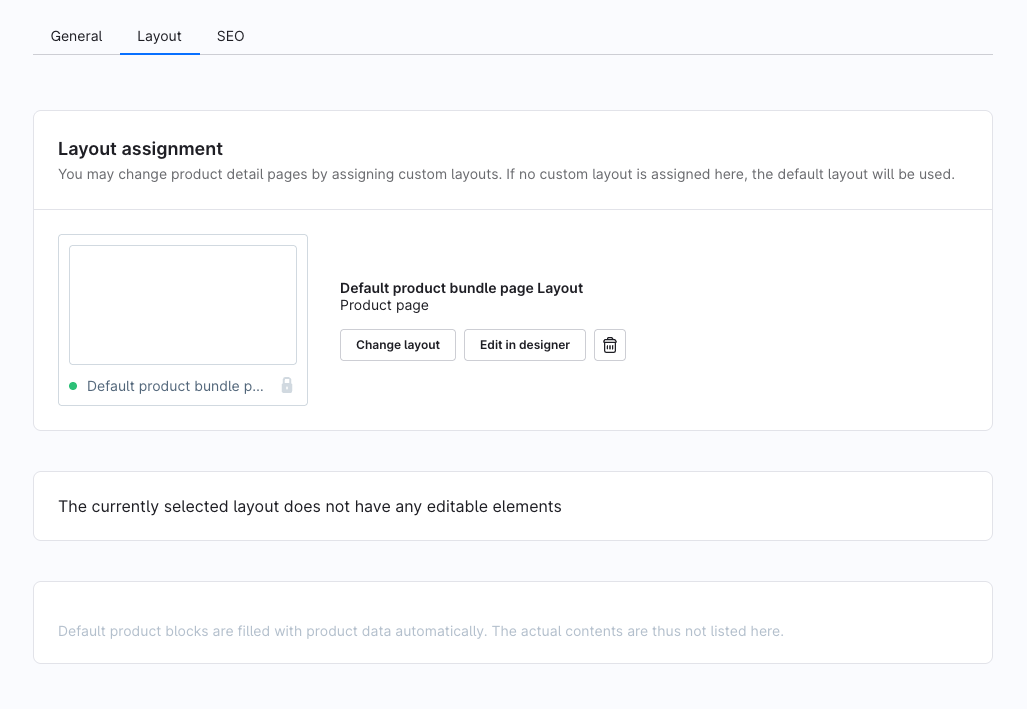
In the Layout tab, you can assign a bundle page from the Shopping Experiences to the bundle. This gives you the option to design the structure of the product page yourself.
SEO settings
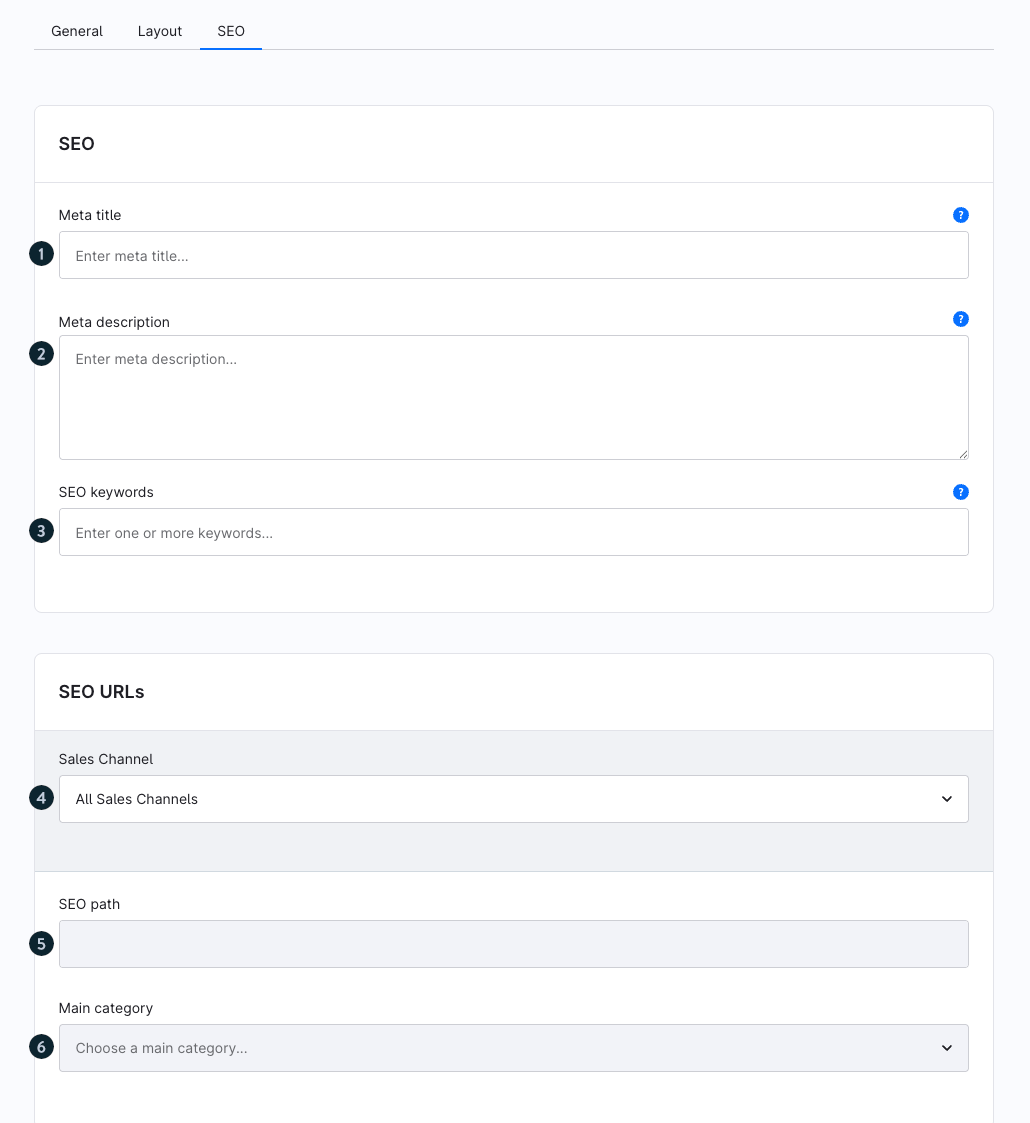
Meta title (1): Enter a meta title for your bundle here. It is displayed as the title in search engine results and should describe the content of your bundle as precisely as possible.
- Meta description (2): Enter a meta description that briefly summarizes your bundle. It is often shown in search results and can positively influence the click-through rate.
- SEO keywords (3): Add relevant keywords that describe your bundle. These help improve discoverability in search engines.
- Sales Channel (4): Select the sales channel for which the SEO URL should apply. By default, “All sales channels” is selected.
- SEO path (5): Define the SEO URL of your bundle here. This URL is used in the Storefront and should be as short, clear, and search-engine-friendly as possible.
- Main category (6): Define a main category. This affects the structure of the SEO URL and the placement of your bundle in the Storefront.
Display in the Storefront
Bundles are visible both in product listings and on a dedicated detail page.
Product overview (listing)
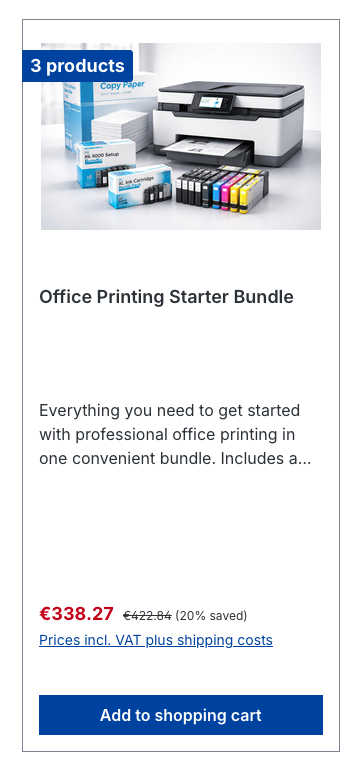
In the product overview, your bundle is displayed like a normal product.
Your customers see:
the bundle cover image
the name and a short description
the number of included products (e.g. “3 products”)
the reduced total price and the savings
Product detail page
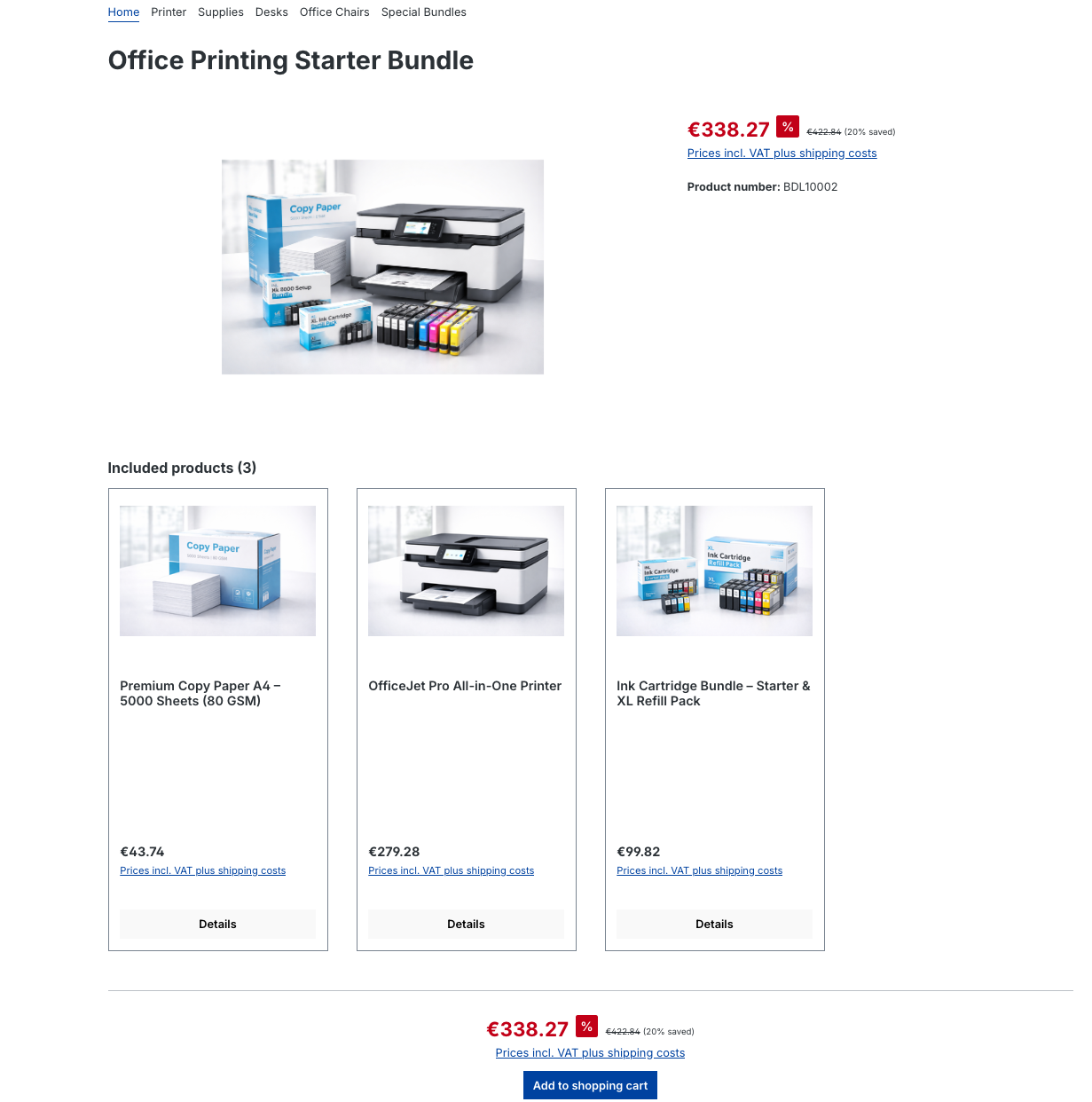
On the detail page, your customers get a complete overview of the bundle:
total price including discount and percentage savings
overview of all included products with individual prices
Included products
The products included in the bundle are displayed individually. For each product, your customers see:
product image
product name
individual price
link to the respective product detail page
Cart and checkout
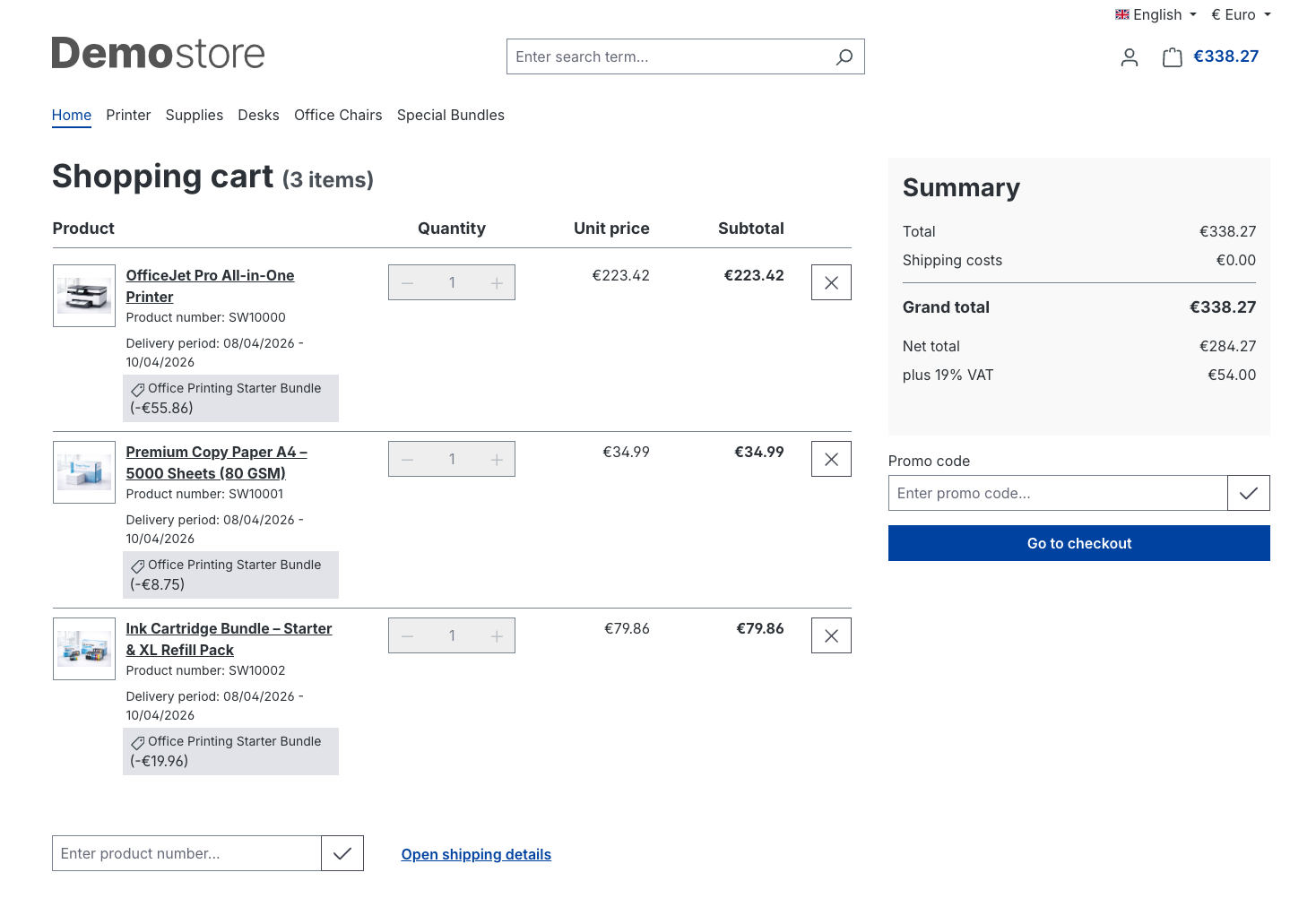
When added to the cart, the bundle is treated as a single combined offer:
The bundle discount is applied automatically.
The discount is distributed across the individual products.
Depending on the configuration, additional discounts can be applied.
If your customer removes a product from the bundle, the bundle discount is also removed.
Additional features and notes
Handling returns
Returns for bundles can also be made partially. This means that your customers can return individual products from a bundle without having to return the entire bundle.
The discount granted in the bundle is distributed proportionally across all included products. If an item is returned, the refund is based on the discounted individual price of the product.
This ensures that price calculations remain correct and transparent even for partial returns.
Dynamic product groups
Bundles are compatible with dynamic product groups. For example, you can use the filter “Product type equals bundle” to specifically select bundles and display them in product listings or categories.
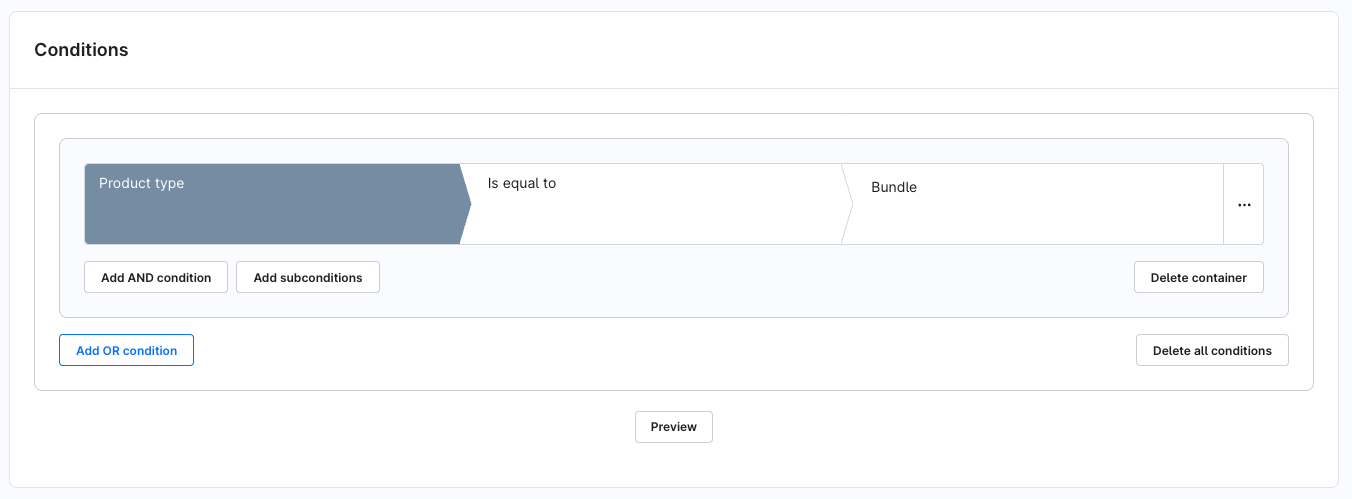
Rules for bundles
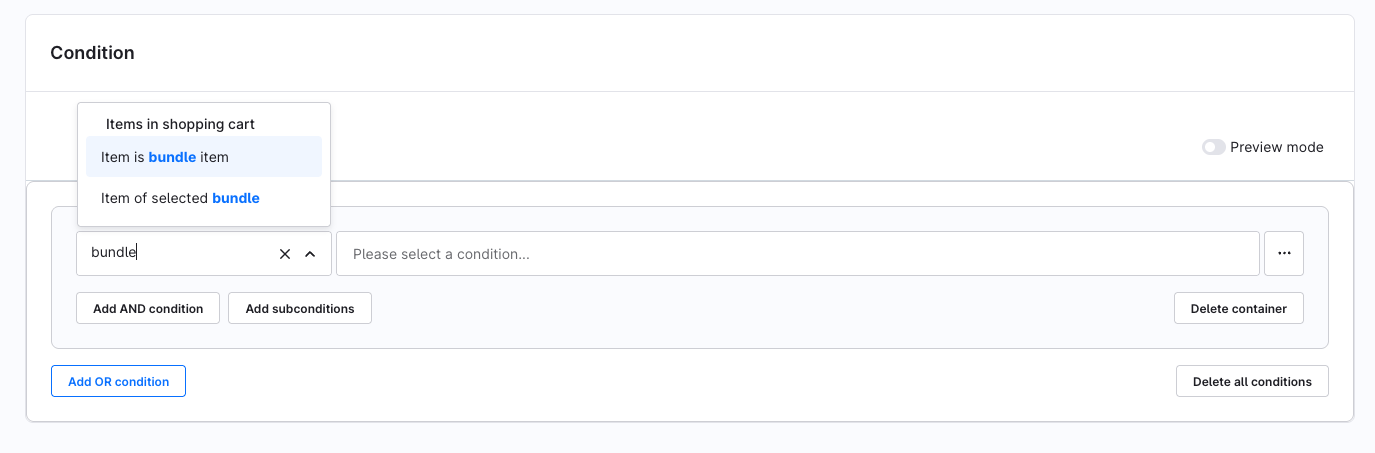
Additional conditions are available for bundles in the Rule Builder:
- Item is bundle item: Checks whether an item is part of a bundle.
Item of selected bundle: Checks whether an item belongs to a specific bundle.
You can use these conditions, for example, for custom pricing, shipping rules, promotions and discounts.
Display bundles on the product detail page (CMS element)
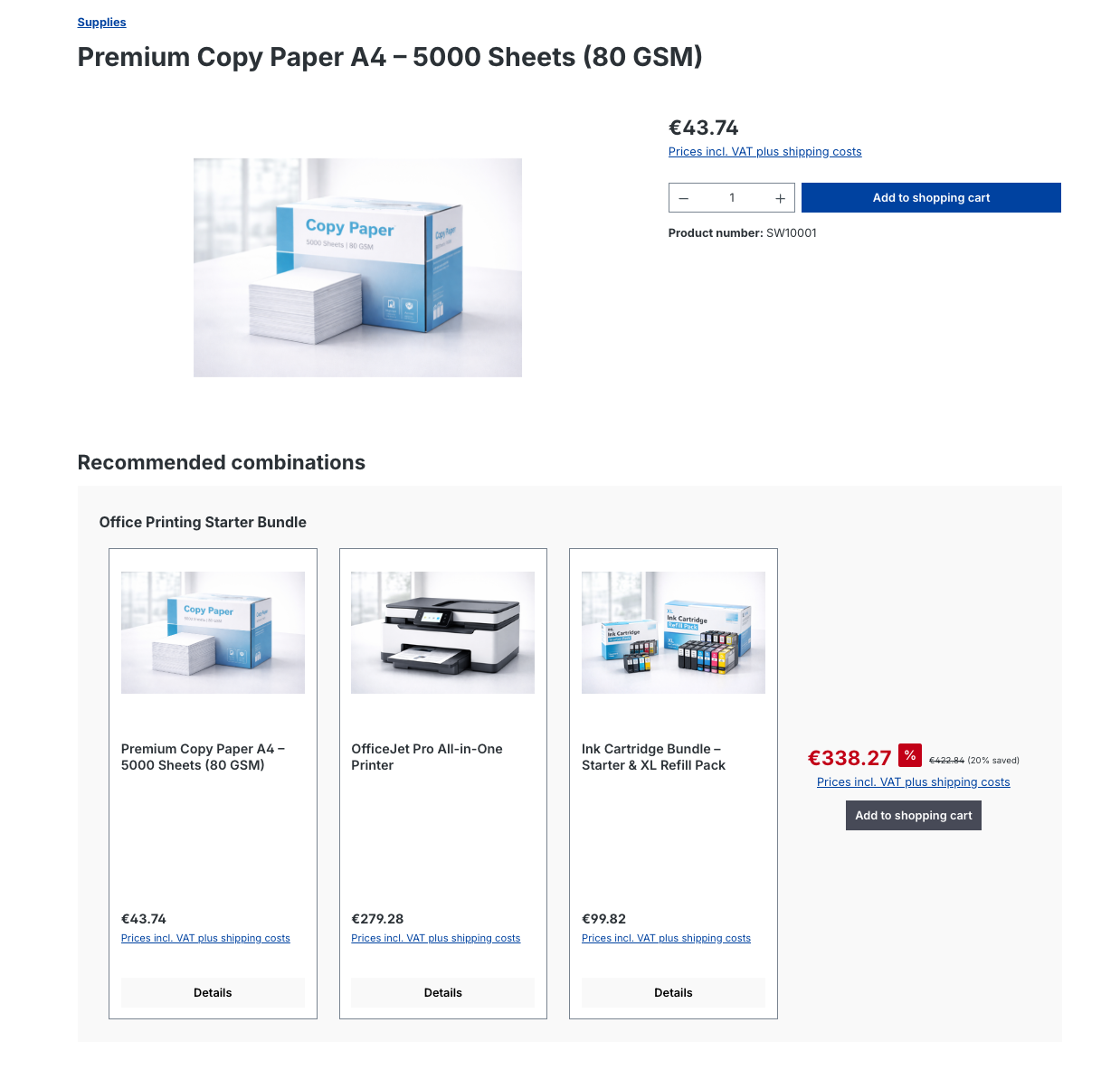
Using Shopping Experiences, you can also display bundles on product detail pages. A dedicated CMS element for bundle recommendations is available for this purpose.
This element displays bundles that include the current product and is especially useful for cross-selling scenarios.
SEO URL templates
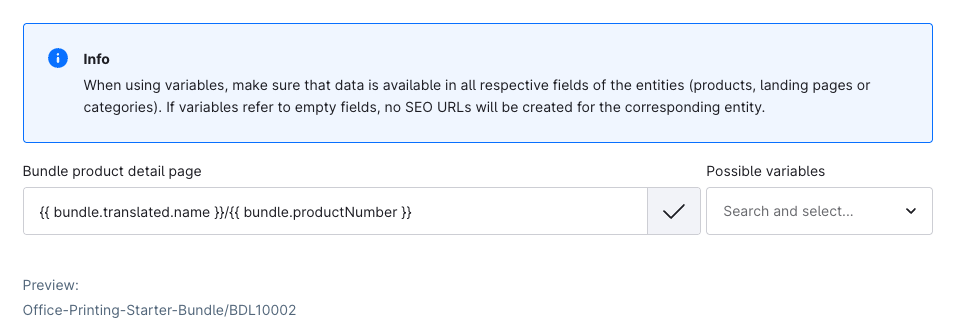
You can define a dedicated SEO URL template for bundles under Settings > SEO. By default, the same template as for products is used, but it can be customized individually.
Finding bundles in the admin
Bundles behave similarly to products in the admin:
You can find bundles via the global search
You can filter specifically for bundles in the bundle module
API support
A dedicated Admin API is available for bundles. This allows you to create, manage, and automate bundles externally.
You can find more information in the technical documentation: Bundle API documentation