


Shopware Demo
In the Shopware Account, you can find your demo shop’s access links, information about its runtime, a cost overview, and the steps to prepare for going live. In the Shopware Administration, you can explore your demo shop and view its demo data.
Demo shop in the Shopware Account
Runtime and expiration
Your demo shop is available for 30 days. At the top of the page, you can see its current status, expiration date, and the number of days remaining.
When the demo period ends, the shop is automatically terminated. If you want to keep your work, migrate the demo shop to a live shop before it expires. Otherwise, the shop and its data will be deleted.
Open your shop
In the Links & access section, you’ll find links to the Administration and the storefront.
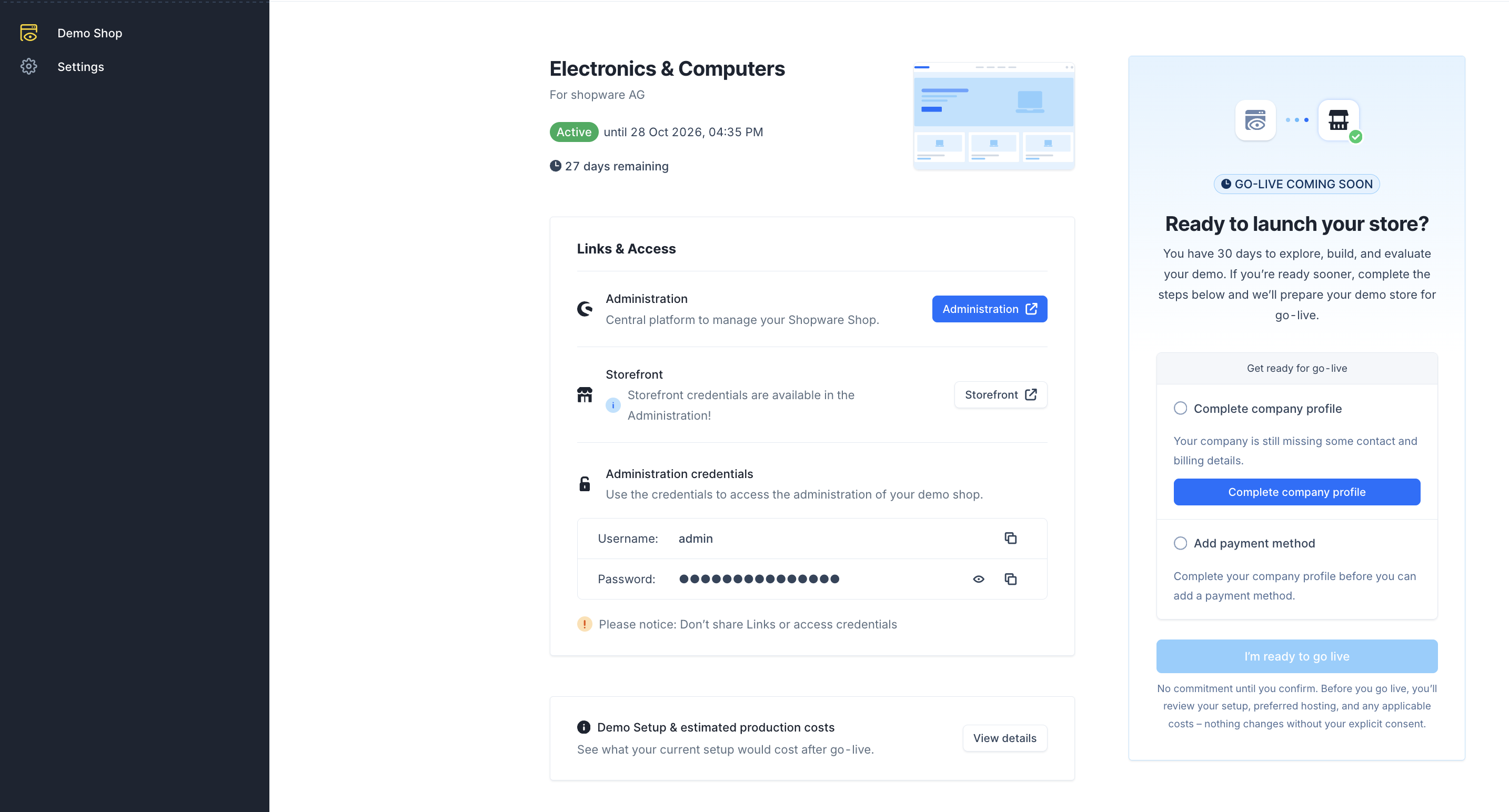
Administration
Select Administration to open the management interface for your Shopware 6 shop. There, you can edit products, categories, content, orders, settings, and extensions, for example.
Storefront
Select Storefront to open your shop’s frontend. You can use it to check how content and shopping experiences are displayed. You’ll find the credentials for the password-protected storefront in the Administration.
Administration credentials
In the Administration credentials section, you’ll find the username and password. The password is masked by default. Use the buttons to copy the username, show the password, or copy the password.
Only share links and credentials with authorized people.
Costs after migration
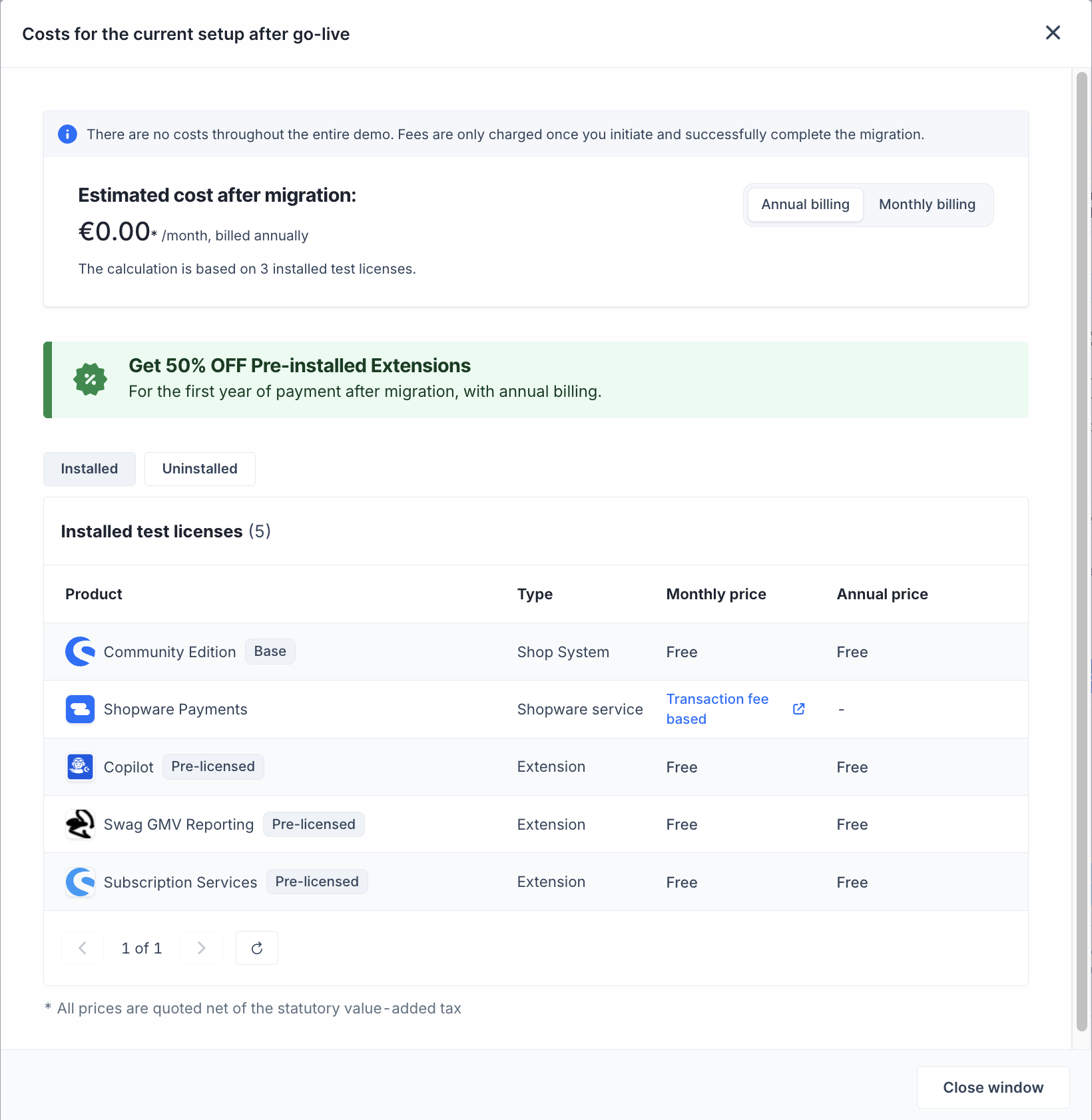
Select View details to open the cost overview for your current setup. It shows an overview of the potential costs after migrating to a live shop.
You can switch between monthly and annual billing. The overview also lists installed or pre-licensed products and extensions, together with their pricing models.
The demo is free for its entire duration. Costs are incurred only after you have successfully completed the migration. The displayed prices are net prices and exclude statutory VAT.
Prepare to go live
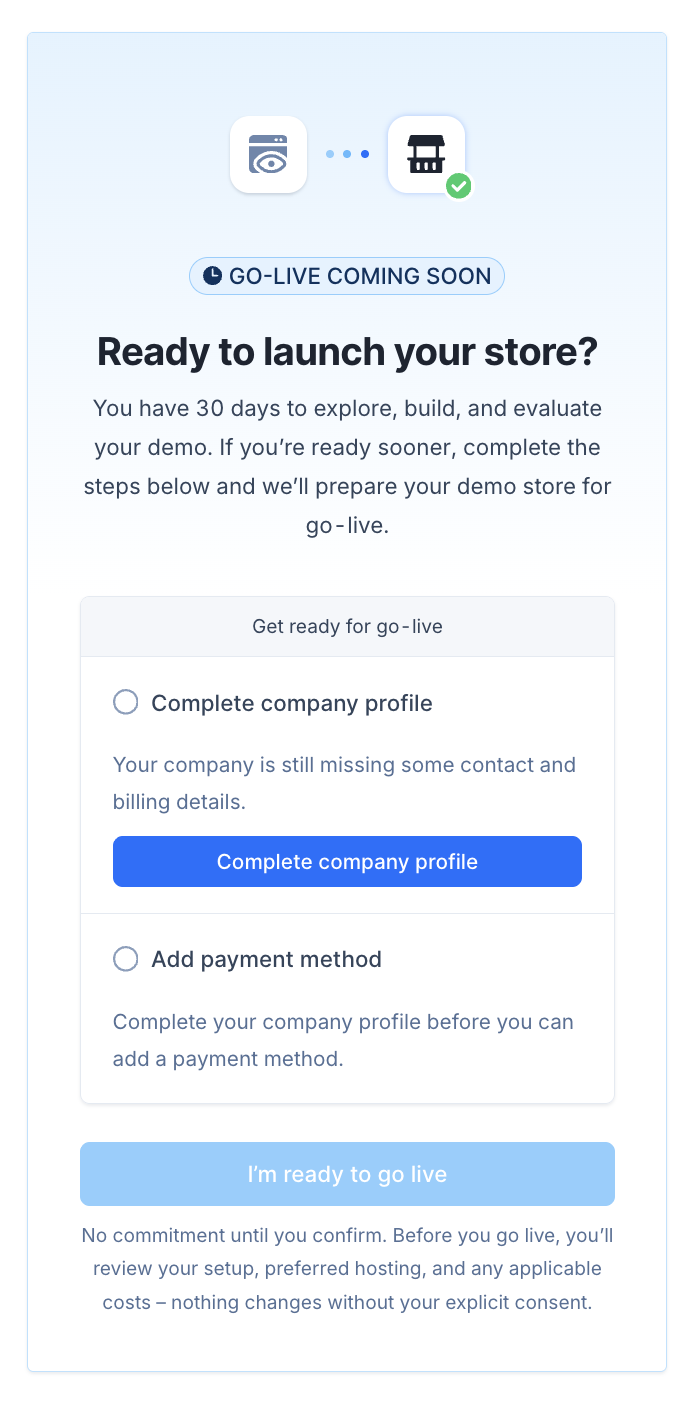
The go-live preparation section lists the steps you need to complete before moving your shop into production:
- Complete your company profile: Add any missing contact and billing details in your settings.
- Add a payment method: You can do this after completing your company profile.
- Confirm your go-live: Once you’ve completed both steps, select I’m ready to go live to confirm that you want to launch your shop.
Before going live, you can review your setup, preferred hosting option, and potential costs.
Get started
Under Get started, you’ll find links to help you explore key features of your demo shop. These include creating a product, customizing the storefront, and testing shopping experiences.
You can also visit the Extension Store and Community Hub, and learn about Shopware Payments and AI Copilot. Some links open external pages, while others take you directly to the Administration.
Use your demo shop
A demo shop is a full Shopware installation with demo data. You can create your own products, categories, and content pages, and explore the Administration and storefront.
People who have access to the relevant company in the Shopware Account can also open the demo shop. The demo shop runs on a Shopware domain. You can connect your own domain once the shop goes live.
You can install and test extensions from the Shopware Store, and explore Shopware Payments and other Shopware services. Services that require a specific plan or contract are available with a live shop.
You can also import products, categories, and customers into the demo shop to review your own product range.
Delete your demo shop
You can delete your demo shop at any time. This permanently removes the shop and all its data. It cannot be restored.
Get help with third-party extensions
In the Need help? section, you’ll find an entry point for issues with third-party extensions. These extensions are developed by extension partners. If you have an issue, use the designated button to submit a support request to the relevant extension partner.
Demo environment in the Administration
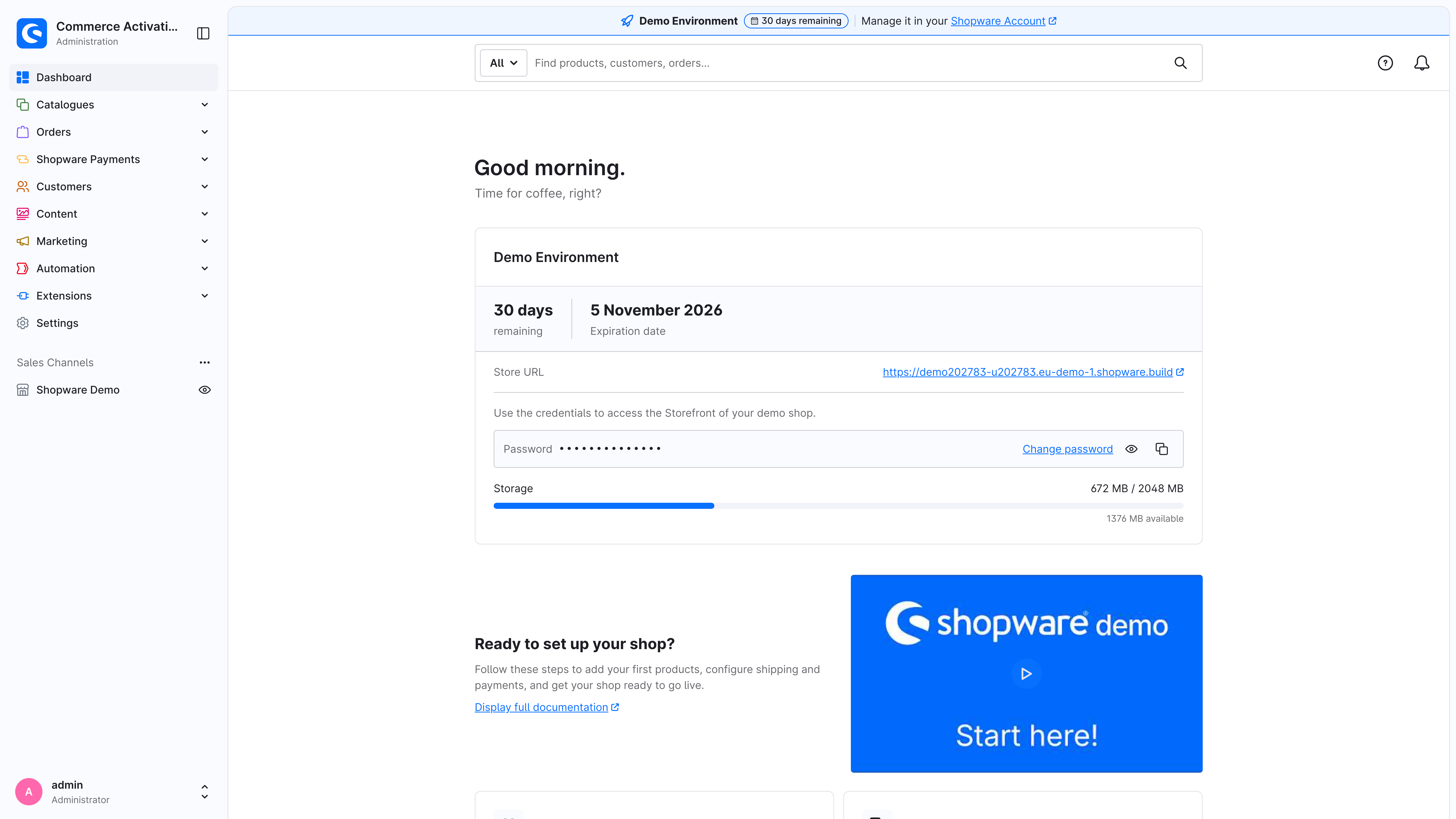
The dashboard is the home page of the Shopware Administration. In the Demo environment section, you’ll find information about the runtime, the storefront link, the storefront password, and your storage usage.
- Runtime: See how many days remain and the expiration date.
- Storefront: Select the shop URL to open the frontend. The password shown below it gives you access to the password-protected storefront. Select Change password to update it.
- Storage: Each demo has 2 GB of storage. The indicator compares used storage with the amount available. Products, media, and other shop data use this storage.
Other dashboard sections
Under Ready to set up your shop?, you’ll find direct links to key setup tasks, including products, categories, customers, orders, content, shipping, payment methods, and taxes.
The Ready to go live? section provides information about migrating to a production shop. Under Demo Data, you’ll find the link to the demo data overview.
Demo data overview
The demo data overview shows the AI-generated demo data in your shop. Data records that are no longer needed are automatically removed when deleted.
Open the overview using the Demo data overview button on the dashboard or by selecting Content > Demo data overview in the navigation.
The overview has three tabs. Each entry links to the relevant section of the Administration. Select an entry to open the corresponding detail or overview page, where you can review and edit the record.
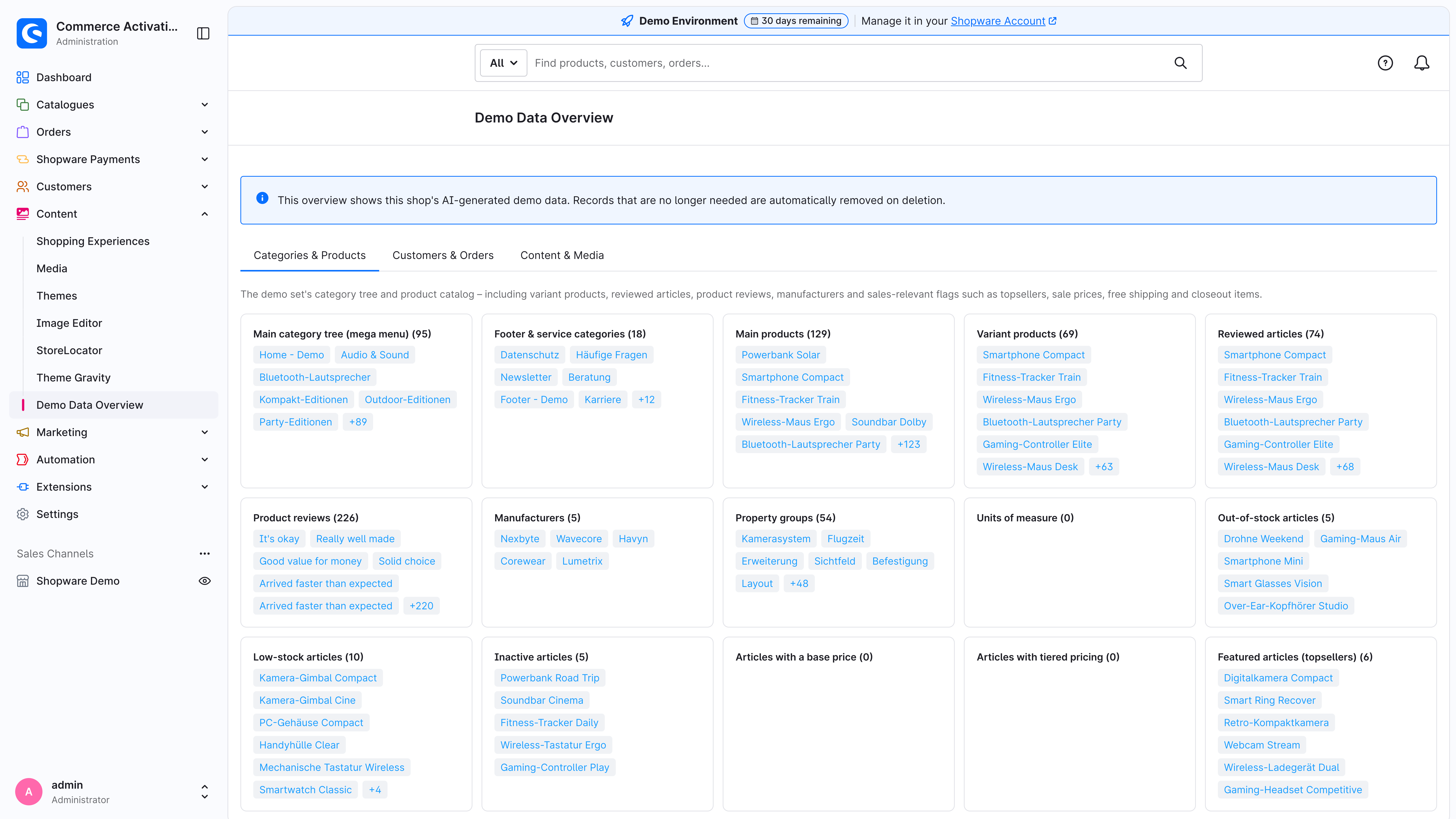
Categories & products
Here you’ll find the demo’s categories and products, including the main category tree, footer and service categories, main products, variants, manufacturers, product reviews, and property groups.
Products are also grouped by attributes, such as low or missing stock, inactive status, bestsellers, free shipping, clearance, and sale prices.
Customers & orders
This tab contains the generated customers and orders. It includes customer groups, customers with no orders, customers with multiple orders, orders with internal comments, and newsletter subscribers, among other things.
Use the linked entries to open individual customers or orders and review their data in the Administration.
Content & media
Here you’ll find the demo’s content and media, including CMS pages and shopping experiences, media folders, cross-selling product streams, and promotions.
To edit a CMS page, shopping experience, or promotion, open the corresponding entry. It takes you directly to the relevant section of the Administration.