
Track and trace
In this tutorial, you will learn how to integrate and use the tracking function with a tracking link or a tracking number in the shop.
Looking up the tracking link
To find out what the link to the shipment is, you can usually check with the logistics company whose shipping method was selected in the order. In most cases, you can simply go to the online portal of the respective company and enter the shipment number. In this example, we use DHL.
In the case the tracking link is:
https://www.dhl.de/en/privatkunden/pakete-empfangen/verfolgen.html?piececode=12345678
where the digit '12345678' represents the tracking number.
Adding the tracking link to the email template
To do this, go to your email templates under Settings > Email templates. In our example, we would like to insert the tracking link into the mail template "Entry delivery status: shipped". When you open the template, you have the option of modifying the mail text.
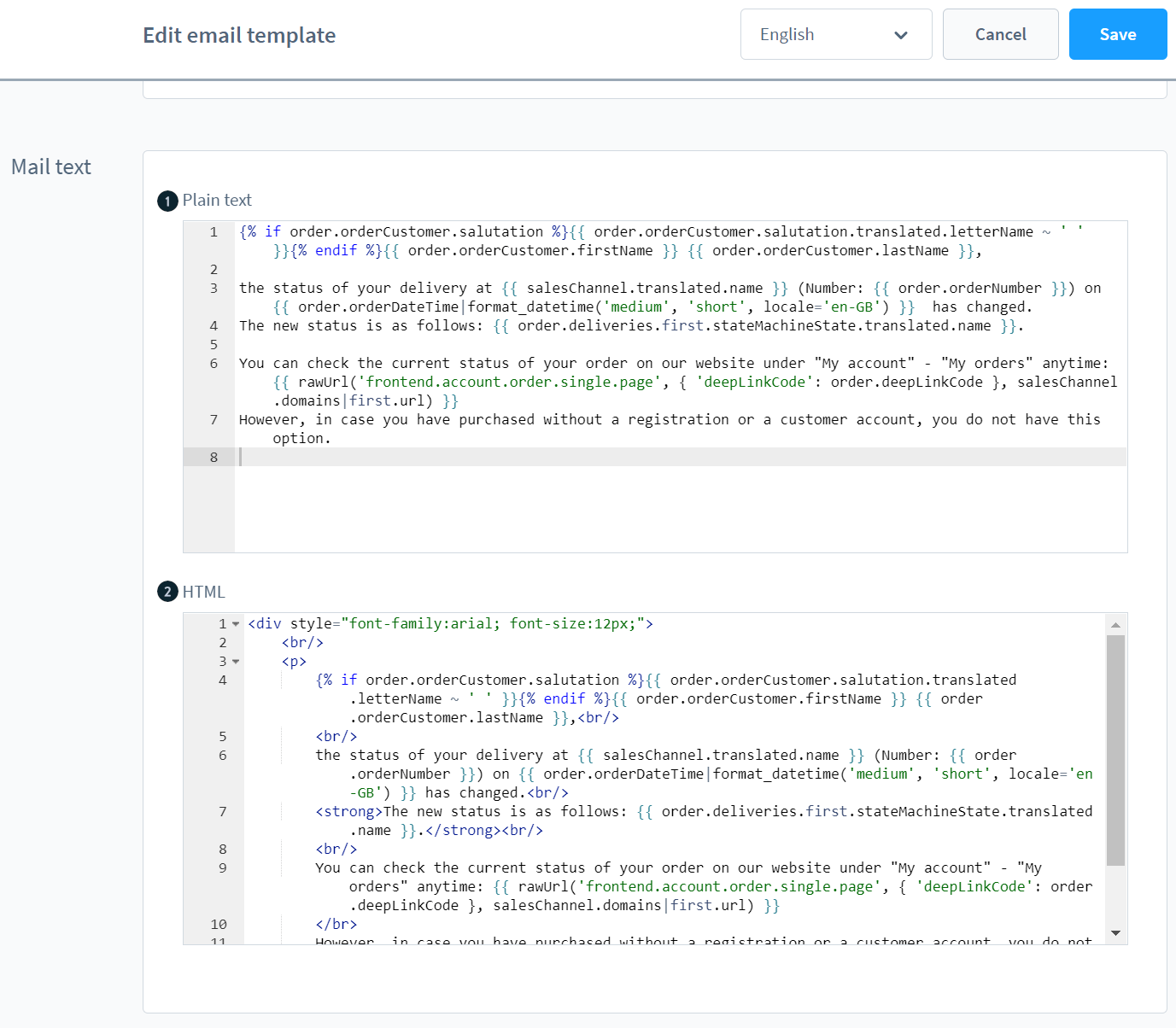
For the text (1) template you can use the following example code, in which the variable for the tracking number "trackingCode" is output.
{% for delivery in order.deliveries %}
    {% for trackingCode in delivery.trackingCodes %}
        https://www.dhl.de/en/privatkunden/pakete-empfangen/verfolgen.html?piececode={{ trackingCode }}
    {% endfor %}
{% endfor %}
For the HTML (2) format, it looks like this:
{% for delivery in order.deliveries %}
    {% for trackingCode in delivery.trackingCodes %}
        Sendungsverfolgung: <a href="https://www.dhl.de/en/privatkunden/pakete-empfangen/verfolgen.html?piececode={{ trackingCode }}">{{ trackingCode }}</a></br>
    {% endfor %}
{% endfor %}
Insert tracking URL in the shipping method
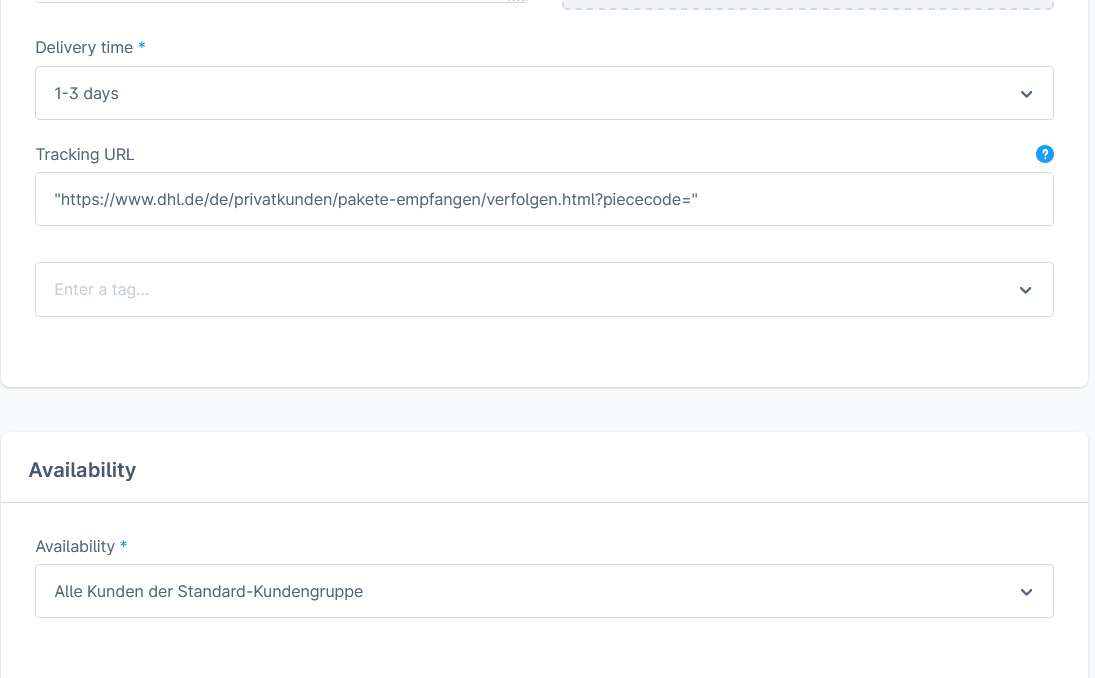
The basic tracking URL must be entered under Settings > Shop > Shipping, which would be this part from the example:
https://www.dhl.de/en/privatkunden/pakete-empfangen/verfolgen.html?piececode=
Enter the tracking number in the order details
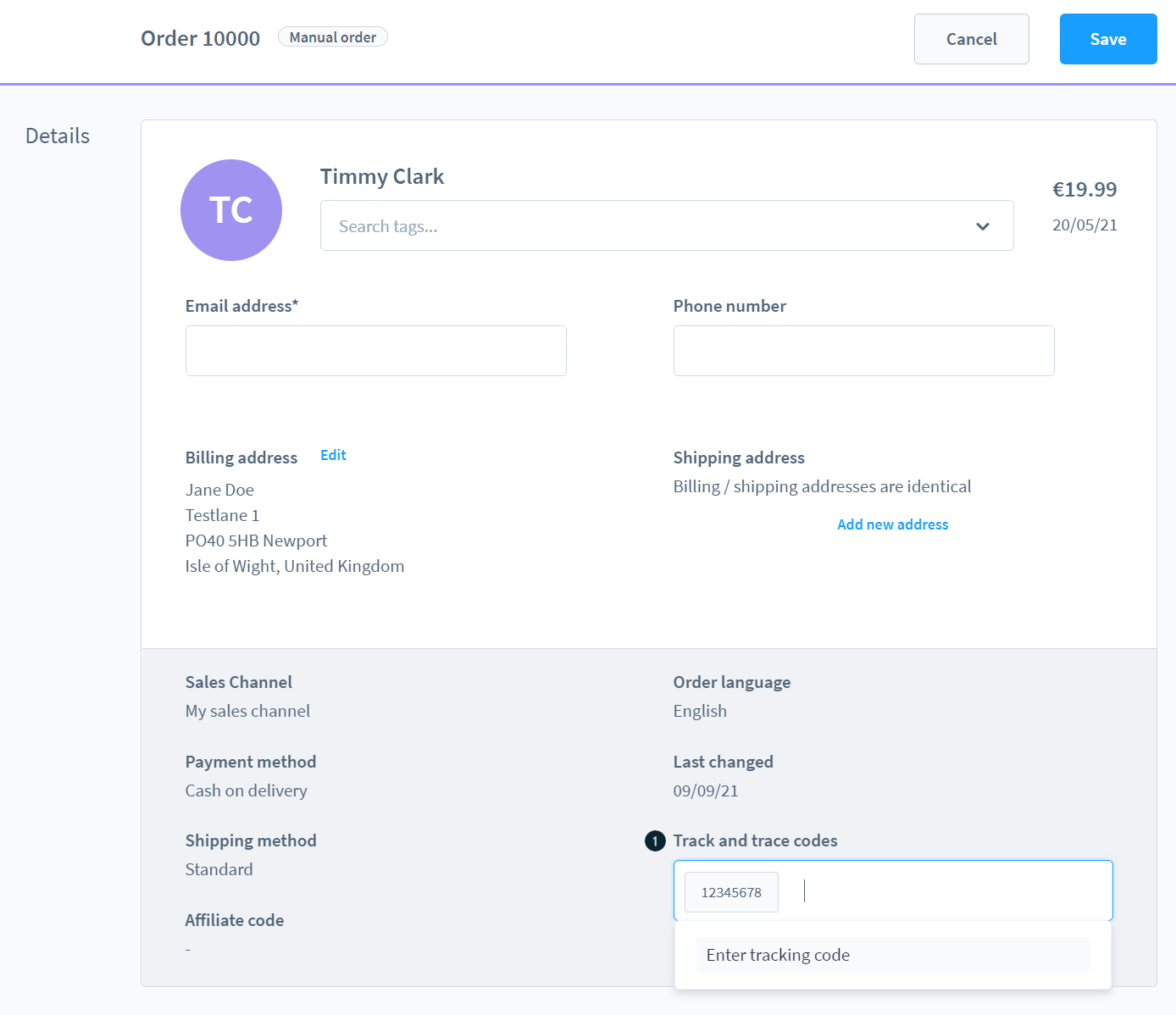
When you open the order in the administration and edit it, you have the option of entering one or more tracking numbers (1).
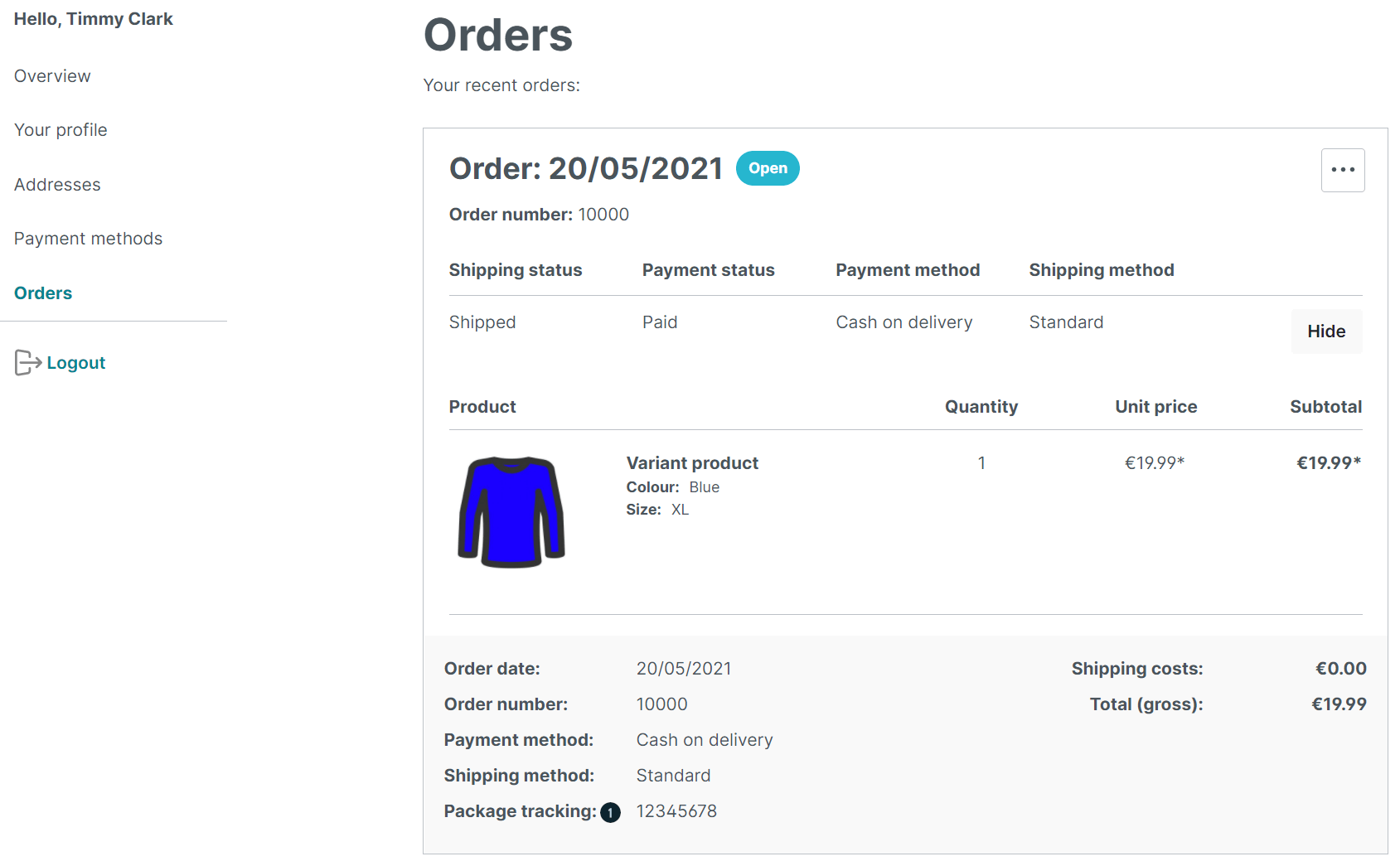
The tracking number (1) is located in the customer's storefront under orders.