
Warehouses
Your cookie settings prevent us from loading YouTube. To display the video we'll need your consent.
If you have multiple warehouses to store your products, you can define and manage your warehouses in this mask.
You can group your warehouses within a region to enable regional shipping in combination with rules.
This feature is available as part of the Beyond Plan from version 6.4.19.0 and upwards.
Definition of management of warehouses and warehouse groups
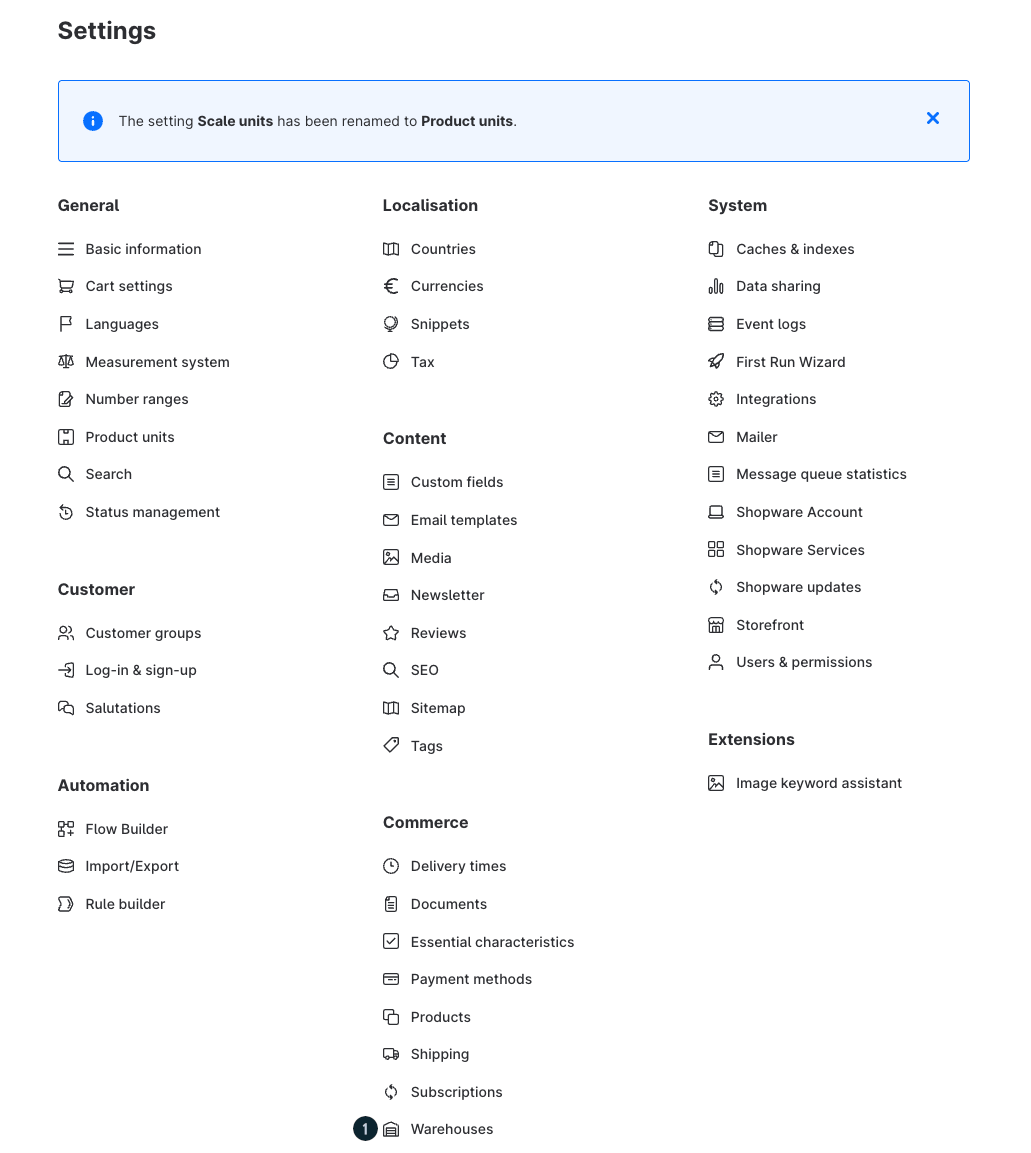
You´ll find the warehouse management in Settings > Commerce > Warehouses (1).
Warehouses
In here you can manage your warehouses. These warehouses appear in the product mask and you can manage the stock for every warehous within the products.
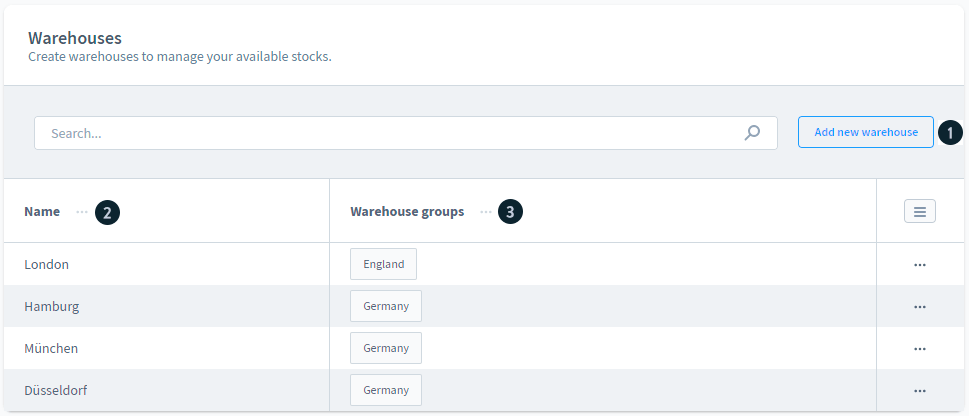
The view shows the available warehouses (2) and the warehouse groups (3) they are attached to.
Adding a warehouse
To add an additional warehouse you click on the button add new warehouse (1).
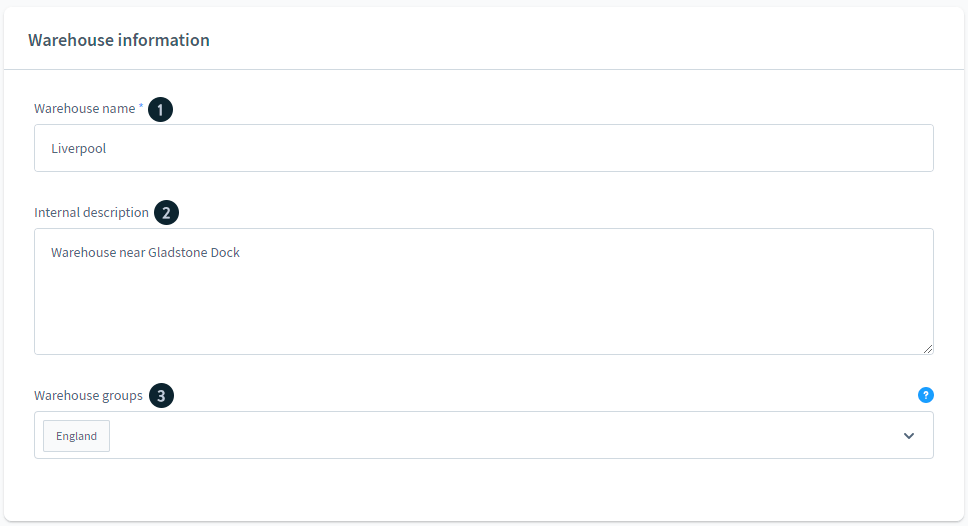
Give a Name (1) to the warehouse. In the description (2) you can put additional information about the warehouse such as Address or the stored products. In the dropdown-menu Warehouse-groups (3) you can add the warehouse to one or more warehouse groups. The goal is to prioritize the warehouses within the orders in relation to the shipping address, in addition with rules. E.g. for international shipping, the order would be sent from warehouses near the shipping address to shorten the delivery times and tax, and avoid customs.
Edit and delete a warehouse
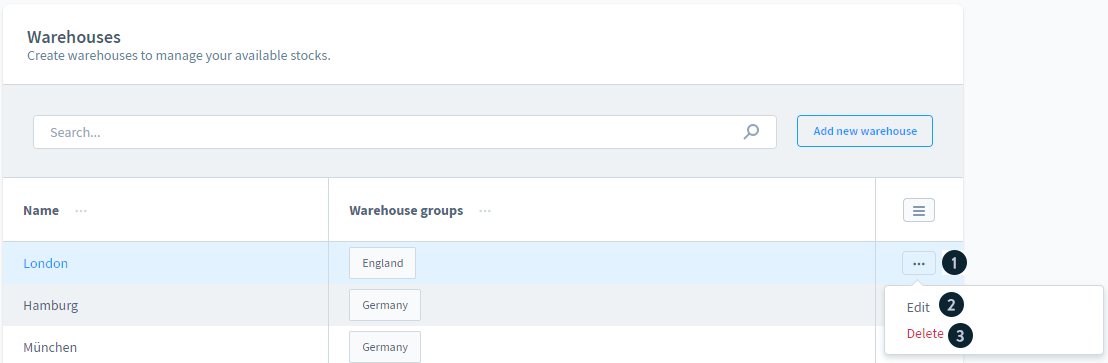
To edit a warehouse click on the button ... (1) in the last column and choose edit (2).
If a warehouse has to be deleted click the button ... (1) and choose delete (3). A confirmation message appears.
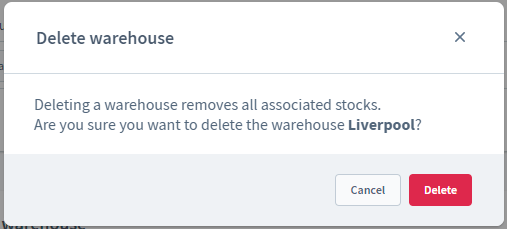
It is also possible to delete a warehouse within the edit mask of a warehouse. A delete warehouse button is shown at the bottom of the mask.

Assign products to a warehouse
The warehouses can be assigned to products in the product configuration. You can assign a warehouse group to the product in the Stock level & availability area of the product configuration. As soon as you have selected a warehouse group, the standard fields for the stocks disappear and you have the option of making detailed settings for the warehouses.
You can find more information on this here.
Warehouse groups
Define warehouse groups to combine regional warehouses or warehouses with certain stock types.
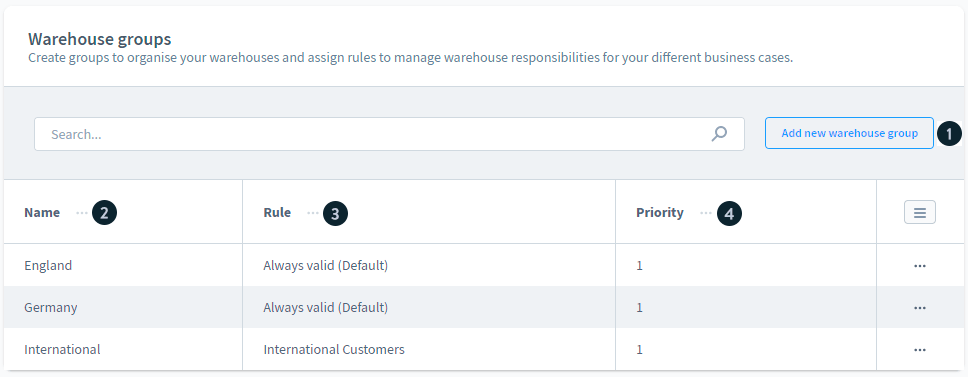
The view shows the names (2) of the warehouse groups as well as the assigned rules (3) which select the warehouse groups in relation to the shipping address.
Column priority (4) shows the order in which the warehouse groups are prioritized when using the same rule.
Define a warehouse group
To create a warehouse group click on the button Add a new warehouse group (1).
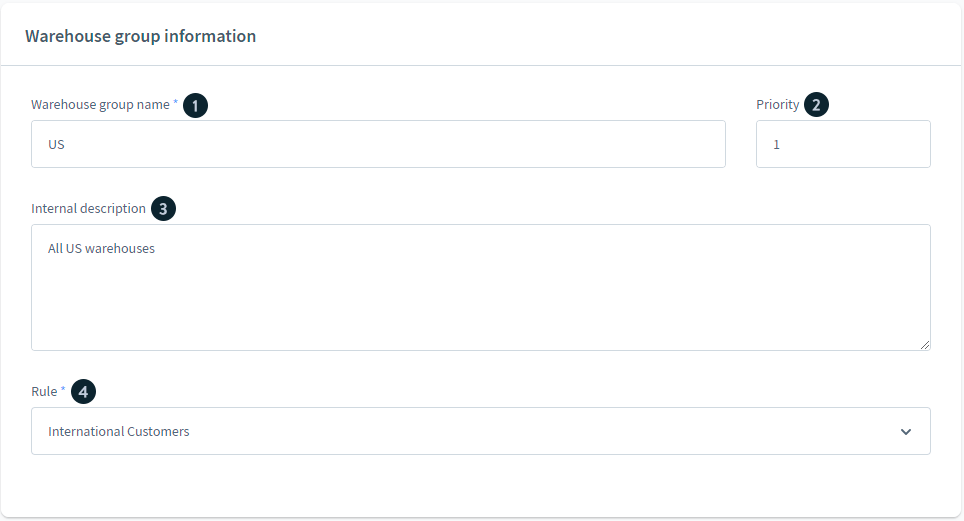
Define a Warehouse group name (1) for your warehouse group. This is a mandatory field.
The Priority (2) is used in combination with the rule to select assigned warehouses for the shipment of orders.
Use the Internal description (3) to add additional information about the warehouse group.
In the dropdown-list Rule (4) you can select a rule to select the warehouse group that fits the order.
Assign warehouses to a warehouse group
Below the definition fields, you find the area to assign warehouses to the warehouse group. If there are no warehouses assigned it should show the view below.

To assign warehouses to the warehouse group click on the button add warehouses (1).
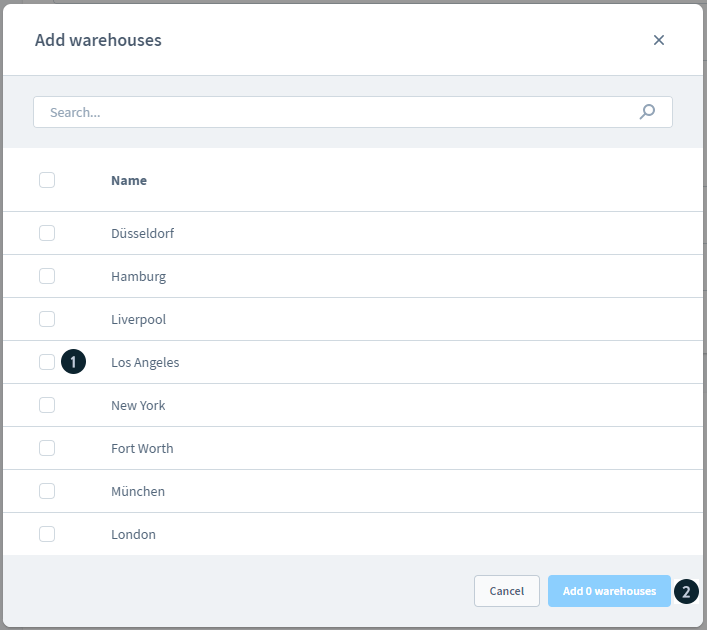
Choose the warehouses with the checkbox (1), to add them to the warehouse group.
To save the addition click on the button Add warehouses (2).
You are also able to add warehouses to warehouse groups with the dropdown list within the warehouse.
Prioritize warehouses within a warehouse group
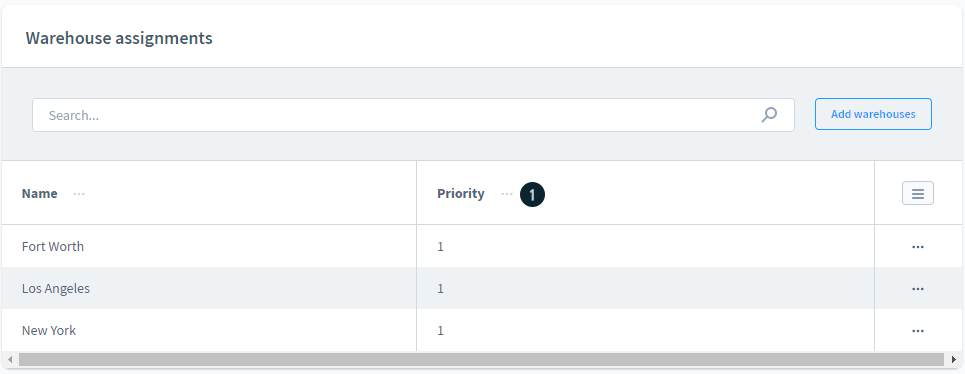
If products are stored in several warehouses of a warehouse group you can prioritize them in the column priority (1).
Double-click the priority field behind the warehouse, if you want to change the priority of a warehouse.
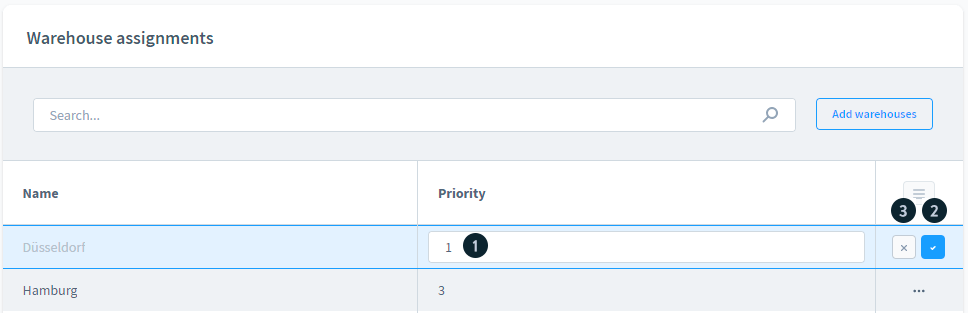
Enter the Priority(1) and save click on the Check-button(2) to save the entry. To cancel the entry click on the X-button(3).
Delete a warehouse from a warehouse group
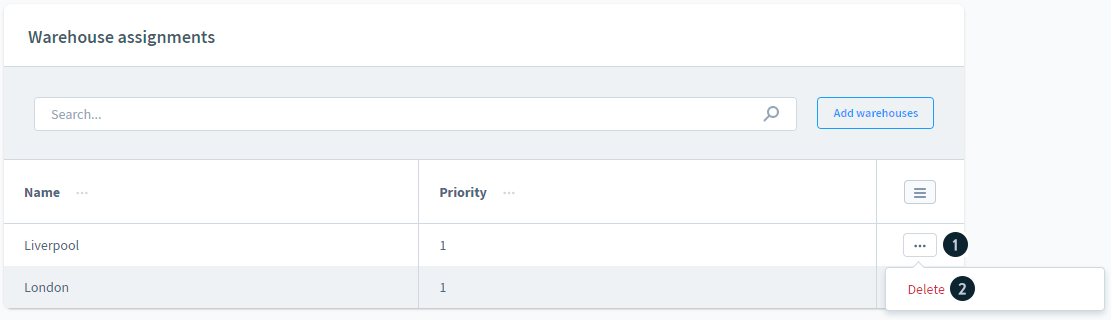
You can use 2 ways to delete a warehouse from a warehouse group.
- Within the list of warehouses click on the button ... (1). Then choose delete (2).
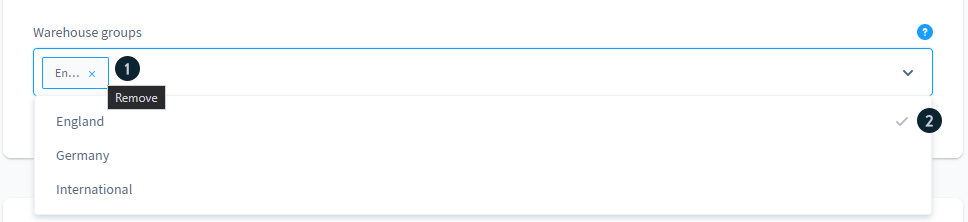
- Open a warehouse and click on the X in the **goup entry (**1) or open the dropdown list and click on the checkmark (2) to remove the group.
Edit and delete a warehouse group
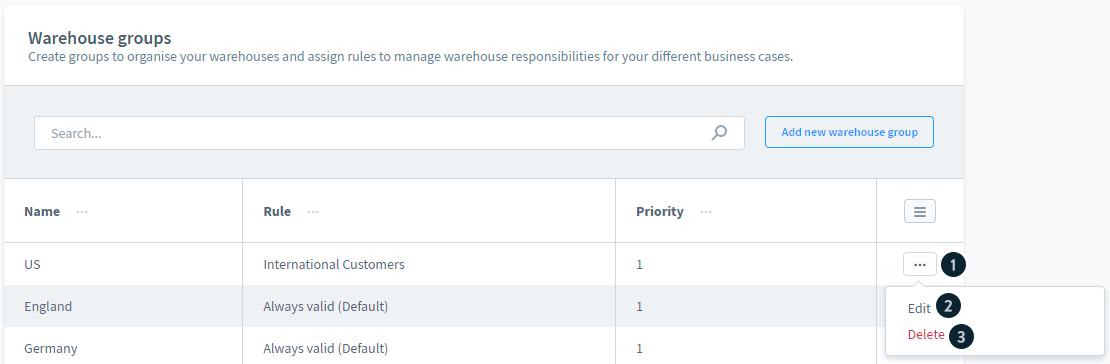
To edit a warehouse group click on the button ... (1) in the last column and choose edit (2).
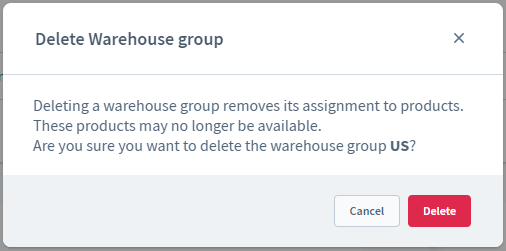
If you want to delete a warehouse group, click on the Button ... (1) and choose delete (2). A confirmation message appears.