


Agentic Commerce
This article applies from version 1.1.0 of the Agentic Commerce extension.
Agentic Commerce is an extension for Shopware that you can install via Extensions > My Extensions.
The extension currently provides the following components:
Universal Commerce Protocol (UCP) – enables AI commerce agents to automatically discover your shop and interact with it through a standardised interface.
Product Feed Sales Channel – provides product data to external systems and AI agents through a dedicated sales channel.
Note: This feature is currently in beta status. The range of functions is still limited in this version and may be expanded in future updates. Its behaviour and scope may still change.
We look forward to your feedback, which will enable us to continue developing the function in a targeted manner.
Agentic Commerce Product Feed
The Agentic Commerce sales channel serves as your central entry point for AI-driven product distribution. It allows you to make your products available on platforms like ChatGPT via a standards-compliant JSONL feed.
At the same time, you can measure the business impact of AI-generated traffic, for example, in terms of orders, customers, and revenue.
The sales channel is designed as a scalable foundation. This means you can seamlessly connect additional AI platforms in the future alongside ChatGPT and benefit from a future-proof approach to AI-based commerce.
Registration for the ChatGPT Marketplace is currently only available in the US. The feature is not currently available in Europe.
Create a sales channel
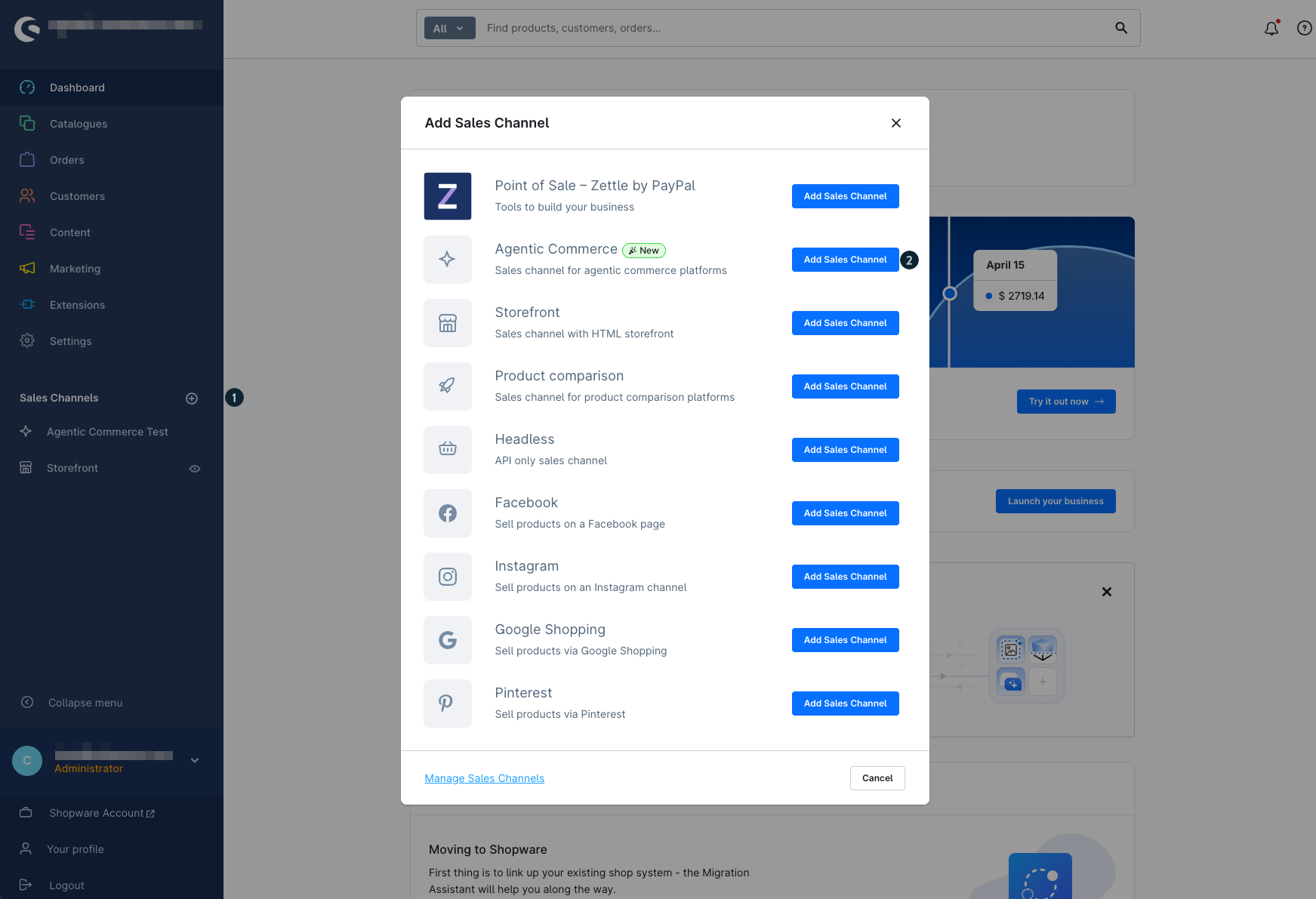
In the menu of your Shopware Administration, go to Sales channels. Click the plus icon (1) to create a new Agentic Commerce sales channel (2). You will then be taken to the basic settings.
General
Basic settings
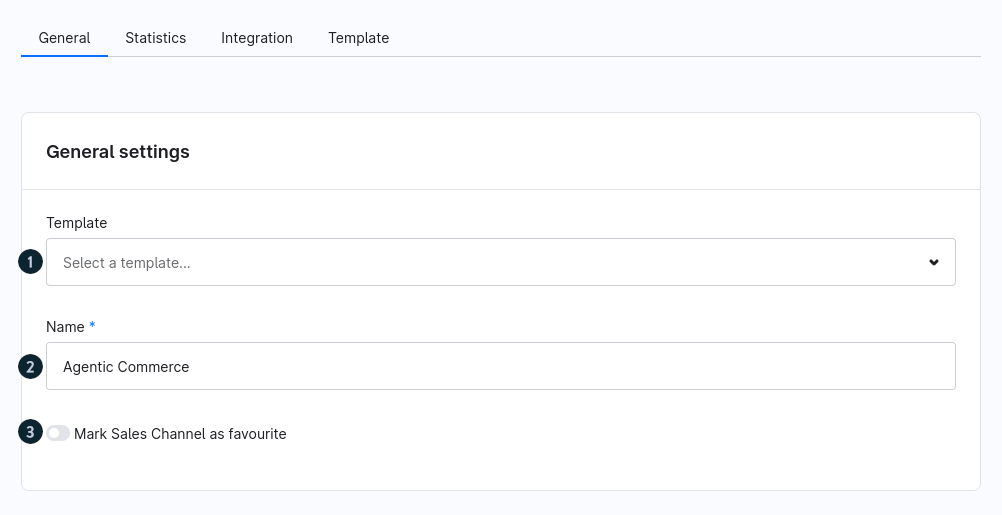
Template (1): Select a suitable template. Currently, the OpenAI template is available, allowing you to get started right away.
Name (2): Enter a unique name for the sales channel.
Mark sales channel as favourite (3): Optionally mark the sales channel as a favorite to find it more quickly.
OpenAI settings
In Shopware, properties such as color or size are not predefined system properties. If you want to use them, you first need to create them as properties in your shop. By default, only basic dimensions such as height, length, width, or weight (including units) are available.
To ensure AI platforms can process this information correctly, you need to map your existing properties to the corresponding fields (e.g. color, size, or size system) in the OpenAI settings. This mapping is required because there is no standardized structure for such properties.
The return policy URL is also mandatory. Since Shopware does not provide a unified return page and legal requirements vary by region (e.g. right of withdrawal in the EU), you need to provide your own page. This page should clearly describe the conditions under which products can be returned.
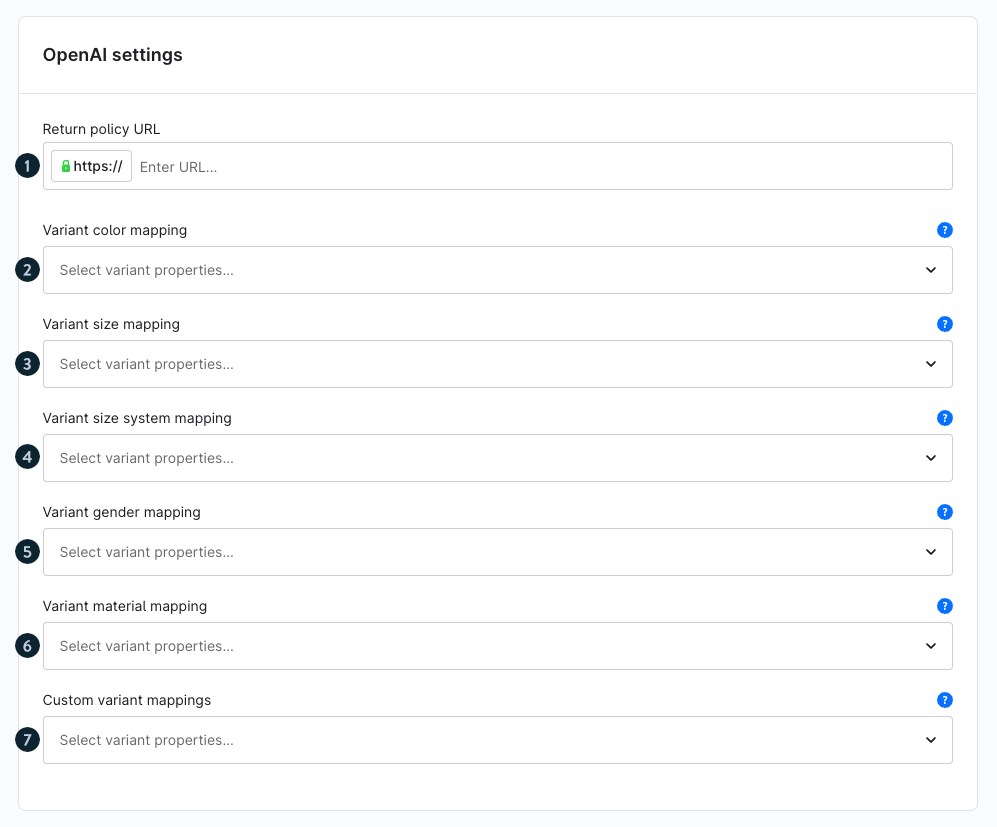
- Return policy URL (1): Enter the URL so AI platforms can display your return conditions.
- Variant color mapping (2): Assign a property for the variant color.
Variant size mapping (3): Assign a property for variant sizes.
Variant size system mapping (4): Define the size system for variants.
Variant gender mapping (5): Assign a property for gender.
Variant material mapping (6): Assign a property for material.
Custom variant mappings (7): Optionally define additional mappings for custom attributes.
Google Settings
In the Google Settings section, you map the variant properties used in your shop to attributes supported by Google. This ensures that variant information is transferred correctly in the product feed and processed properly by Google.
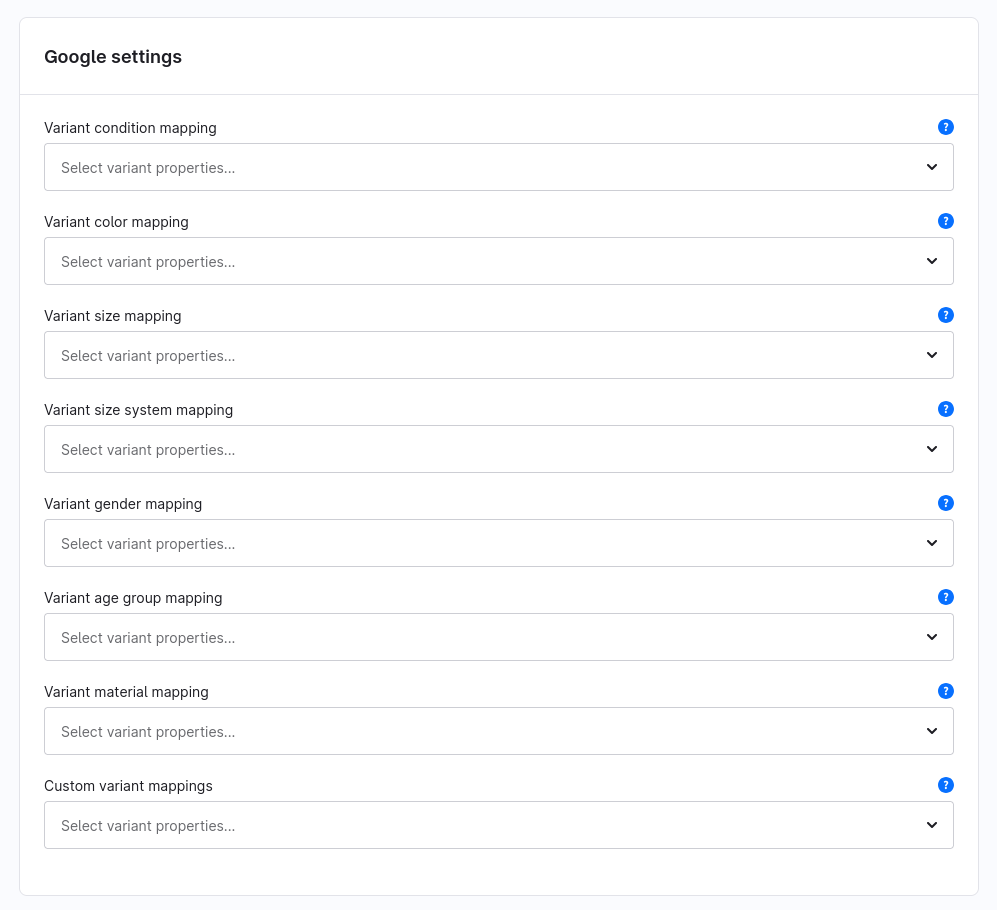
You can assign a suitable variant property to each of the following Google attributes:
Condition
Color
Size
Size System
Gender
Age Group
Material
In addition, you can use Custom Variant Mapping to assign additional variant properties to custom Google attributes if they are not covered by the predefined fields.
Tracking codes
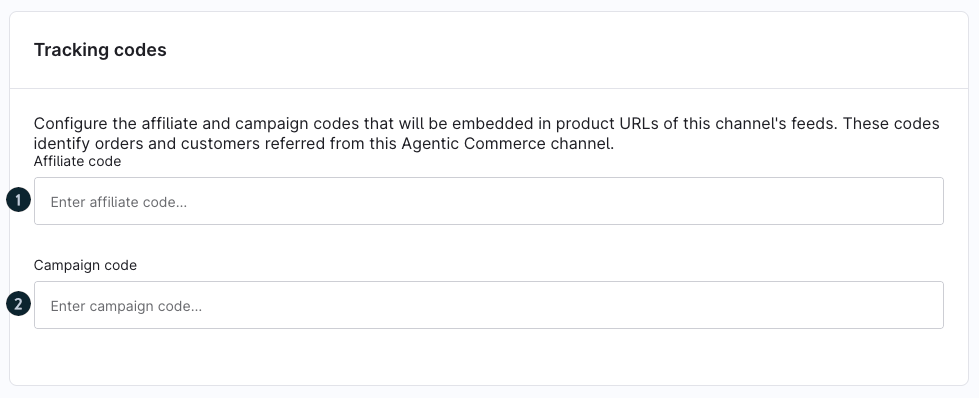
Affiliate code (1): Enter an affiliate code to assign orders and customers to this sales channel.
Campaign code (2): Optionally add a campaign code to analyze traffic and conversions in more detail.
Storefront sales channel
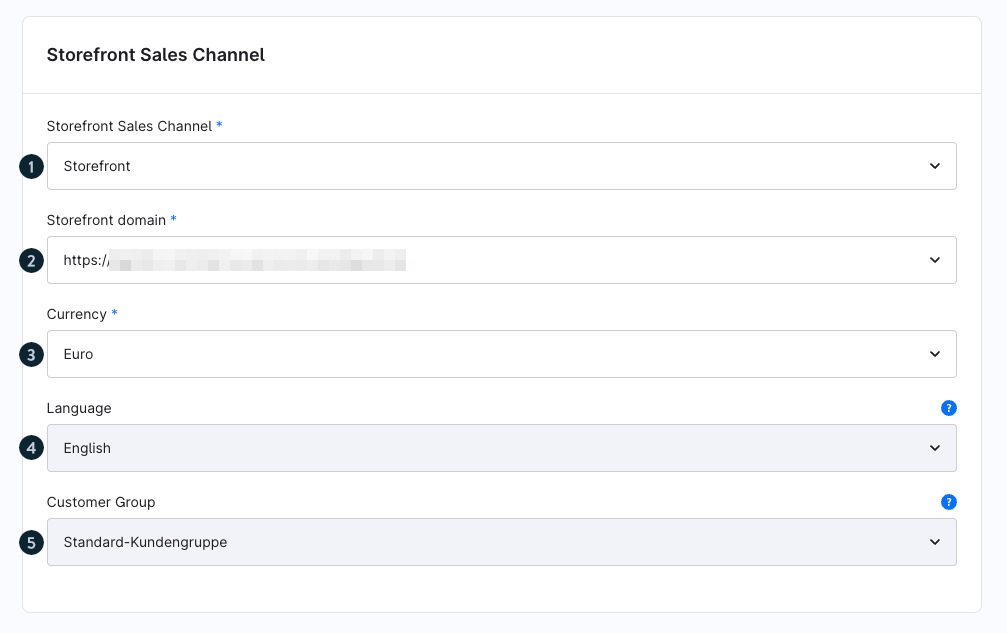
- Storefront Sales Channel (1): Select the storefront sales channel that provides the product data.
- Storefront domain (2): Define the domain used for product URLs.
Currency (3): Select the desired currency. This field appears once a storefront sales channel and domain are selected.
Language (4): Automatically determined based on the selected sales channel.
Customer Group (5): Automatically filled based on the selected sales channel.
Product export
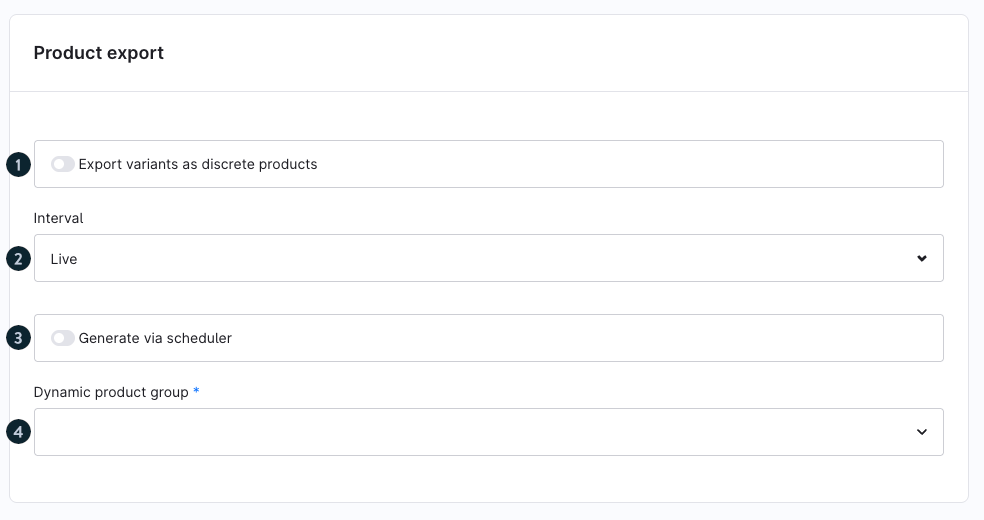
- Export variants as discrete products (1): Enable if each variant should appear individually in the feed.
- Interval (2): Define how up-to-date the feed should be (e.g. “Live”).
- Generate via scheduler (3): Enable this option to let the system automatically generate the export. If disabled, the feed is generated when the URL is accessed, which may result in longer loading times after the interval expires.
Dynamic product group (4): Select a dynamic product group to define which products are included in the feed.
Status
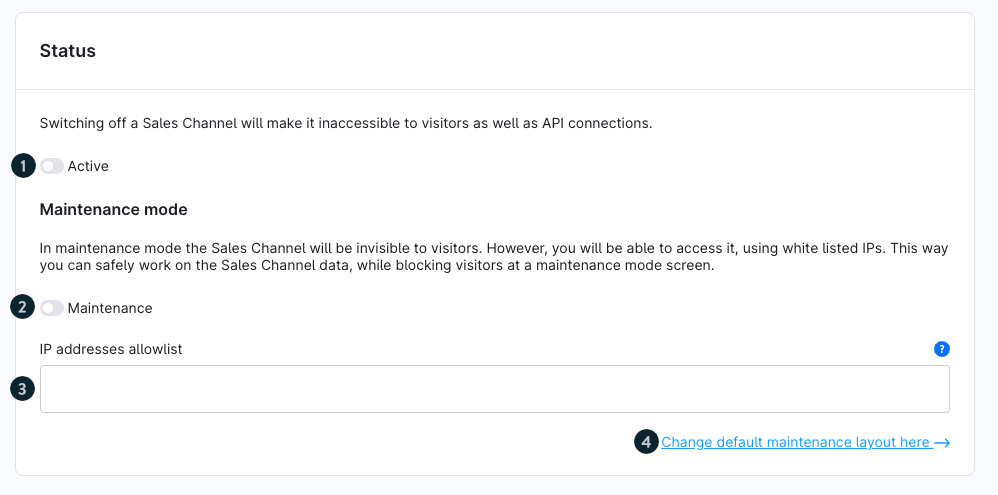
- Active (1): Enable the sales channel so it is accessible for API connections and feeds.
- Maintenance (2): Optionally enable maintenance mode while making changes.
IP addresses allowlist (3): Add IP addresses to allow continued access.
Change default maintenance layout here (4): Customize the maintenance page layout.
Delete sales channel

You can permanently delete the sales channel using the Delete Sales Channel button.
Note that this action cannot be undone.
Integration
Set up OpenAI connection
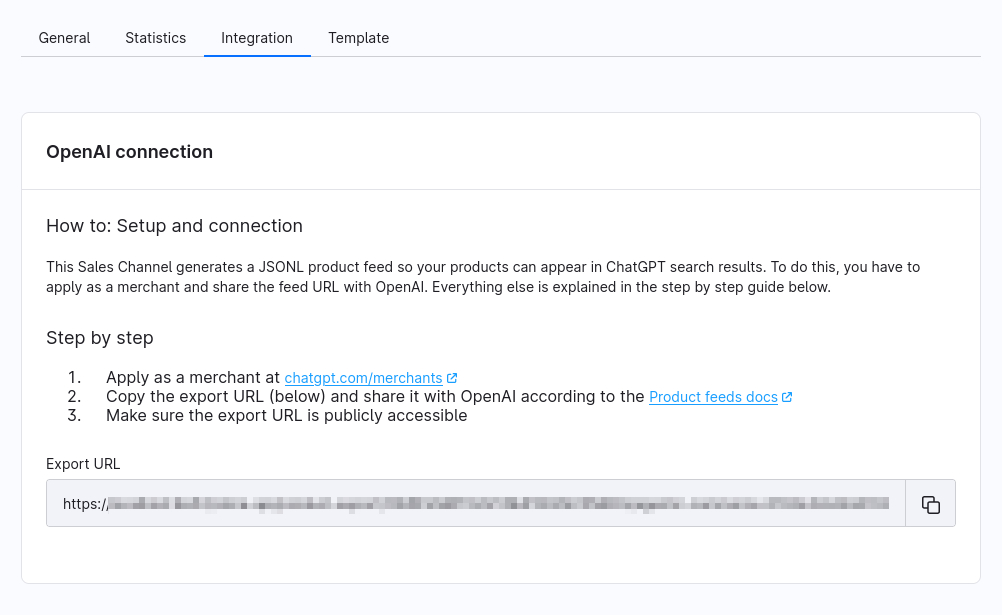
Go to chatgpt.com/merchants and register as a merchant.
Copy the export URL of your feed and submit it to OpenAI according to the product feed documentation.
Make sure the export URL is publicly accessible.
Notes on the OpenAI connection
The export provides a JSONL feed that OpenAI regularly retrieves to index your products.
Product changes are automatically reflected depending on the generation interval.
Ensure the feed URL is permanently accessible and does not require authentication.
If the feed is not publicly accessible, your products cannot appear on AI platforms.
It may take some time after submission for products to appear in ChatGPT search results.
If issues occur, verify that the feed is generated correctly and contains valid product data.
Connect Google Merchant Center
In the Integration tab, you will find the export URL of your Google Product Feed. You can use this URL as a data source in Google Merchant Center, allowing Google to regularly import product data from your shop.
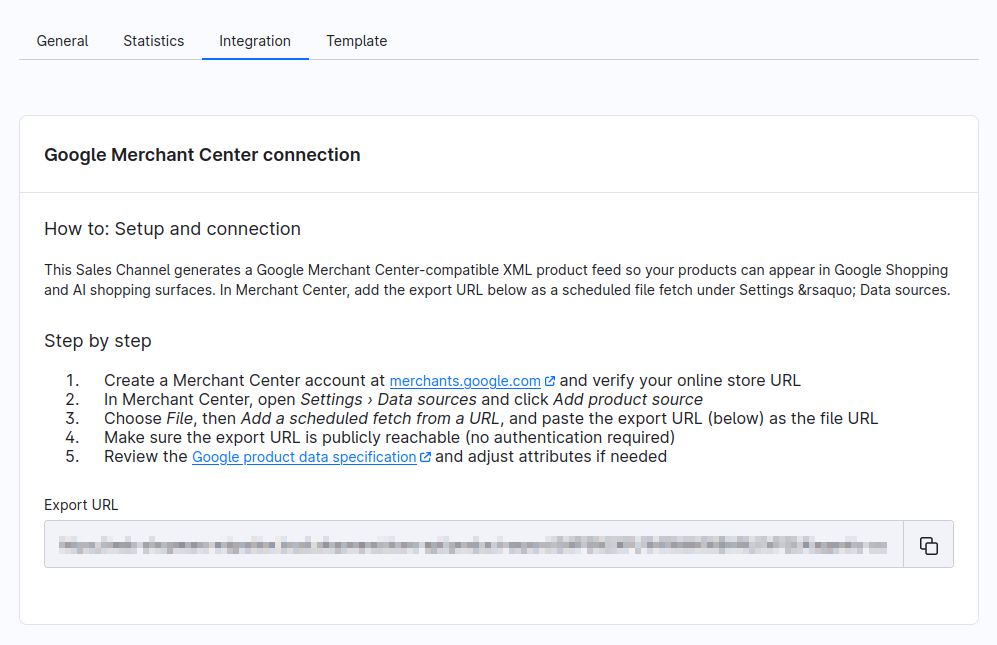
To connect the feed to Google Merchant Center, follow these steps:
Create a Google Merchant Center account and verify your shop URL.
Open the data source settings in Google Merchant Center and create a new product source.
Select a scheduled fetch via URL and enter the export URL displayed in the sales channel.
Ensure that the export URL is publicly accessible and does not require authentication.
After the initial import, review the product data detected by Google and adjust the feed configuration if necessary.
Note: The export URL is generated automatically by Shopware. Changes to your product catalog are provided through the feed and can be picked up by Google during the next synchronization.
Template
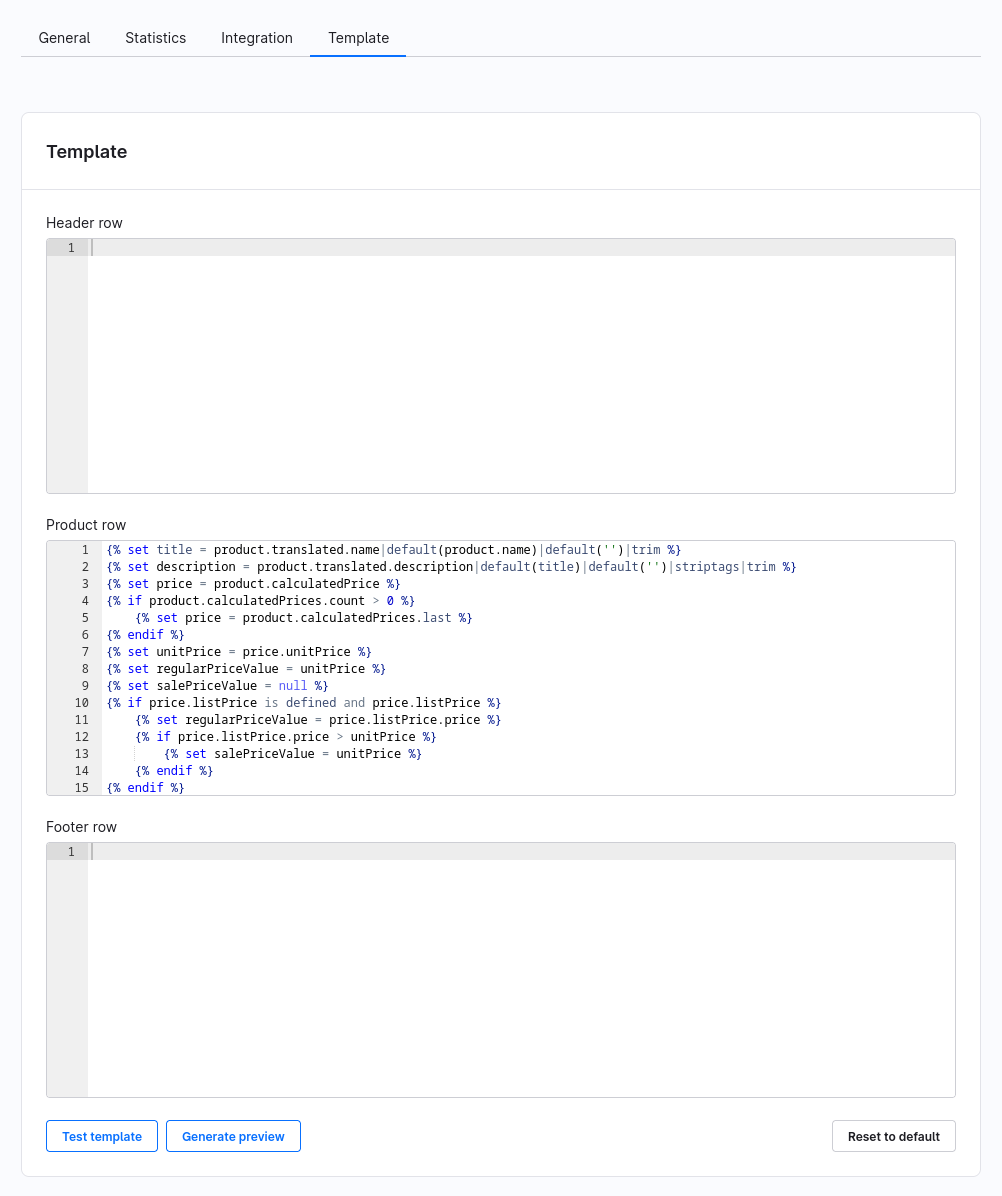
Customize feed template
- Header row: Define optional entries that appear once at the beginning of the feed.
- Product row: Contains the logic for exporting product data and is executed for each product.
- Footer row: Optionally add content at the end of the feed.
The template uses Shopware’s Twig syntax for flexible customization.
Use Test template to validate functionality.
Use Generate preview to view sample output.
Use Reset to default to restore the original template.
Statistics
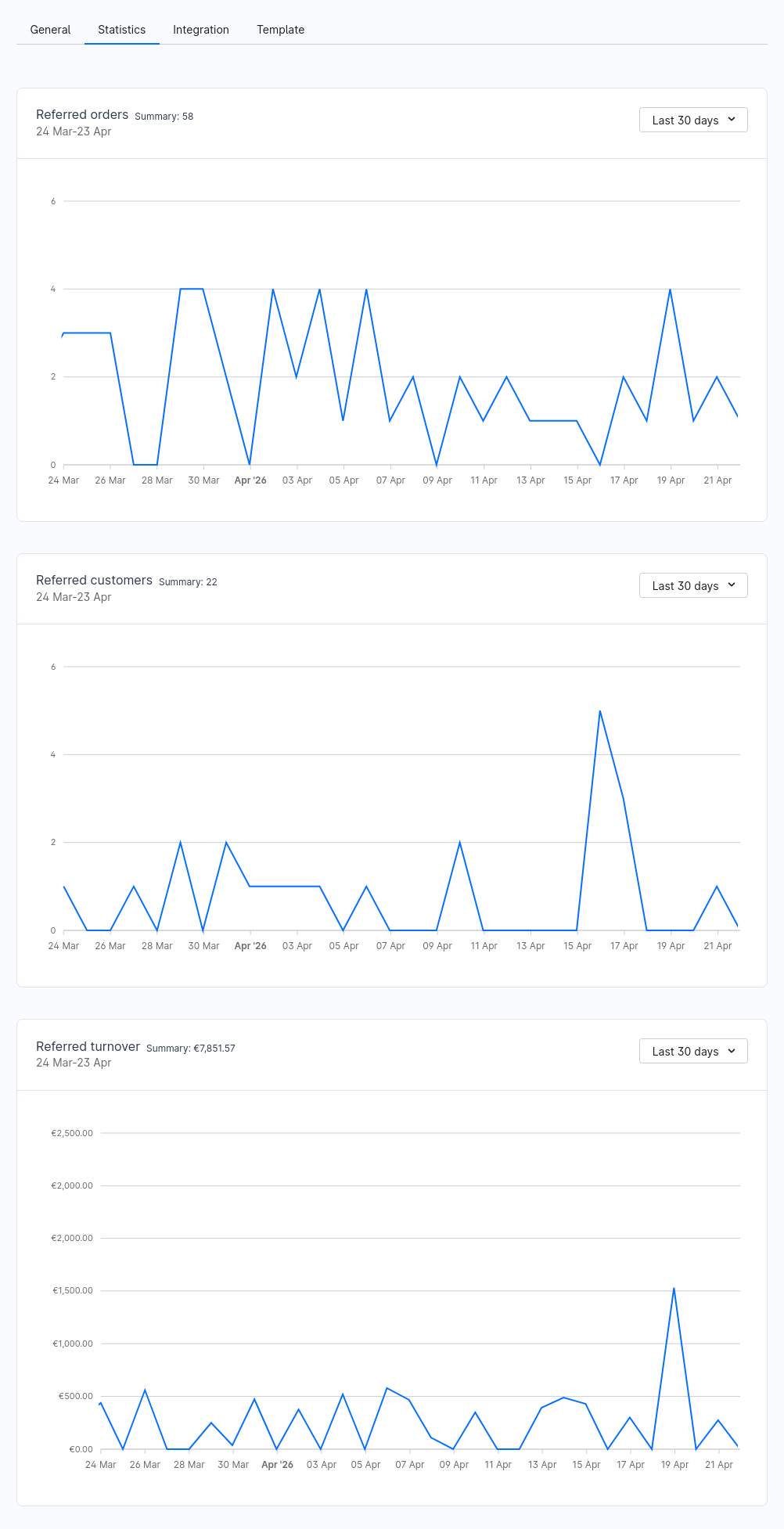
Analyze statistics
- Referred orders: See how many orders were generated via the Agentic Commerce channel.
- Referred customers: See how many new customers were acquired via AI platforms.
Referred turnover: Get an overview of revenue generated through this channel.
Use the time filter (e.g. “Last 30 days”) to adjust the analysis.
UCP (Universal Commerce Protocol)
With the Universal Commerce Protocol (UCP), AI agents can discover your shop, browse your catalogue, and buy on behalf of a shopper. You configure UCP per sales channel, independently of an Agentic Commerce product feed channel. The settings are in the Agentic Commerce tab of a Storefront or Headless sales channel.
Changes take effect only after you save the sales channel. As long as there are unsaved changes, a notice is shown at the top of the tab. To edit the settings, the administration user needs the permission to edit the UCP configuration.
Exposure
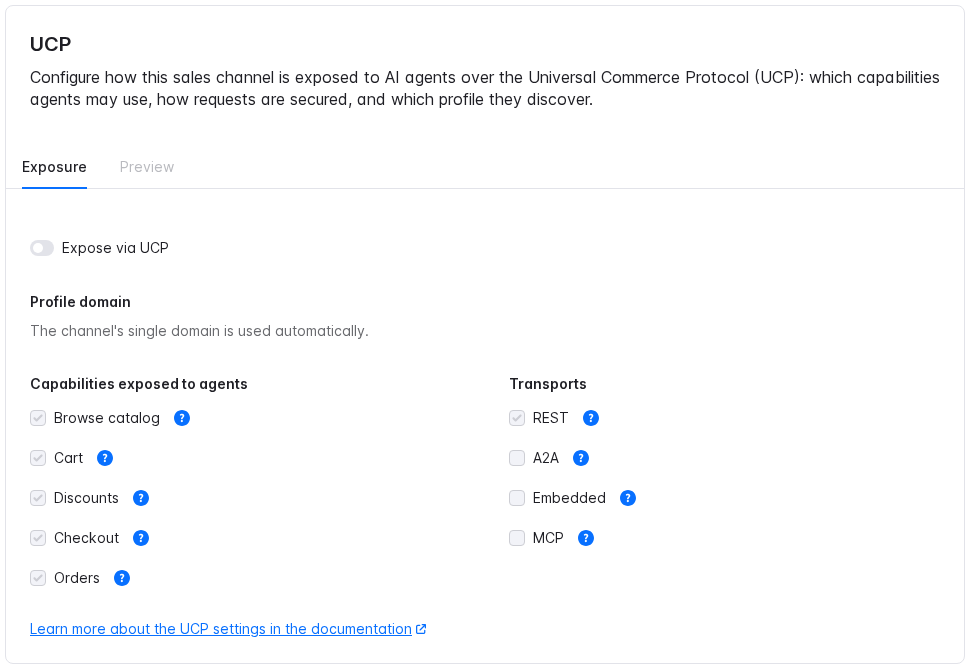
Expose via UCP: Publishes the UCP profile of the sales channel at /.well-known/ucp. Agents read this profile to find out what your shop offers. If the switch is off, agents cannot use the sales channel via UCP and the other settings are locked.
Profile domain: The domain the profile is published on. If the sales channel has one domain, it is used automatically. If it has several, select one; without a selection, the first domain is used. A sales channel without a domain cannot be exposed.
Capabilities exposed to agents: What agents may do in your shop. All capabilities are active by default. A deactivated capability is removed from the profile, and agents can no longer use it.
| Capability | What agents can do | Specification |
|---|---|---|
| Browse catalog | Search products and read product details, listings and prices. | Catalog |
| Cart | Create and update a cart. | Cart |
| Discounts | Apply promotion codes to a cart or checkout. | Discount |
| Checkout | Complete a checkout and place the order for the shopper. | Checkout |
| Orders | Read the order status after the purchase. | Order |
Transports: How agents connect to your shop. Select the transports the agents you want to reach support. At least one transport is required; REST is active by default.
| Transport | Use it for | Specification |
|---|---|---|
| REST | Agents that call a standard HTTP API. Supported by most agents. | REST |
| A2A | Agents that talk to other agents (Agent2Agent protocol). | A2A |
| Embedded | Showing your checkout inside the agent's interface. | Embedded |
| MCP | AI assistants that use tools via the Model Context Protocol. Starting with Shopware 6.7. | MCP |
Below the lists, the link Learn more about the UCP settings in the documentation opens this section.
Preview: Available when UCP is active. Shows the profile as agents will see it, including unsaved changes. Check it before you save.
Agentic files
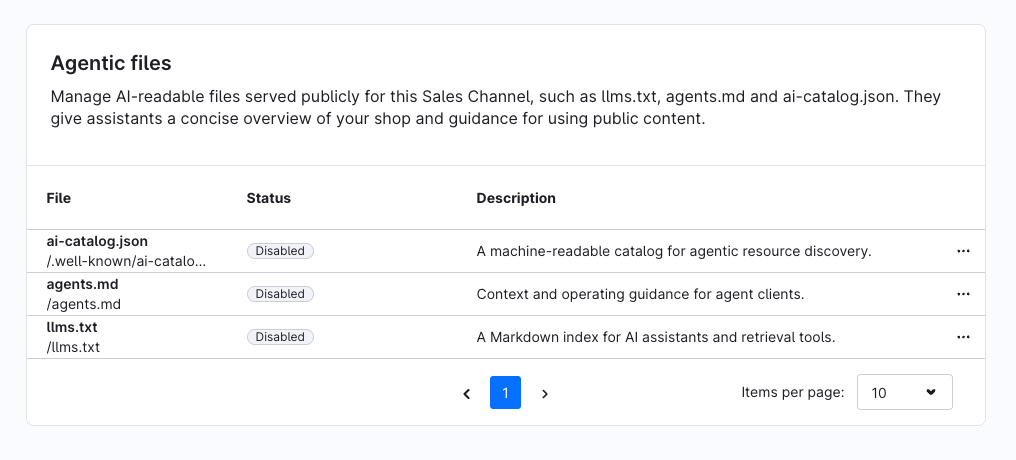
In the Agentic files section, you manage AI-readable files that are made publicly available for this sales channel. They provide AI assistants with information about your shop as well as guidance on how public content can be used.
The following Agentic files are available:
- ai-catalog.json: A machine-readable catalog for Agentic Resource Discovery.
agents.md: Provides context and instructions for agent clients.
llms.txt: A Markdown index for AI assistants and retrieval tools.
The overview shows the current status and a brief description for each file.