


Advanced Search
The Advanced Search is available to you as an extension of the Shopware Evolve plan.
The Advanced Search gives you easy configuration options and high performance due to the Elasticsearch foundation.
Advanced Search can be used as a separate extension up to Shopware 6.4.20.2; the extension can no longer be installed in version 6.5.x.x. The successor Advanced Search 2.0 is available from Shopware 6.5.4.0 and requires OpenSearch as the search engine from Shopware version 6.5.6.0. The functionality is automatically available in the admin, if the Commercial plugin was installed and activated. You can find out more about the successor to this extension here.
Requirements
Since Advanced Search is based on Elasticsearch, an Elasticsearch instance is a basic requirement for operation. How to integrate Elasticsearch into Shopware 6 is explained here.
Installation
As part of the Shopware Evolve plan, Advanced Search is available to you as an extension.
You can download and install the extension under Extension > My Extensions.
If you have logged in to the Shopware Account tab, the extension will be listed in the General tab and can be installed via the "..." button.
After the extension is installed, you can activate it using the button to the left of the extension.
You can find more information about extension management here.
Could not install plugin
Should you receive the following message during the installation of the extension
"Could not install plugin, got 1 failure(s). Required plugin/package "shopware/platform >=v6.0
it is necessary to adjust the composer.json of the extension.
You can find the extension in the Shopware directory under /custom/plugins/SwagEnterpriseSearchPlatform.
In the composer.json you have to adjust the following code
"require": {
"shopware/platform": ">=6.1.0 < 6.3.0"
},
Replace the entry
"shopware/platform": ">=6.1.0 < 6.3.0"
with
"shopware/core": ">=6.1.0 < 6.3.0",
"shopware/storefront": ">=6.1.0 < 6.3.0",
"shopware/administration": ">=6.1.0 < 6.3.0",
"shopware/elasticsearch": ">=6.1.0 < 6.3.0"
After you have saved the changes, you can install the extension in the admin under Extensions > My Extensions.
Special Characters in Product Numbers
By default, Shopware allows only a predefined set of special characters to prevent issues with indexing and search. This configuration is defined in the file /src/Core/Framework/Resources/config/packages/shopware.yaml under preserved_chars:
preserved_chars: ['-', '_', '+', '.', '@']
Since shops often use their own special characters, it is recommended to adjust the configuration if needed. To do so, create a file config/packages/shopware.yaml and override the preserved_chars setting to add the required characters, for example:
shopware:
  search:
    preserved_chars: ['-', '_', '+', '.', '@', '/']
In all new Shopware projects, the installation under config/packages/ now contains only a lock.yaml file. This may also be the case if you performed an update and the .yaml files under config/packages/ were part of the default setup.
If this applies to your installation, you need to create a new shopware.yaml file and add the configuration adjustments there!
Configuration
You can find the configuration of the Advanced Search under Settings > Extensions > Shopware Advanced Search.
Overview
In the tab overview you can configure the basic configuration of the search.
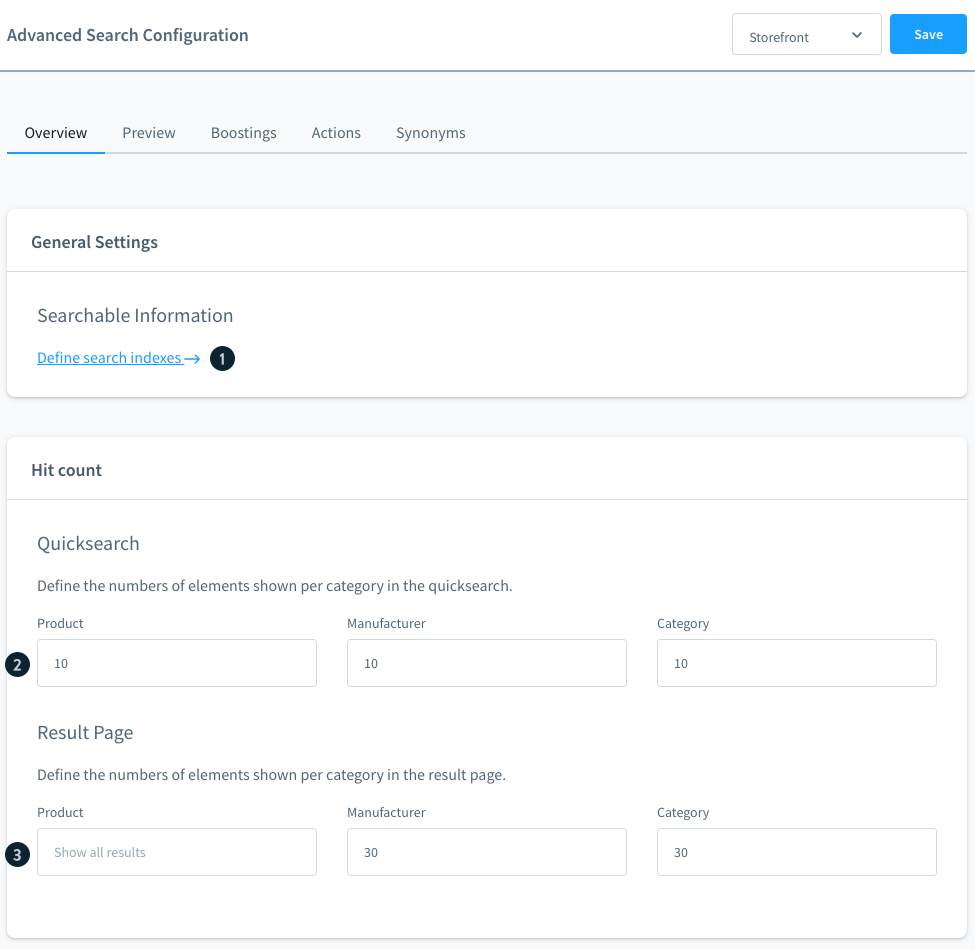
In the General Settings section, Which information is indexed or even boosted (1) calls up a modal in which you specify the records to be considered for the search.
In the hit count section you define the number of elements displayed in the quicksearch (2) and on the search results page (3).
Searchable information
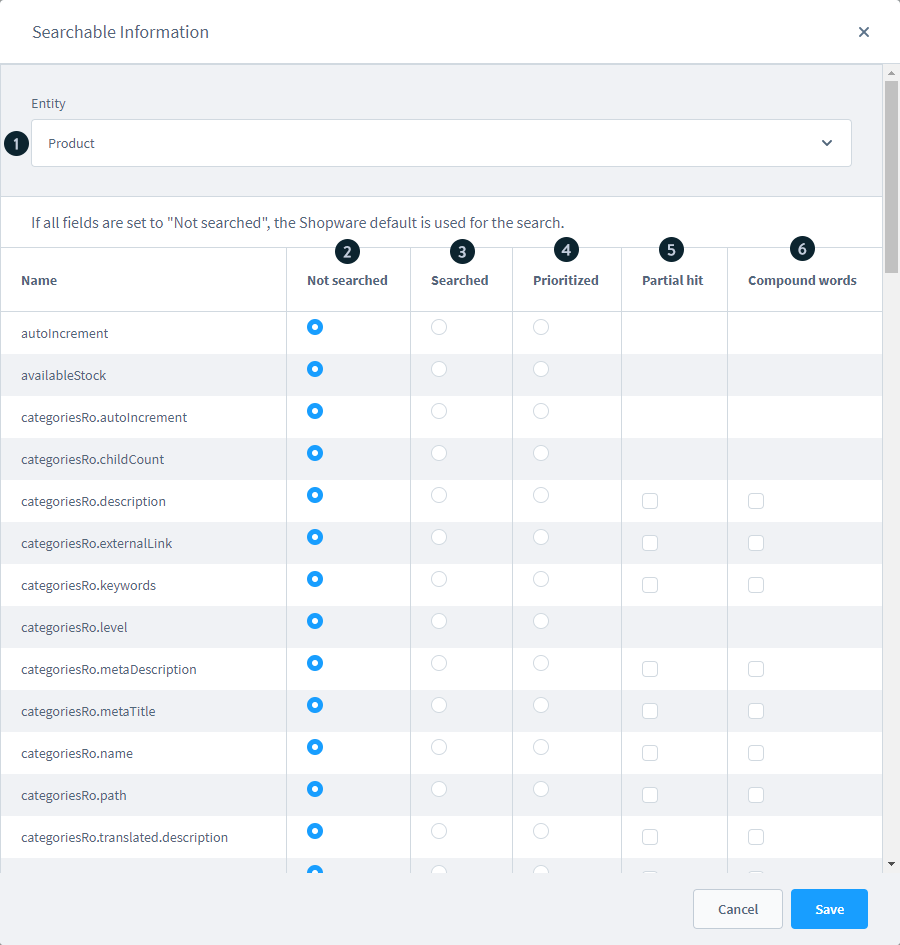
To specify the data to be searched, first select the entity (1) for which you want to make the setting. In the Advanced Search, products, categories and manufacturers can be searched.
Afterwards a list with all available records for the selected entity will be displayed below. There you can determine whether each record should not be searched (2), searched (3) or prioritized (4).
Prioritized means that hits are given twice the weighting for the content of this record.
For records that are defined as text (e.g. varchar) at database level, you can also specify whether partial hits (5) should also be included and whether compound words (6) should also be included.
Partial hits are smaller word parts of a longer term (e.g. keyboard)
For compound words, several words are combined even without entering a space (key board also finds keyboard)
After you have initially configured the indexing settings, it is necessary to perform indexing from the server console. For information on how to perform indexing, see the section Indexing.
Please note that the configuration of the indexed data is currently not possible for specific sales channels.
The most important variables are explained below:
| Field | Description |
|---|---|
| fullText | Standard Shopware field with low priority |
| fullTextBoosted | Standard Shopware field with higher priority |
| price.gross | Gross price |
| price.net | Net price |
| productNumber | Product number |
| stock | Stock |
| restockTime | Replenishment time in days |
| autoIncrement | Graduation |
| availableStock | Available stock |
| variation | Product variant |
| displayGroup | String field with IDs to display the content |
| manufacturerNumber | Manufacturer number |
| ean | EAN number |
| purchaseSteps | Quantity steps of purchase |
| maxPurchase | Maximum purchase |
| minPurchase | Minimum purchase |
| purchaseUnit | Sales unit |
| referenceUnit | Basic unit |
| purchasePrices.gross | Gross purchase price |
| purchasePrices.net | Net purchase price |
| weight | Weight |
| width | Width |
| height | Height |
| length | Length |
| ratingAverage | Valuation on average |
| categoryTree | Category tree |
| propertyIds | Properties IDs |
| optionIds | IDs of the options |
| tagIds | Tag IDs |
| categoryIds | Category IDs |
| childCount | Number of variants |
| sales | Sales |
| metaDescription | Meta product description |
| name | Product name |
| keywords | Search keywords |
| description | Product description |
| metaTitle | Meta title |
| packUnit | Packaging unit |
| packUnitPlural | Packaging unit-multiple |
| customSearchKeywords | Search keywords defined in admin |
| deliveryTime.unit | Delivery time unit |
| deliveryTime.max | Maximum delivery time |
| deliveryTime.min | Minimum delivery time |
| deliveryTime.name | Name of delivery time |
| tax.position | Position of the tax |
| tax.name | Tax name |
| tax.taxRate | Tax percentage |
| manufacturer.description | Manufacturer description |
| manufacturer.name | Manufacturer name |
| manufacturer.link | Link of the manufacturer |
| unit.name | Unit of measurement name |
| unit.shortCode | Unit of measurement short form |
| cover.position | Position of the preview image in the media overview of the item. |
| cmsPage.entity | Element |
| cmsPage.type | Layout type of the deposited experience world |
| cmsPage.name | Name of the deposited experience world |
| canonicalProduct.customSearchKeywords | SEO data of the respective value |
| canonicalProduct.packUnitPlural | SEO data of the respective value |
| canonicalProduct.packUnit | SEO data of the respective value |
| canonicalProduct.metaTitle | SEO data of the respective value |
| canonicalProduct.description | SEO data of the respective value |
| canonicalProduct.keywords | SEO data of the respective value |
| canonicalProduct.name | SEO data of the respective value |
| canonicalProduct.metaDescription | SEO data of the respective value |
| canonicalProduct.sales | SEO data of the respective value |
| canonicalProduct.childCount | SEO data of the respective value |
| canonicalProduct.categoryIds | SEO data of the respective value |
| canonicalProduct.tagIds | SEO data of the respective value |
| canonicalProduct.streamIds | SEO data of the respective value |
| canonicalProduct.optionIds | SEO data of the respective value |
| canonicalProduct.propertyIds | SEO data of the respective value |
| canonicalProduct.categoryTree | SEO data of the respective value |
| canonicalProduct.ratingAverage | SEO data of the respective value |
| canonicalProduct.length | SEO data of the respective value |
| canonicalProduct.height | SEO data of the respective value |
| canonicalProduct.width | SEO data of the respective value |
| canonicalProduct.weight | SEO data of the respective value |
| canonicalProduct.purchasePrices.gross | SEO data of the respective value |
| canonicalProduct.purchasePrices.net | SEO data of the respective value |
| canonicalProduct.referenceUnit | SEO data of the respective value |
| canonicalProduct.purchaseUnit | SEO data of the respective value |
| canonicalProduct.minPurchase | SEO data of the respective value |
| canonicalProduct.maxPurchase | SEO data of the respective value |
| canonicalProduct.purchaseSteps | SEO data of the respective value |
| canonicalProduct.ean | SEO data of the respective value |
| canonicalProduct.manufacturerNumber | SEO data of the respective value |
| canonicalProduct.displayGroup | SEO data of the respective value |
| canonicalProduct.variation | SEO data of the respective value |
| canonicalProduct.availableStock | SEO data of the respective value |
| canonicalProduct.autoIncrement | SEO data of the respective value |
| canonicalProduct.restockTime | SEO data of the respective value |
| canonicalProduct.stock | SEO data of the respective value |
| canonicalProduct.productNumber | SEO data of the respective value |
| canonicalProduct.price.gross | SEO data of the respective value |
| canonicalProduct.price.net | SEO data of the respective value |
| prices.quantityEnd | Maximum quantity of the product that must be in the shopping cart for this price to be valid. |
| prices.quantityStart | Minimum quantity of the product that must be in the shopping cart for this price to apply. |
| crossSellings.limit | Maximum number of products |
| crossSellings.type | Cross selling type |
| crossSellings.sortDirection | Cross selling order Direction |
| crossSellings.sortBy | Cross selling order |
| crossSellings.position | Cross selling position |
| crossSellings.name | Cross selling name |
| visibilities.visibility | Visibility |
| searchKeywords.ranking | Search Keyword |
| searchKeywords.keyword | Search Ranking |
| productReviews.comment | Product review comment |
| productReviews.points | Product review rating |
| productReviews.content | Product rating content |
| productReviews.title | Product review title |
| productReviews.externalEmail | Mail of the end customer |
| productReviews.externalUser | First name of the end customer |
| seoUrls.url | SEO URL |
| orderLineItems.type | Type of ordered position |
| orderLineItems.totalPrice | Total price of the ordered item |
| orderLineItems.unitPrice | Unit price of the ordered position |
| orderLineItems.quantity | Quantity of the ordered position |
| orderLineItems.price | Price field |
| orderLineItems.discount | Discount of the ordered item |
| orderLineItems.percentage | Discount percentage |
| orderLineItems.label | Name of the ordered item |
| orderLineItems.referencedId | Product ID of the ordered item |
| orderLineItems.identifier | Product ID of the ordered item |
| options.colorHexCode | Color code of the color stored in the property. |
| options.name | Name of the variant |
| properties.colorHexCode | Color hex code of the property |
| properties.position | Position of the property |
| properties.name | Name of the property |
| categories.keywords | Category Keywords |
| categories.metaDescription | Category Meta Description |
| categories.metaTitle | Category Meta Title |
| categories.description | Category Description |
| categories.externalLink | Category External Link |
| categories.linkType | Category Link Type |
| categories.name | Category Name |
| categories.productAssignmentType | Product Assignment Type |
| categories.type | Category type |
| categories.childCount | Number of subcategories |
| categories.path | Category path |
| categories.level | Category level |
| categories.autoIncrement | Unique decimal number |
Preview
The preview allows you to test the search settings directly in Admin.
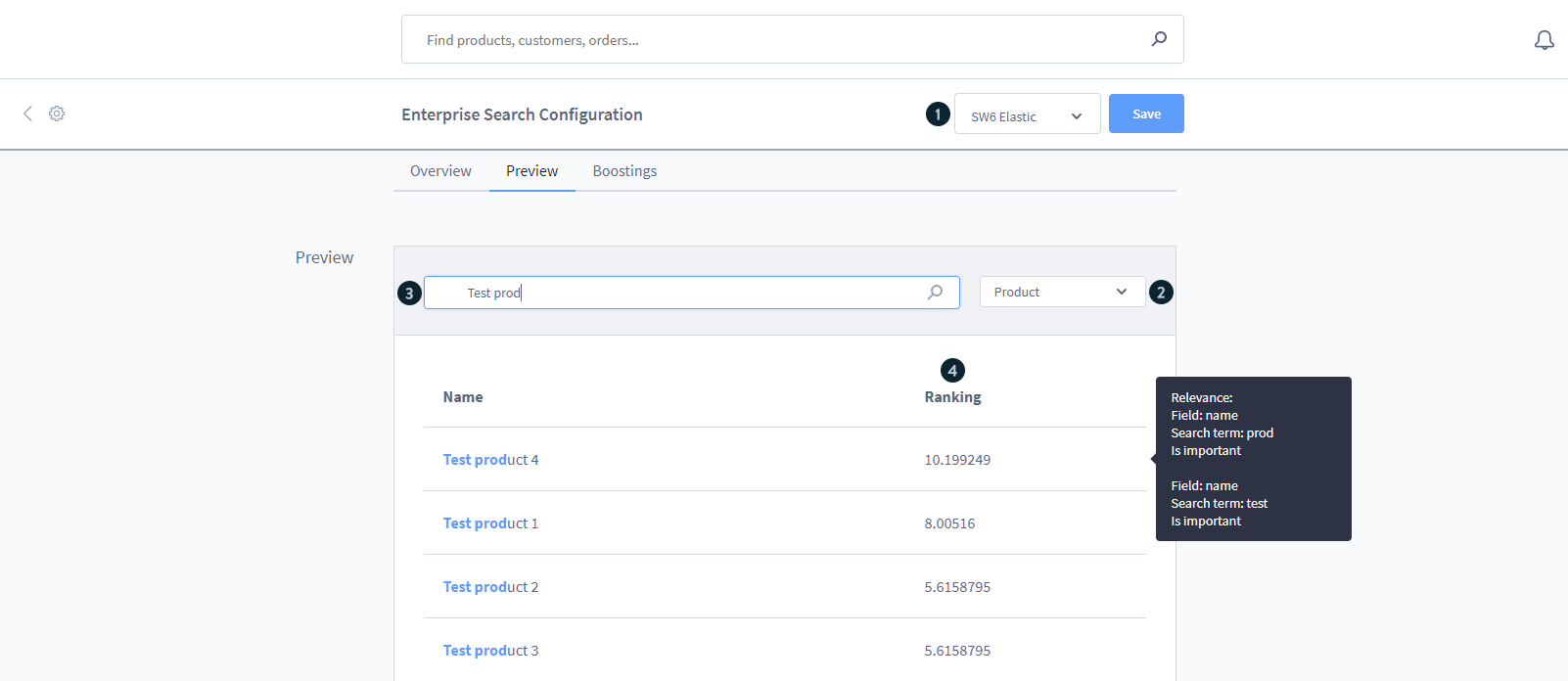
To use the preview, first select the sales channel (1) for which you want to test the search.
With the selection (2) next to the search field (3) you can determine whether you want to test the search for products, categories or manufacturers.
In this list you a ranking for the search results will also be shown, so that you can see the relevance of the search term. This ranking is calculated by means of the Elasticsearch search algorithms. You can get some more information about the ranking of a search result by hovering the mouse over the ranking of the search result..
Boostings
In addition to the prioritization of individual records to be searched, it is possible to create additional boosts. A boosting offers you specific configuration options, e.g. to display certain products further up in the search results.
Product boosting
Existing dynamic product groups are used for the boosting of products. The products that are available in the product group and to which the search query generally applies are given a higher rating.
If you have not yet created a corresponding dynamic product group, we recommend that you do so as a first step.
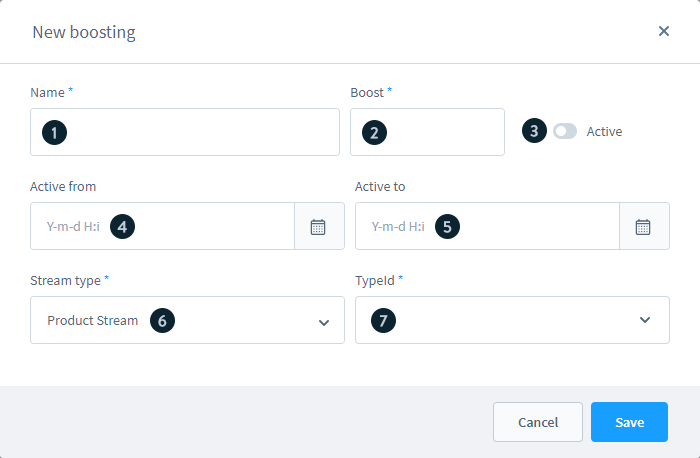
To configure a product boost, first enter a Name (1) and the desired boosting relevance in the field Boost (2). This boosting relevance is added to the products' already received relevance. To activate the boosting, click on the Active button (3).
Optionally it is possible to use the boosting only in a certain period of time. To do this, set the period in the fields Active from (4) and Active to (5).
As stream type (5) select Product Stream, this will display the field TypeId (7). In the TypeId selection field you can then choose from the existing dynamic product groups..
Category and manufacturer boosting
You can define your own rules for the boosting of categories and manufacturers directly in the boosting modal.
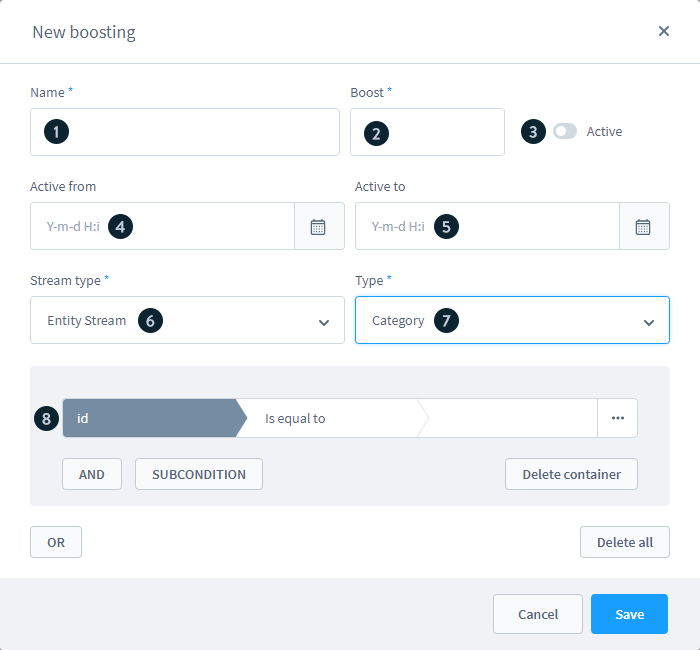
When configuring a category or manufacturer boost, first assign a name (1) and the desired boosting relevance in the field Boost (2). To activate this boosting, click on the Active button (3).
With the fields Active from (4) and Active to (5) you can limit the boosting in time without having to switch it on or off manually at a certain time.
As stream type (6) select Entity Stream, in the field Type (7) category or manufacturer.
Afterwards the possibility to create rules (8) is shown. This rule configuration is based on the Rule Builder. With this you can create individual conditions on the basis of which the boosting is to be applied.
Actions
With actions, it is possible to search for a specific phrases/keywords in the name. The customer will be forwarded automatically to a definied area (Url, product or categorie)
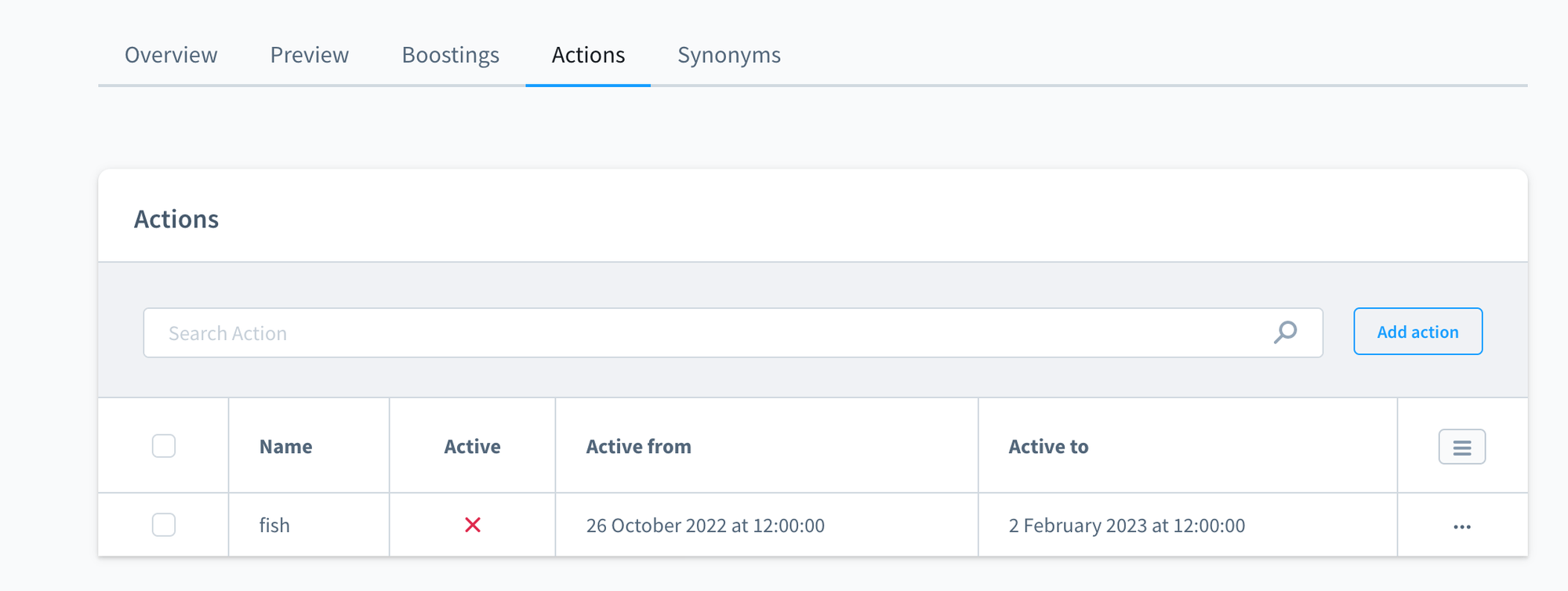
Add action
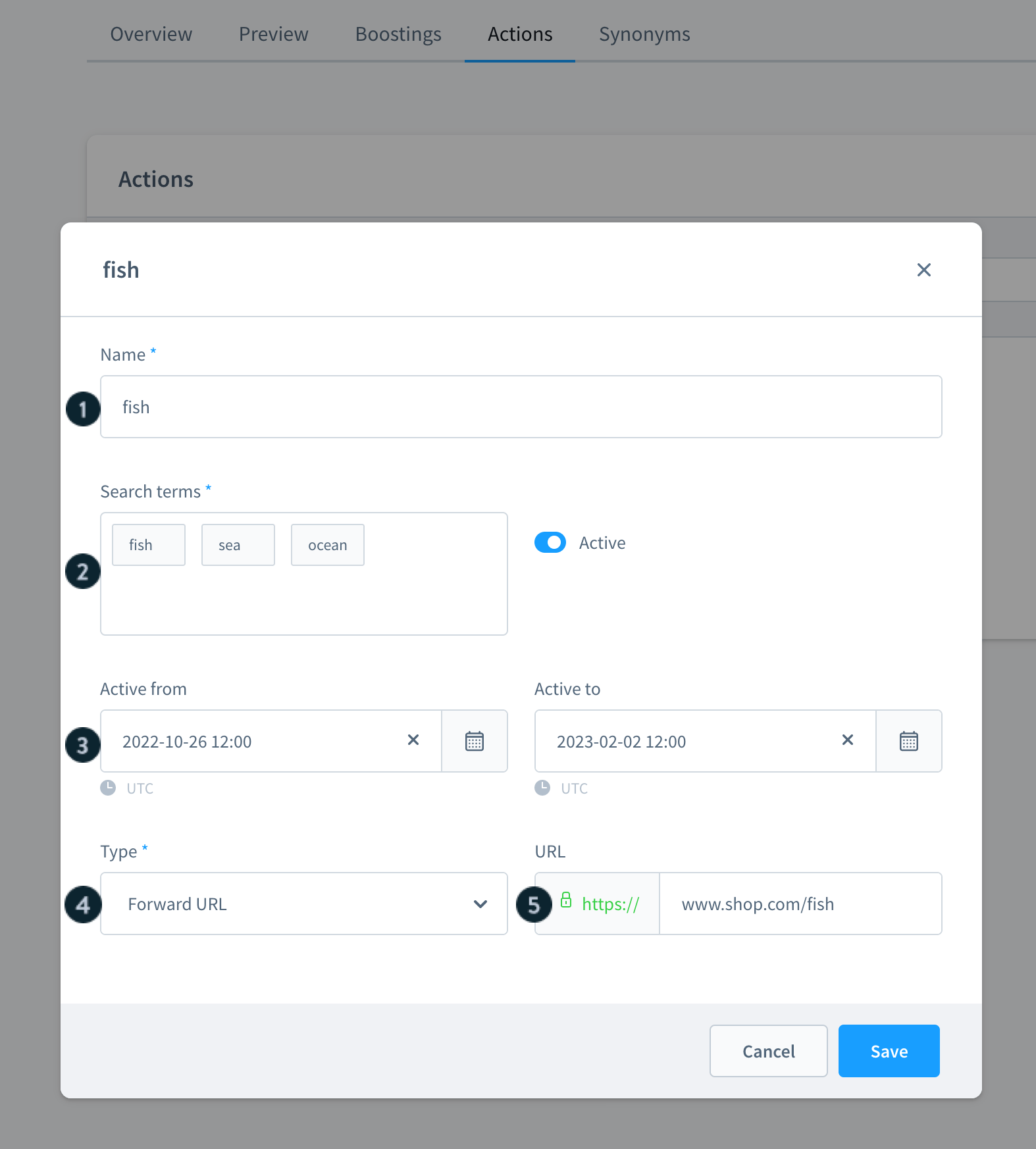
Name (1): Enter a name for the action.
Search terms (2): Here you can enter the search terms or keywords.
Active (3): Define in which period the promotion is valid.
Type (4): Here you can choose whether the customer should be redirected to a defined URL, product or category when the search term is searched.
URL / Product / Category (5): As mentioned in (4), you can define a URL, a product or a category, depending on the type you choose.
Synonyms
In search, the term "synonyms" usually refers to the function where search engines or search tools display alternative words or phrases that have a similar meaning to the search term entered. This feature helps users refine their search results by offering them similar terms or variations that might be relevant.
For example, if someone searches for "car," a search engine could potentially display synonyms such as "vehicle" or "motor vehicle" to give the user more options. This makes finding relevant information more accessible and expands the search results' scope.
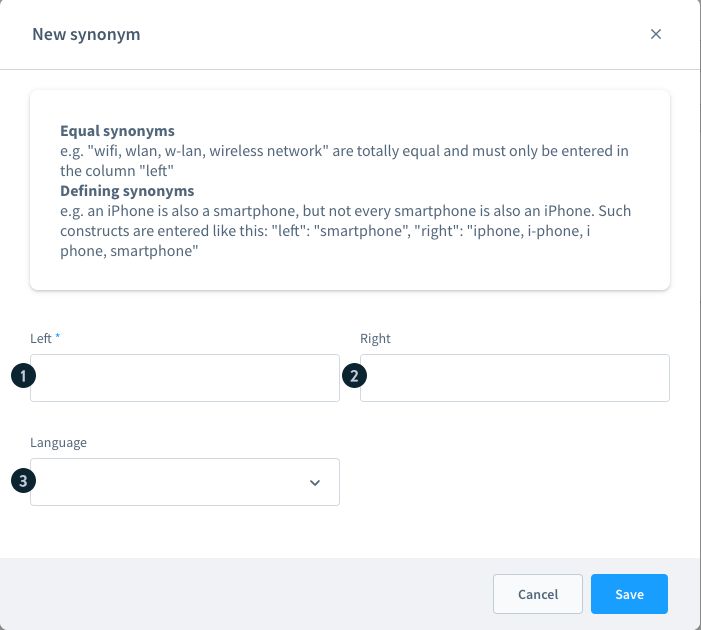
Left (1): Enter the synonym term for Equivalent or Defining synonyms here.
Language (2): Enter the language for the synonym.
Right (3): Enter a synonym term here that applies to Equivalent synonyms.
Indexing
After you have configured the Advanced Search for the first time, it is necessary to build the index. This is done in 3 steps in the server console..
First the indices are created or updated
php bin/console es:index
After this step has been completed, the second step is the processing via the message queue. In most systems this is done automatically by the Admin or CLI Worker. If you are unsure whether the message queue is processed automatically, please have a look at our documentation article about the Message Queue.
Finally you can create the aliases for the indexes. It should be said that this is usually done automatically. In some systems this can be however necessary. If the indexes have been created successfully, but you still do not see any products in your storefront, you can execute the following command.
php bin/console es:create:alias
The indexing works exactly the same way as with the technically underlying Elasticsearch integration.
Therefore you can find more information in the documentation of Elasticsearch.
So that now finally also new products and/or changes at existing products are taken over into the indices, it is necessary to set SHOPWARE_ES_INDEXING_ENABLED=1 in the .env file in your store directory to 1 (active). If you change the configuration or the search settings, it is necessary to rebuild the search index.