


3D Pipeline
The 3D Pipeline is a Shopware service that combines 3D file optimization and preview image generation. When the service is enabled for a media folder, uploaded 3D files are automatically processed in the background.
The files are optimized for web use, and preview images are generated. This can reduce loading times and improve the performance of the 3D viewer in the storefront. Previews can be displayed in places such as product listings, product detail pages, and the Media Manager.
The 3D Pipeline Service option is only visible if you have an active Shopware Intelligence+ subscription.
How does the 3D Pipeline Service work?
When the 3D Pipeline Service is enabled for a media folder, uploaded 3D files are automatically processed in the background. The files are optimized for web use by a service based on RapidPipeline. A preview image is also generated. No manual optimization is required.
Enable or disable the 3D Pipeline
You can enable or disable the service using the "3D optimization" option in the settings of the respective media folder. For more information, see the Settings section of the Media article.
Example workflow
You upload a 3D file, for example a
.glbfile, under Content > Media in the Admin.The 3D Pipeline Service optimizes the file and automatically generates a preview.
You receive a notification when the preview is ready.
The preview is visible in the Media Manager.
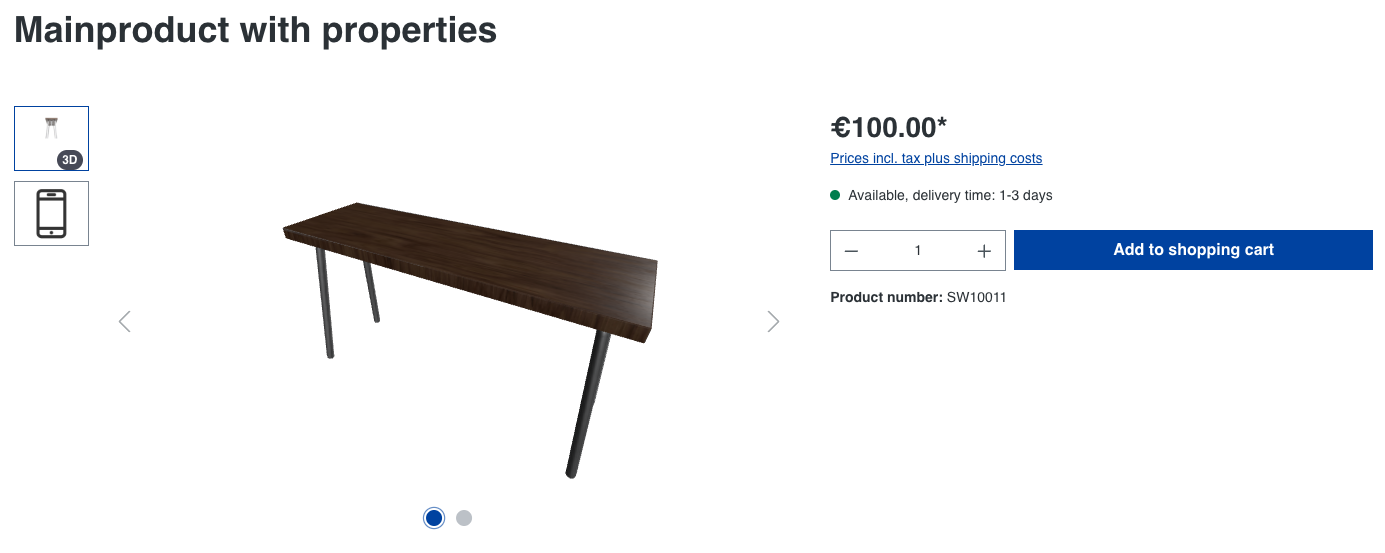
In the storefront, the preview image can be displayed in the gallery thumbnails on the product detail page, for example.
Technical implementation
Uploaded 3D files are processed by a third-party service based on RapidPipeline. The file size is optimized and previews are generated.
The provider does not store or otherwise use the files.
Notes
Compatibility
The 3D Pipeline is compatible with Shopware 6.7.14.0 and later.
Data processing
The 3D files are processed by the third-party provider RapidPipeline. RapidPipeline does not store the files or use them for any other purpose.
Note on updating existing installations
When updating to a Shopware version that includes the 3D Pipeline Service, preview images are not automatically generated retroactively for existing .glb files.
You can still generate previews in the following ways:
Upload the file again: Upload the
.glbfile again, either through the Media Manager or directly in the product. This triggers preview generation again.Trigger it manually using code: Alternatively, you can trigger generation manually using a custom script or plugin, for example, with a Symfony command or repository service call. This method is intended for technically experienced users or developers.
Important: Without one of these methods, existing 3D files without a preview remain visible in the storefront and Admin without a preview.